For prolonged laptop work, start with the position of the screen, keyboard and mouse rather than buying a dock by default. The Health and Safety Executive advises using separate input devices so a laptop screen can be raised, or using a separate display. A monitor suits a desk that stays set up; a riser with a separate keyboard and mouse is easier to put away, while a dock is worth considering only after checking the laptop’s display and charging compatibility.
Who is this setup for?
The right additions depend on how long you use the laptop, whether the desk stays assembled and what you connect each day.
Daily laptop-based home workers
If you spend sustained periods working on a laptop, screen and input position matter together. The Health and Safety Executive advises separate keyboard and mouse arrangements when raising a laptop screen for prolonged use.
Hybrid workers who clear the desk
If you move between home and another workplace, consider how much equipment you can carry or store and how many connections you must remake. The Health and Safety Executive includes routine hybrid home working in its display-screen-equipment guidance.
People using several windows or desk peripherals
If your work calls for an external screen, wired networking or several peripherals, check the laptop’s video outputs and charging requirements before choosing a monitor or dock. Connector shape alone does not establish what a USB-C port can do.
What should you choose first?
Decide how to position the screen and input devices, then check connections and how much of the setup needs to move.
| Priority |
What to check |
Your needs |
| Screen and input position |
For prolonged laptop use, plan a separate keyboard and mouse if raising the laptop screen, as the Health and Safety Executive advises. At a fixed desk, consider whether a separate display gives you a more useful screen position. |
I work at the laptop for long stretches and want to position the screen without having to type on a raised keyboard. |
| Display connection |
Match the laptop’s video output to the monitor input and required cable. For a USB-C display or dock, check DisplayPort Alt Mode or Thunderbolt support, plus the intended number of displays; Which? notes that USB-C video capability varies. |
A second screen would help with my work, but I need to know whether my laptop can connect to it in the way I intend. |
| Charging and peripherals |
If considering a dock or docking monitor, compare its delivered power with the laptop’s charging requirement. Check the ports, operating-system support and any power supply needed for the intended setup. |
I would rather reconnect my screen and desk peripherals through fewer connections, provided charging and display output work with my laptop. |
| Desk space and portability |
Check the space needed for a monitor or riser, separate input devices and cables. A direct display adapter may suffice for one screen; a dock is more relevant when several desk connections need bringing together. |
My desk may need clearing after work, so I have to weigh a fixed display against equipment I can put away or carry. |
| Keyboard and mouse fit |
Check keyboard layout, size and connection method, along with mouse shape and available desk space. Treat a manufacturer’s posture claims as product claims, not a substitute for checking individual fit. |
I want separate input devices that suit my typing layout, hand fit and the space beside the laptop. |
What can go wrong when buying?
-
Assuming every USB-C port can run a display
Which? explains that USB-C capabilities vary, while Lenovo specifies USB-C Alt Mode or Thunderbolt support for its USB-C Dual Display Travel Dock. A matching connector does not, by itself, establish video compatibility.
Check the exact laptop’s video-output specification, supported display arrangement and charging capability against the monitor or dock before ordering.
-
Raising the laptop but typing on its built-in keyboard
Raising the screen also raises the built-in keyboard and trackpad. The Health and Safety Executive advises separate keyboard and mouse use when positioning a laptop screen higher for prolonged work.
Choose a riser together with separate input devices, allowing desk space for both.
-
Assuming a power-delivery rating suits every laptop
Charging capability is model-specific: Dell states up to 90W power delivery for its P2425HE monitor, while Lenovo’s travel-dock power arrangement depends on the power supply used. Neither figure establishes compatibility with every laptop.
Compare the laptop’s charging requirement with the power the chosen setup actually delivers, and check what power supply comes with it.
If the chosen arrangement cannot provide the required power, you may need to keep using the laptop’s charger or obtain a compatible power supply.
-
Expecting one accessory to address every discomfort
The Health and Safety Executive considers display-screen equipment alongside the wider workstation and work environment. A new peripheral alone does not determine how the whole desk is used.
Consider screen, input devices and working position together. If discomfort persists, review the wider workstation and work pattern rather than repeatedly changing one accessory.
Which brands are relevant?
These are references for particular product types and models, not a claim that every product from each brand has the same features.
Dell
Dell’s P2425HE is an example of a USB-C hub monitor for a desk where display and connectivity may be combined.
- Dell lists an FHD display and up to 90W power delivery for the P2425HE.
- Check whether the exact laptop supports the required USB-C video connection and can use the monitor’s stated charging output.
Lenovo
Lenovo offers travel docks and docking-monitor options for connecting a laptop to desk equipment.
- Its USB-C Dual Display Travel Dock is a reference point for a portable dock setup.
- Lenovo specifies a host notebook supporting USB-C Alt Mode or Thunderbolt for that dock; check the exact laptop and intended displays.
Kensington
Kensington’s SD4781P is a docking-station reference for desks using external displays and mixed laptop connections.
- Kensington specifies support for up to two 4K displays at 60Hz for the SD4781P, subject to the applicable setup.
- Check host laptop, operating-system and power conditions; USB-A operation may require a separate power source.
Logitech
Logitech’s Wave Keys and Lift combination is a reference for choosing separate wireless input devices.
- Logitech describes the combination as multi-OS and aimed at small to medium hands.
- Check hand fit, key feel and connectivity for your setup rather than assuming the brand’s posture claims will apply to you.
Joybuy workstation options
These Joybuy options cover external monitors and separate keyboard-and-mouse sets for a laptop workstation. Choose the screen arrangement and input position first, then check the connections and layout of the particular product.
 No image available
ASUS ZenScreen MB166CR FHD monitor
Consider this separate display if your laptop workstation needs another screen that you can move between locations. Check the exact laptop and monitor connection before buying, particularly USB-C DisplayPort Alt Mode support if that is the intended video path.
View on Joybuy
 No image available
HP 680 CFT Dual-Mode keyboard and mouse set
A separate keyboard and mouse let you position the laptop screen independently for prolonged work, as the Health and Safety Executive advises. Check the keyboard layout, connection method and operating-system compatibility against your setup.
View on Joybuy
 No image available
Philips 3000 Series SPT6318B/05 keyboard and mouse, UK English
This UK English keyboard-and-mouse set provides separate input devices for a raised laptop or external-display setup. Check how its receiver connects to your laptop and whether an adapter would be needed.
View on Joybuy
 No image available
AOC Q32V4 31.5-inch 2K IPS monitor
The 31.5-inch display is an option for a desk with room for a separate monitor. Its name specifies 2K, IPS and built-in speakers; check the laptop’s video output, the required cable and whether the supplied stand provides the screen position you need.
View on Joybuy
 No image available
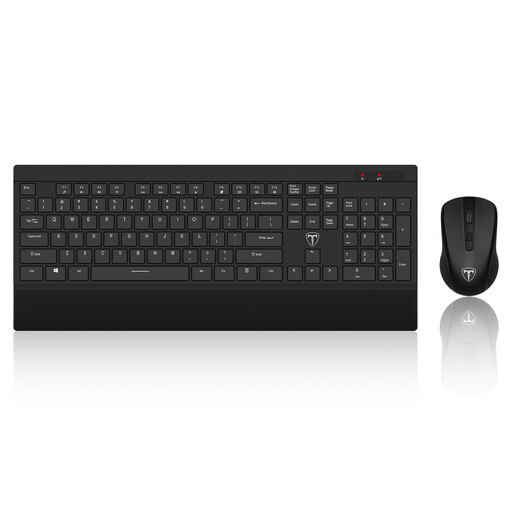
ET 2.4GHz wireless keyboard and mouse set, US layout
This full-size set gives you separate input devices for a laptop workstation. The keyboard is labelled US layout, so check that its key arrangement suits you and that your laptop can connect to the wireless receiver.
View on Joybuy
Common questions
Is a laptop stand enough for prolonged home working?
A stand alone does not address input position when you continue typing on the raised laptop. The Health and Safety Executive advises using a separate keyboard and mouse so the laptop screen can be elevated; a separate display is another option.
Should I use a monitor or raise the laptop screen?
A monitor is worth considering at a desk that stays set up, particularly if you need more viewing space; a riser with a separate keyboard and mouse is easier to put away or move. Either arrangement should let you position the screen and input devices independently.
Will any USB-C port work with a dock or monitor?
No: USB-C describes the connector, not every capability it supports. Which? notes that USB-C video support varies, and Lenovo specifies USB-C Alt Mode or Thunderbolt support for its USB-C Dual Display Travel Dock. Check the exact laptop’s video output and the display arrangement you intend to use.
Can a dock or monitor replace my laptop charger?
Only if it delivers compatible power that meets the laptop’s charging requirement. Dell states up to 90W power delivery for the P2425HE monitor; other products and power-supply arrangements differ. Check the exact product’s delivered power and what comes in the box.


