Laptop workers short of screen space
If documents, messages and meeting content compete for room on one display, check the laptop’s supported external-display count and video output before choosing a monitor or multi-display dock.


Start with the task your laptop setup makes difficult: consider a monitor for limited screen space, a dock or hub for repeated cable changes, or a webcam or headset for meetings. Check your exact laptop model before buying, especially its supported displays, video-capable ports, operating system and charging requirements; a USB-C socket alone does not establish what a dock can do.
If documents, messages and meeting content compete for room on one display, check the laptop’s supported external-display count and video output before choosing a monitor or multi-display dock.
If you move between home and office, a dock may reduce the cables you reconnect for displays and peripherals. Check whether the laptop and dock support the video connections and charging arrangement you intend to use.
If calls are the main difficulty, camera placement, microphone use and headset compatibility may matter more than adding ports. Match an accessory to the laptop and meeting software you use.
Identify the task that needs improving, then check whether your laptop supports the connection the accessory requires. Extra ports, video output and charging are separate capabilities, even when they use a USB-C connector.
| Concern | What to check | Who this matters to |
|---|---|---|
| Screen space | Check the laptop’s supported external-display count and whether its video output matches the monitor’s input. | If I need documents and messages visible together, I want an independent screen rather than a duplicate of my laptop display. Around 28% of consumers put screen expansion first. |
| Desk connectivity | Match the dock’s host-video and charging requirements to the laptop; check its display modes and power-supply requirements. | Moving between work locations, I want to reconnect my desk equipment without managing several cables each time. For around 28% of consumers, a repeatable connection is the primary need. |
| Keyboard and mouse | Choose a wired, Bluetooth or receiver-based connection that works with your laptop; check device and operating-system support if you switch computers. | When I spend long periods typing and using a pointer, separate input devices matter more to me than another display. Around 17% of consumers prioritise input control. |
| Video calls | Check the webcam’s meeting-software compatibility, mounting position and cable reach; assess resolution alongside those requirements. | If my laptop camera is poorly positioned for regular desk calls, I want more control over where the camera sits. Camera setup comes first for around 11% of consumers. |
| Call audio | Check headset connection, laptop and meeting-platform compatibility, microphone arrangement and fit for your usual call duration. | For frequent calls in a shared or noisy place, I need to concentrate and be heard without relying on the laptop’s built-in audio. Around 16% of consumers place call audio first. |
USB-C names the connector, not every capability behind it. Anker specifies both Power Delivery and DisplayPort Alt Mode for its 575 dock, so a laptop with a USB-C socket does not necessarily meet that dock’s requirements.
Look up the exact laptop model and match its port capabilities to the dock’s stated host requirements before choosing cables or a power arrangement.
Microsoft Support explains that a display splitter duplicates a signal rather than producing independent extended displays. The laptop’s own display limit also matters, regardless of how many outputs a dock has.
Confirm the laptop’s supported display count and the dock’s display mode before buying another monitor.
Kensington’s SD4843P display capabilities depend on compatible Windows host technologies; its maximum-resolution configuration also has DSC requirements. A dock specification cannot establish what a different laptop-and-monitor combination will achieve.
Check the laptop port and display support, operating system, dock, cable and monitor together against the configuration you intend to use.
Government guidance on recognition of CE and UKCA marking addresses products placed on the Great Britain market and distinguishes the process for Northern Ireland.
Check the applicable product-category and market requirements with the seller; for Northern Ireland, use the relevant Northern Ireland guidance rather than assuming Great Britain rules apply unchanged.
Logitech’s business range covers keyboards, mice, webcams and headsets for desk work and calls.
Anker offers USB-C and Thunderbolt docks for connecting desk equipment through a laptop dock.
Kensington’s dock lines cover several host-connection technologies, including Thunderbolt, USB4 and USB-C.
Jabra’s business range focuses on headsets, speakerphones and video products for calls.
These choices address different parts of a laptop workstation: desk connections, video calls, screen space, keyboard-and-mouse use and call audio. Choose by the task you need to improve, then check compatibility with your own laptop.
 No image available
Consider this dock if you want to reconnect a desk display setup through your laptop’s USB-C port. Its name specifies dual HDMI and 100W Power Delivery pass-through; check your exact laptop’s video, display and charging support, and confirm whether the required external power adapter is included.
 No image available
Consider an external webcam if the laptop camera’s position makes desk calls awkward. Check this model’s delivered recording resolution before choosing it on the strength of its 2K name, and confirm that its connection and placement suit your setup.
 No image available
A separate monitor is relevant when limited screen space is the main obstacle to document work. This is a 22-inch Full HD model; check the laptop’s supported external displays, video output and required cable before choosing it.
 No image available
Separate keyboard and mouse controls may suit a laptop used for sustained desk-based typing. This is the UK English wireless variant; check that your laptop has a suitable USB-A connection for its receiver or that you have an appropriate adapter.
 No image available
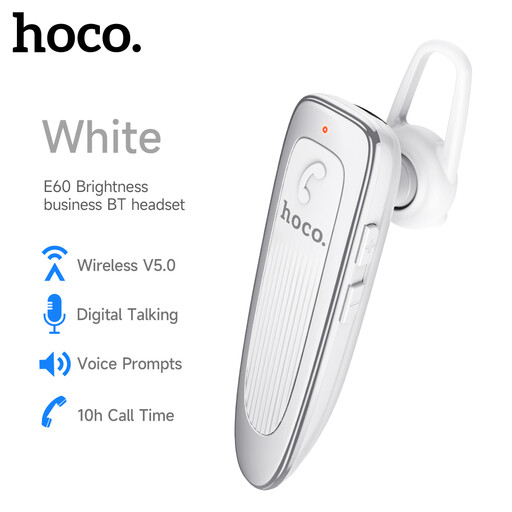
A dedicated earpiece is an option when laptop calls are your priority. This model is identified as a Bluetooth earphone; check compatibility with your laptop and meeting software, along with call-time battery life and fit for longer calls.
No: the laptop must support the intended display setup, and the dock must support it with that host. Microsoft Support notes that a splitter duplicates a display signal rather than creating independent extended displays; Apple Support advises checking the display limit of the exact Mac model. Also check any USB-C video-mode, Thunderbolt, USB4 or DisplayLink software requirements stated for the dock.
Compare your laptop’s charging requirement with the dock’s stated power delivery to the host, and check which power supply the dock requires and whether it is included. A power-delivery figure on its own does not establish that the dock will charge your particular laptop as intended.
Start with the monitor’s selected input, secure connections and the cable, then test a direct display connection where possible. Microsoft Support also advises disconnecting accessories while troubleshooting, since docks, dongles and adapters can affect the connection.
Not necessarily: current government guidance recognises CE marking alongside or in place of UKCA marking for applicable products placed on the Great Britain market under the relevant rules. England, Scotland and Wales are covered by that Great Britain guidance; check the product category and the separate applicable process for Northern Ireland rather than extending the conclusion across the whole UK.