What should you check before buying?
Establish what your laptop can output before choosing how to connect the desk. A native USB-C or Thunderbolt dock, a software-dependent DisplayLink connection and a direct display adapter solve different connection problems; none removes the need to check the intended monitors and operating system.
| Concern |
What to check |
Who this matters to |
| Laptop compatibility |
Check the exact port's video capability, the dock's host connection, charging output and operating-system support. Microsoft Learn distinguishes USB-C video alternate mode from the connector itself. |
When I move my laptop between home and work, I need a desk connection that carries the video and power my machine accepts; around 33% of consumers put compatibility first. |
| Multiple monitors |
Match the laptop's supported display count and settings to the dock, operating system and monitors; video sockets alone do not establish the usable configuration. |
If I work across documents, calls and browser windows, I want to know whether my laptop can drive the planned screens together; about 27% of consumers prioritise a native multi-monitor setup. |
| Older USB-A laptop |
Check that the dock or adapter explicitly uses DisplayLink and supports your computer and operating system. DisplayLink provides software installation guidance and a Windows compatibility check. |
Keeping an older USB-A laptop means I need another display route without replacing the computer, while accepting software setup; around 20% of consumers prioritise legacy-laptop expansion. |
| Workstation suitability |
If you qualify for an employer display-screen-equipment assessment in Great Britain, discuss the individual setup before personally buying equipment intended to address an assessed need. |
If my home workstation is uncomfortable, I want the equipment decision to follow an assessment rather than duplicate a purchase; roughly 20% of consumers put assessment-led changes first. |
External monitors for a hybrid-work desk
These Joybuy choices are standalone screens for adding a display to a laptop desk. Match a monitor's input and intended display settings to your laptop's output; a separate dock or adapter may still be needed to connect it, and a monitor does not consolidate your other peripherals.
 No image available
CRUA 32-inch 1500R curved QHD monitor, black
A standalone screen for a desk where the laptop or a compatible adapter can provide the required video output.
The listed resolution is 2560 × 1440, with HDMI and DisplayPort connections and a 100 × 100 mm VESA mount. For the stated maximum of 165 Hz at 2K, the product information calls for a DisplayPort cable; the available refresh rate depends on the connection and laptop.
View on Joybuy
 No image available
KOORUI E2412F 24-inch FHD monitor
A separate screen for a home desk rather than a connection for your keyboard, mouse and other peripherals.
Check that your laptop or chosen adapter has a suitable video output and cable for this monitor.
View on Joybuy
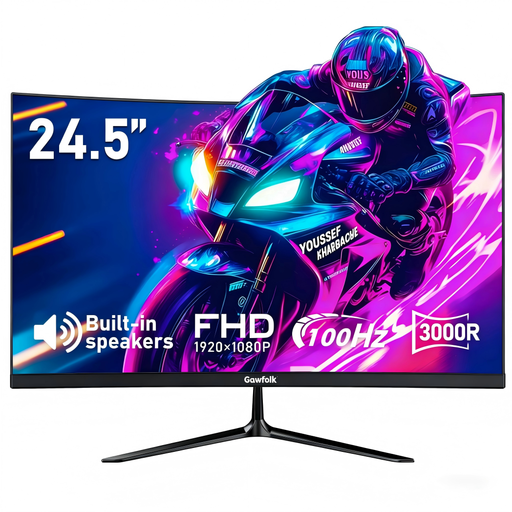 No image available
Gawfolk 24.5-inch curved FHD monitor, black
An external-screen option if the laptop or adapter can supply the video connection your desk needs.
The product name lists HDMI, a 75 × 75 mm VESA mount and a 100 Hz refresh rate. Check the laptop's supported display settings and intended cable before relying on that refresh rate.
View on Joybuy
Frequently asked questions
How do I know whether my laptop's USB-C port can run a monitor?
Check the specification or manual for the exact laptop and port for DisplayPort Alt Mode, Thunderbolt or another explicitly supported video function. Microsoft Learn explains that DisplayPort alternate mode can carry display output over USB-C; the connector shape alone does not confirm that capability.
Can a USB-A laptop run two external monitors?
It may be able to use a DisplayLink dock or USB graphics adapter that explicitly supports the intended two-screen configuration. Check the computer and operating-system requirements and plan for DisplayLink software; an ordinary USB-A hub should not be assumed to provide video output.
When should I consider a Thunderbolt dock rather than a USB-C dock?
Consider Thunderbolt if your laptop has a Thunderbolt port and the dock's supported combination of displays, charging and peripherals matches your desk. Intel describes Thunderbolt 4 as carrying data, video and power through one connection, but the usable display configuration still depends on the particular laptop and dock.
Will my employer provide a monitor or other home-working equipment?
Not automatically: for workers covered by the display-screen-equipment rules in Great Britain, an individual assessment determines what changes are needed. The Health and Safety Executive says assessment duties apply to workers who use display-screen equipment daily for continuous periods of an hour or more, including qualifying long-term and hybrid home workers; workers cannot be charged for equipment an assessment indicates their employer should provide.
What should a Mac user check before choosing DisplayLink?
Check support for your Mac and intended displays, particularly if protected streaming video matters to you. DisplayLink says some protected content on macOS may show a black screen while audio continues when DisplayLink screens are connected.


