Buying priorities
Work from the laptop outward: establish its display and charging limits, then match the dock, hub, cable or adapter to the monitors and peripherals you actually plan to use.
| Priority |
What to check |
Your needs |
| Host-port capability |
Confirm video output over USB-C, Thunderbolt or USB4; check DisplayPort Alt Mode, where applicable; confirm the laptop’s maximum external-display count. USB Implementers Forum guidance notes that USB4 connections operate at the best mutual capability of connected devices. |
I need the laptop to send the required video signal, not simply fit the dock’s USB-C plug. |
| Screen count and system support |
Match the dock’s stated monitor modes with the laptop model, operating system, target resolution and refresh rate. Apple says external-display support varies by Mac model and display configuration. |
I want the intended number of extended displays to work at my desk, rather than finding that the laptop or operating system limits the arrangement. |
| Charging for a one-cable desk |
Compare the dock’s host Power Delivery output with the laptop’s accepted wattage; check whether the figure is pass-through power or delivered host charging; confirm any manufacturer-specific limits. |
I want to connect monitors and peripherals without needing to discover that the original laptop charger must stay connected. |
| DisplayLink suitability |
Check the exact dock’s supported operating systems and required driver; confirm USB-A or USB-C host compatibility; consider whether your work is mainly office and web productivity rather than gaming, video playback or graphics-intensive applications. |
My laptop may need a software-driven route for extra screens, and I am comfortable installing and maintaining the required driver. |
Joybuy product options
These Joybuy options are USB-C desk-expansion choices for laptops with a verified video-capable USB-C port, supporting multi-screen work alongside peripherals and charging where the host configuration allows it.
 No image available
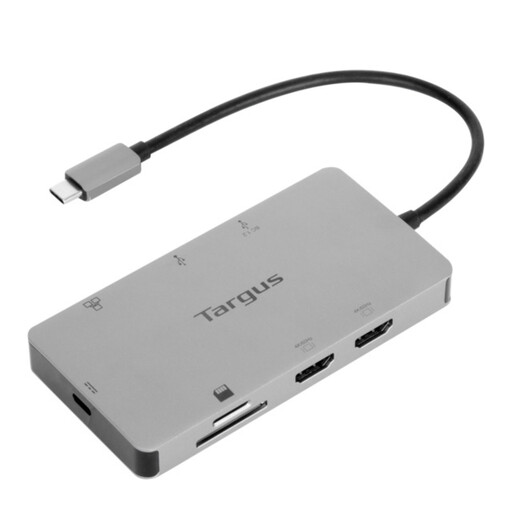
Targus USB-C Universal Dual HDMI 4K Docking Station with 100W Power Delivery Pass-Thru
For dual-screen desk work with USB peripherals, Ethernet and card-reader access where the laptop supports the required USB-C video mode.
Stated features include two HDMI 2.0 outputs with dual 4K at 60Hz, USB-A ports, Gigabit Ethernet, card readers and up to 100W Power Delivery pass-through. Check that the laptop supports two extended displays through its USB-C port, confirm the included power-adapter arrangement, and verify the Mac model’s external-display limit where relevant.
Joybuy
 No image available
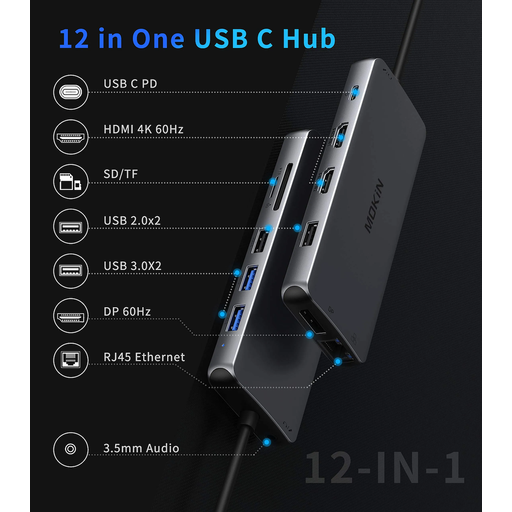
USB-C Multiport Hub with 2 HDMI, DisplayPort, Ethernet and Power Delivery
For a compact desk expansion setup that combines display connectors, USB ports, Ethernet, card readers and audio.
The product description states dual HDMI plus DisplayPort for independent displays, alongside USB 3.0, USB 2.0, Gigabit Ethernet, SD/TF card readers and USB-C Power Delivery pass-through. Confirm the laptop’s DisplayPort Alt Mode capability, supported screen count, display-mode limits, charger requirements and accepted charging wattage before buying.
Joybuy
Frequently asked questions
Does a USB-C port automatically support an external monitor and laptop charging?
No. USB-C is a connector format, so check the laptop’s exact documentation for video output and charging support, then compare it with the dock’s host requirements and delivered Power Delivery. Microsoft also notes that USB4 and display functionality can be limited when the PC or cable lacks the relevant capability.
Can a dock give any laptop two or more external displays?
No. A native USB-C or Thunderbolt dock cannot override the laptop’s own graphics and operating-system display limit. Apple states that a Mac’s simultaneous display count depends on its model and display resolution or refresh rate, and that hubs or daisy-chaining do not increase that maximum.
When is a DisplayLink dock a sensible choice?
It can suit compatible USB-A, USB-C or otherwise display-limited laptops when you need productivity displays and peripherals, can install the required software, and the exact product supports your operating system. Do not assume every model charges the laptop or suits graphics-intensive, gaming or video-playback workloads.
What should be checked before relying on a dock for laptop charging?
Check the dock’s host Power Delivery output, the laptop’s maximum accepted input and whether the dock actually provides host charging. Dell lists different delivered power for Dell and non-Dell systems on one dock, while StarTech.com states that one of its DisplayLink docks provides no USB-C Power Delivery to charge the laptop.
Do I need a special cable for a multi-screen dock?
Use the cable supplied with the dock where possible, or one specified for the required protocol and power. Microsoft notes that USB4 functionality can be limited when the PC, intermediate dock or cable does not support USB4; monitor cables and adapters must also match the required display connector and mode.


