What should you check before buying?
Conventional laptop
Choose it when: Your course requires desktop applications, lengthy writing or a specified operating system.
Trade-off: It does not offer the same handwritten annotation workflow as a suitable touch-and-pen device.
2-in-1 laptop
Choose it when: You need laptop-style coursework alongside touch input or handwritten annotation.
Trade-off: Pen support and included accessories depend on the exact model and bundle.
Tablet with keyboard
Consider it when: Your work is mainly notes, reading and online tasks, and your course confirms that its required tools work on the tablet.
Trade-off: A keyboard does not give tablet software the same range as desktop software. Loughborough University IT Services highlights this limitation.
For one personal college device, establish course compatibility first, then consider how you will write, carry, charge and connect it. The concerns below describe consumers by the need they would put first.
| Concern |
What to check |
Who this matters to |
| Course software and operating system |
Ask for the required applications and supported operating system; confirm whether work needs locally installed software. |
If my course uses specialist applications, I need a device that can run them before I consider its other features. Around 36% of consumers would put software compatibility first. |
| Writing and assessment workflow |
Confirm that required applications, assessment platforms and file tasks work on your chosen device and keyboard setup. |
When I write long assignments or work with spreadsheets, I need a comfortable way to complete and submit them. For around 29% of consumers, that workflow is the primary concern. |
| Daily carrying and online study |
Consider carrying weight and charging access; check the camera and audio setup needed for online sessions. |
Moving between college and home, I need a device I can carry and use through my timetable. That daily routine would come first for around 21% of consumers. |
| Campus access and accessibility |
Check college Wi-Fi and account rules, operating-system support and compatibility with any assistive technology you use. |
If I rely on campus systems or accessibility features, I need to know my device will work with them. Around 14% of consumers would make this their leading concern. |
Joybuy laptop and 2-in-1 choices
These conventional laptops and 2-in-1 models are options to compare once you know your course's software requirements. If you are considering a tablet with a keyboard instead, confirm that route with your college before relying on it for coursework.
 No image available
HP OmniBook Ultra Flip 14-fh0006na 2-in-1 Copilot+
Consider this 2-in-1 if your coursework calls for a Windows laptop and you also want a convertible design. Check that required course applications and assessments work on the exact configuration.
The product name specifies Windows 11 Home, 16GB RAM and a 1TB SSD.
View on Joybuy
 No image available
ASUS Vivobook 14 X1407QA-LY003W Snapdragon X, Quiet Blue
Consider this conventional laptop for coursework where your required applications work with its Snapdragon X configuration. Confirm software and assessment compatibility with your course before buying.
The product name specifies 16GB RAM and a 512GB SSD.
View on Joybuy
 No image available
ASUS Vivobook 15 X1504VA, Intel Core 5 120U, Cool Silver
This conventional laptop is an option if your course calls for laptop-style work; check its required applications and assessment tools against the exact configuration.
The product name specifies a 15.6-inch display, 24GB RAM and a 1TB SSD. Check a battery test relevant to your study routine when planning charging.
View on Joybuy
 No image available
HP OmniBook X Flip 16-as0004na 2-in-1 Copilot+
Consider this 2-in-1 if you want a touchscreen alongside a Windows laptop format. Confirm course-software support and whether its size suits your daily travel.
The product name specifies a 16-inch touchscreen, Intel Core Ultra 5 226V, Windows 11 Home, 16GB RAM and a 512GB SSD.
View on Joybuy
 No image available
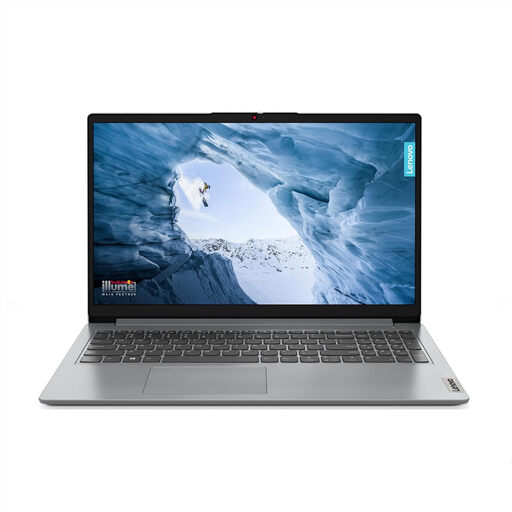
Lenovo IdeaPad 1 15-inch, Ryzen 3 7320U, Cloud Grey
Consider this laptop only after checking how Windows 11 Home in S Mode fits your required course applications. Also check whether its local storage meets your software and file needs.
The product name specifies a Full HD display, 8GB RAM and a 128GB SSD.
View on Joybuy
College device questions
What laptop specification should I use as a minimum?
Use your course's published requirement as your minimum, not a general student specification. Loughborough University IT Services gives 8GB RAM and a 256GB SSD as an example minimum in its guidance for demanding courses, while noting that more may be appropriate; your department may require different hardware or software.
Can a tablet with a keyboard replace a college laptop?
It can be your only device only if your course confirms that its software, document tasks and assessments work on that tablet. Loughborough University IT Services notes the narrower range of tablet software, and University College London advises that a tablet or phone alone is not sufficient for effective study under its student guidance.
Do I need Windows, or could I use a Mac?
Follow your course's operating-system requirements: a Mac may suit some courses, but Windows is the route to check where required software is Windows-only. Loughborough University IT Services identifies engineering applications that do not work on Apple devices, so ask your department about the exact applications before purchasing.
Will my own device have to meet college network rules?
It may need to meet your college's Wi-Fi, account-security and personal-device rules. Requirements vary by institution: Loughborough University IT Services warns that outdated operating systems can cause connection or installation problems, while King's College London applies its own policy to unmanaged devices accessing its systems. Check your college's current instructions.


