What to check before buying
Start with the systems your school supports, then decide how much portability and working space you need. The Department for Education advises schools to assess devices against staff use, technical needs and security requirements.
Windows laptop
Consider it when: Your school manages Windows devices or requires Windows applications and peripherals.
Check first: Confirm the exact processor configuration and required software with IT, particularly for a Windows-on-Arm model.
MacBook Air
Consider it when: Your school supports macOS for the applications, accounts and files you use.
Check first: Confirm school management requirements and whether classroom equipment needs a compatible adapter or dock.
| Concern |
What to check |
Who this matters to |
| School compatibility |
Ask IT about supported operating systems, managed apps and the connections used by classroom equipment. |
If school accounts or presentation equipment will shape my lessons, I need a laptop that fits those systems. Around 37% of consumers put school compatibility first. |
| Working between locations |
Compare carrying weight and screen size; read the conditions behind battery claims. |
When I plan at home, at school and in meetings, carrying the laptop and finding a socket both affect my day. Roughly 27% of consumers make mobile working their primary concern. |
| Document and slide workspace |
Try the keyboard and trackpad where possible, and check the intended screen or external-display setup. |
Reading sources while drafting worksheets and slides makes a comfortable writing and viewing space important to me. Around 18% of consumers prioritise that workspace. |
| Long-term use and data handling |
Check repair and update arrangements alongside your school’s rules for accounts, storage and personal data. |
If I will keep the laptop for several school years or access pupil information, dependable support and approved security practices come first. About 18% of consumers share that primary concern. |
Joybuy laptops for lesson planning
These laptops offer different screen sizes and configurations for preparing sources, worksheets and presentations. Check the exact model against your school’s software and classroom equipment before choosing.
 No image available
ASUS Vivobook 14 X1407QA-LY003W Copilot+ PC, Quiet Blue
Consider its 14-inch format for planning across school and home, provided IT confirms that your required tools work with this Snapdragon X configuration.
The named variant has 16GB RAM and a 512GB SSD. Check classroom connections and charging needs for your setup.
View on Joybuy
 No image available
ASUS Vivobook 15 X1504VA, Core 5 120U, Cool Silver
Its 15.6-inch format may appeal if you mainly prepare documents and slides at a desk rather than prioritising a smaller laptop to carry.
The named variant has 24GB RAM and a 1TB SSD. Confirm school-managed applications and classroom connections with IT.
View on Joybuy
 No image available
Acer Aspire Lite AL15-36P-C29Z, Intel N150, Silver
Consider the 15.6-inch screen for reading sources and drafting slides, but check that the configuration meets your school’s application and file-storage needs.
The named variant has a Full HD display, 8GB RAM, a 128GB SSD and Windows 11 Home. Confirm how its specified S Mode affects required applications before buying.
View on Joybuy
 No image available
ASUS Zenbook DUO UX8406CA-QL135W, Core Ultra 7 255H
Its dual-screen layout may suit planning with sources beside a draft lesson, if that arrangement fits how you work.
The named variant has two 14-inch OLED touchscreens, 16GB RAM and a 1TB SSD. Confirm the exact screen resolution and the weight of the laptop with its keyboard before buying.
View on Joybuy
 No image available
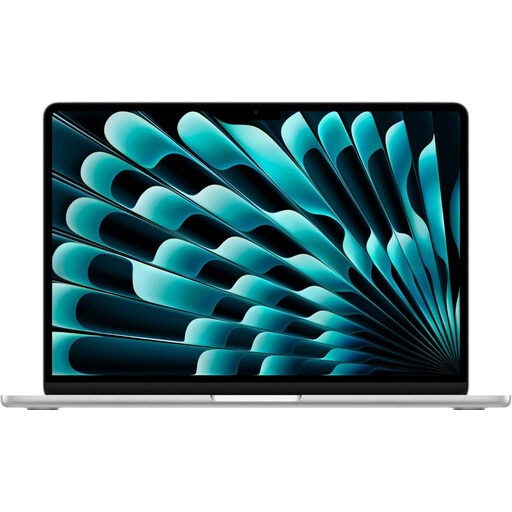
Apple 15-inch MacBook Air (2026), M5, Silver
Consider this 15-inch MacBook Air for document and presentation work only if your school supports the operating system and applications on the selected model.
The named M5 variant has a 10-core CPU, 10-core GPU, 16GB memory and a 1TB SSD. Confirm its ports, display connections and carrying weight for your routine.
View on Joybuy
Frequently asked questions
Do I need a powerful laptop to plan history lessons?
Start with school compatibility and a comfortable setup for documents, research and slides rather than choosing by processor alone. Consider more processing capability if your work also includes demanding video editing, large image projects or software with higher requirements.
Should I choose Windows or macOS for school lesson planning?
Choose an operating system your school can support for the work you need to do. The Department for Education advises assessing staff use and technical and security needs, so confirm applications, sign-in methods, device management and classroom connections with IT.
Can I use a personal laptop when planning involves pupil information?
Use a personal laptop for pupil information only under your school or trust’s approved procedures. Department for Education guidance addresses staff responsibility for protecting personal data, and the Information Commissioner’s Office advises organisations to consider updates, strong passwords and limiting personal data stored on personal devices.
Will I need an adapter for a classroom projector or monitor?
You may need one if the laptop and display use different connections. Check both devices before buying; for example, Apple lists Thunderbolt 4/USB-C ports on its 13-inch MacBook Air, so equipment requiring another connector needs a compatible connection method.
Will an advertised battery figure cover a full school day?
An advertised figure does not guarantee your runtime. Read the manufacturer’s test conditions and account for how you use the laptop, including calls, screen brightness and external displays, when planning access to a charger.


