What matters when choosing?
Check your course software and renderer first, then decide how much memory and graphics capacity your projects call for. If you will carry the laptop regularly, assess its complete setup rather than the laptop alone.
| Concern |
What to check |
Who this matters to |
| Modelling and multitasking |
For Blender on Windows or Linux, compare the CPU and RAM with the Blender Foundation’s recommended 8 cores and 32GB. Check requirements for other course applications separately. |
If I am building larger scenes while keeping reference material and other creative tools open, I want enough system memory for that work. Around 31% of consumers put modelling and multitasking first. |
| GPU rendering |
Check the exact GPU, graphics memory and supported rendering back end. The Blender Foundation recommends 8GB graphics memory for Windows or Linux, but notes that complex GPU-rendered scenes can exceed available memory. |
When I expect to render in Cycles, I need to know whether my chosen GPU and renderer work together and whether scenes will fit in graphics memory. GPU rendering is the primary concern for around 31% of consumers. |
| Course compatibility |
Confirm required software versions, operating system, renderer and plug-ins before selecting Windows or macOS. Include any specified peripherals in that check. |
If a course requires a particular application or extension, I cannot choose a platform on general hardware specifications alone. Roughly 23% of consumers prioritise course compatibility. |
| Portability and workspace |
Compare mass, charger, screen and ports on the exact model. For Blender, check the Blender Foundation’s recommended display resolution of at least 1920 × 1080. |
Carrying a laptop between study locations makes its size and power adapter important, but I still need room to work with 3D tools. Around 15% of consumers put portability and workspace first. |
Brands to consider
These laptop ranges offer different starting points for comparison; check the configuration rather than treating a brand name as a specification.
ASUS
ProArt is a creator-focused Windows range to consider if you want to compare discrete graphics, memory and display options for mixed creative work.
- ASUS lists high-end GPU options for the ProArt P16 H7606 range.
- ASUS says display specifications vary by model and configuration; check the exact GPU, memory and screen.
Lenovo
Legion Pro 5 is a gaming-oriented Windows range that may interest learners comparing CPU, discrete-GPU, memory and storage configurations.
- One Lenovo UK Legion Pro 5 16 configuration lists an RTX 5070 Laptop GPU with 8GB graphics memory, 32GB RAM and a 1TB SSD.
- Those figures describe that configuration, not every Legion Pro 5; gaming positioning does not establish compatibility with a particular course.
MSI
Creator A16 AI+ is a creator-labelled Windows range for comparing discrete-GPU configurations.
- MSI lists Creator A16 AI+ variants with RTX 4050, 4060 or 4070 Laptop GPUs.
- MSI lists 6GB or 8GB graphics memory depending on the GPU variant, so check the complete configuration.
Apple
MacBook Pro is an option for portable study when the required applications, renderers and plug-ins support the chosen macOS and Apple Silicon setup.
- Apple lists several MacBook Pro chip and unified-memory configurations.
- Confirm the memory configuration and the whole course software stack before purchase; Apple Silicon is not a substitute for checking renderer and plug-in support.
Dell
Dell Pro Precision and Pro Max mobile workstations are worth comparing if your work may require a workstation-oriented configuration.
- Dell describes its Precision workstations as optimised for professional applications and lists NVIDIA RTX Pro graphics options.
- That manufacturer positioning does not establish that a particular model suits your course, renderer or carrying needs.
Joybuy laptop choices
These Windows creator and gaming laptops offer configurations to compare for 3D-modelling study. Check each exact model against your course software and planned rendering workflow; the specifications and trade-offs differ across the list.
 No image available
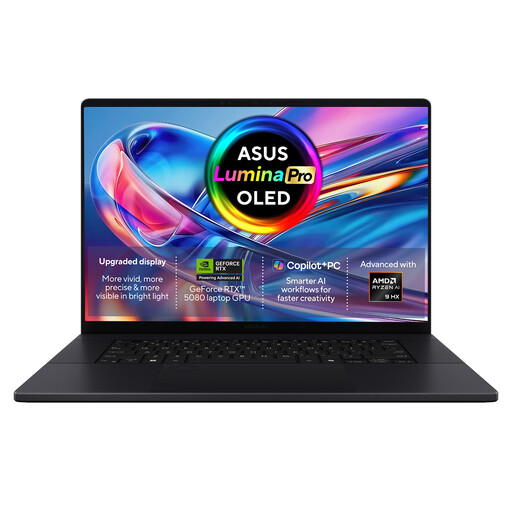
ASUS ProArt P16 H7606WW-SE006W
Consider this Windows creator laptop if your Blender work calls for more memory than the Blender Foundation’s 32GB recommended reference and you plan to check GPU-renderer compatibility.
The listed configuration has an AMD Ryzen AI 9 HX 370, NVIDIA GeForce RTX 5080 with 16GB graphics memory, 64GB RAM, a 2TB SSD and Windows 11 Home. Its 16-inch 4K OLED touchscreen is another specification to weigh against your carrying needs.
Confirm that your course software, renderer and plug-ins support the stated Windows and GPU configuration.
View on Joybuy
 No image available
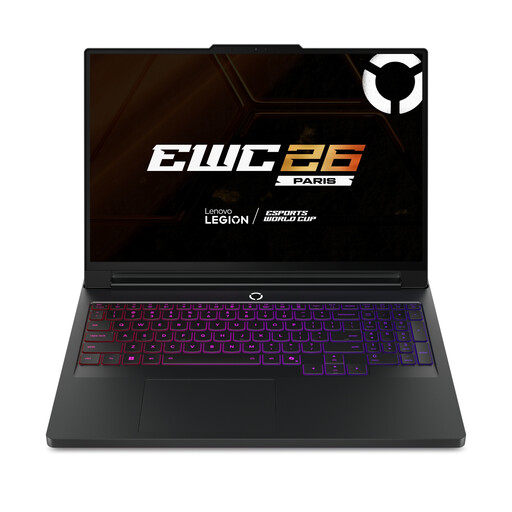
Lenovo Legion Pro 7 16IAX10H 83F5000UUK
Consider this gaming-oriented Windows configuration if you expect to study with several applications open and want to assess a high-end GPU for your renderer.
The title specifies an Intel Core Ultra 9, NVIDIA GeForce RTX 5090, 64GB RAM, a 2TB SSD, a 16-inch display and Windows 11 Home.
Before choosing it for Cycles, confirm the exact graphics-memory amount and renderer support. Check its mass and charger if you will carry it regularly.
View on Joybuy
 No image available
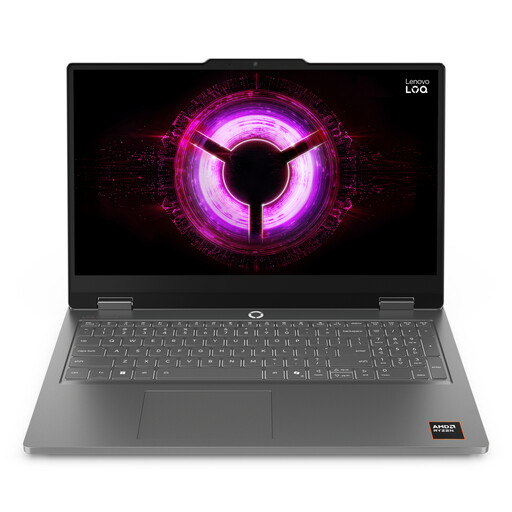
Lenovo LOQ Essential 15ARP11
This is a configuration to compare if your coursework is less memory-intensive and you can accept a RAM figure below the Blender Foundation’s 32GB Windows or Linux recommendation.
Its title lists an AMD Ryzen 7 170, GeForce RTX 5050, 16GB RAM, a 1TB SSD and a 15.6-inch 144Hz FHD display.
Check the exact graphics memory, operating system and course compatibility. The stated 16GB RAM is below Blender’s recommended reference for Windows or Linux.
View on Joybuy
 No image available
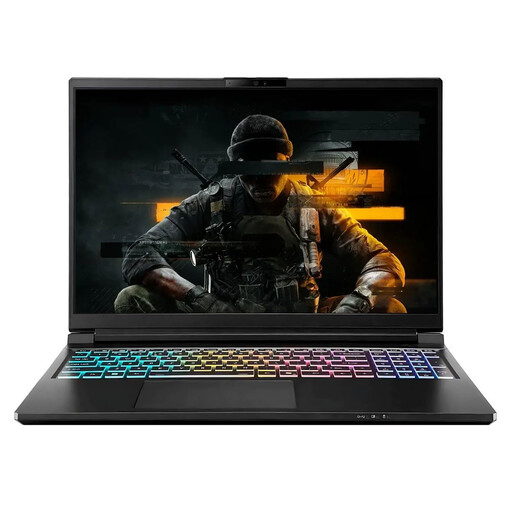
Stormforce Exobook 16 QHD+, Ultra 9, 32GB, 4TB, 5080
The stated 32GB memory makes this worth comparing with the Blender Foundation’s Windows or Linux RAM recommendation, provided the complete configuration suits your course.
The title specifies a 16-inch QHD+ Exobook with an Ultra 9 processor, 32GB RAM and 4TB storage.
Confirm which GPU the “5080” description represents, its graphics memory and the operating system before relying on it for a particular rendering workflow.
View on Joybuy
 No image available
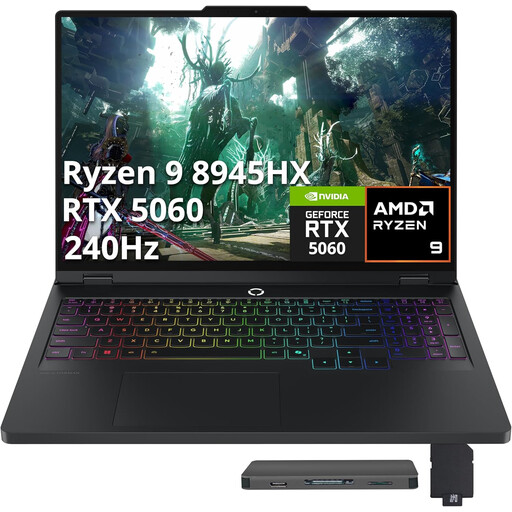
Lenovo Legion Pro 5 LEG P5 R9, 32GB, 2TB, 5060
The stated 32GB RAM gives Blender learners a configuration to compare with the Blender Foundation’s Windows or Linux memory recommendation.
The title identifies a Legion Pro 5 LEG P5 R9 configuration with 32GB RAM, 2TB storage and a 5060 graphics designation.
Check the exact CPU core count, GPU and graphics memory, operating system and mass against your course and carrying needs.
View on Joybuy
Common questions
What specifications should I start with for Blender?
For Blender on Windows or Linux, use the Blender Foundation’s recommended 8-core CPU, 32GB RAM and 8GB graphics memory as reference points rather than buying solely to its lower minimum requirements. Check your course’s other applications and the complexity of your planned projects separately.
Do I need an NVIDIA RTX GPU to learn Blender?
No: Blender supports multiple GPU-rendering back ends, and whether an RTX configuration is useful depends on your chosen renderer and work. If you plan to use Cycles GPU rendering, check the exact GPU, graphics memory, supported back end and driver requirements; the Blender Foundation notes that GPU memory can limit complex scenes.
Can I use a MacBook Pro for a 3D-modelling course?
Yes, if the specific course applications, versions, renderer and plug-ins support the MacBook Pro configuration you choose. Check those requirements individually rather than assuming that support for Blender or Maya also covers every course extension and file workflow.
Should I get a mouse or an external monitor?
Plan to use a three-button mouse if Maya is part of your course: Autodesk lists one in its Maya 2026 requirements, and the Blender Foundation also recommends one for Blender use. An external monitor is optional; if you will rely on the laptop screen, compare its resolution and workspace with Blender’s recommended resolution of at least 1920 × 1080.
What should I check about the exact laptop before ordering?
Check the model’s GPU and graphics memory, RAM, operating system, keyboard layout, included charger and connection options against your course and study setup. Review the seller’s warranty and return terms for that product rather than assuming they are the same across a laptop range.


