Bright-window lesson planners
Teachers who draft documents, slides and online materials beside daylight need to check the selected screen's brightness and surface treatment, not just the laptop's model name.


Prioritise the exact screen configuration: Dell and Lenovo list 500-nit anti-glare options, while Apple lists a 500-nit MacBook Air display without establishing the same finish. Choose Windows or macOS after checking your school's software, accounts and classroom connections; a brightness figure alone cannot guarantee comfortable viewing beside your window.
Teachers who draft documents, slides and online materials beside daylight need to check the selected screen's brightness and surface treatment, not just the laptop's model name.
If school accounts, required applications or device policies determine which computer can be used, confirm those requirements before choosing an operating system. Microsoft's education plans also differ in access to web and desktop apps.
Moving between a home desk, classrooms and other workspaces makes screen size, carrying weight, charging and classroom connections part of the same decision.
For lesson planning beside a bright window, check the precise display option before weighing school compatibility and the practicalities of carrying and connecting the laptop.
| Concern | What to check | Who this matters to |
|---|---|---|
| Screen readability | Check the selected panel's brightness in nits and whether its finish is stated as anti-glare or anti-reflective. | If daylight or reflections interrupt my work on documents and slides, screen readability comes first; around 42% of consumers prioritise that need. |
| School compatibility | Confirm required apps, account entitlements and device-management rules with school IT. | I need my school's applications and account to work before a preferred operating system matters; about 33% of consumers put that compatibility first. |
| Portable workspace | Compare screen size with how often you carry the laptop, and check the ports needed for classroom displays. | When I move between planning spaces, I need a workable screen without overlooking what I must carry and connect; roughly 25% of consumers make this their primary concern. |
Dell lists a 13.4-inch, 500-nit anti-glare option for the XPS 13 9345, and Lenovo lists a 14-inch, 500-nit anti-glare option for the ThinkPad X1 Carbon Gen 13 Aura Edition. Those are configuration-specific specifications, not promises that either screen will look the same in every window position. Apple lists a 500-nit MacBook Air display; check the finish of the particular model you are considering rather than assuming it matches an anti-glare option.
Dell lists XPS 13 display options with differing resolution, touch capability and surface treatment. A model-family name therefore does not identify the panel you will receive.
Read the display line for the exact configuration, including its brightness and stated finish, before choosing it for your window-side workspace.
A suitable screen will not resolve an incompatible school application, managed-account requirement or classroom-display connection. Microsoft's education plans differ in whether core Office apps are available on the web or desktop.
Ask school IT which apps, licence, device policies and display connections you need, then check the chosen laptop against that list.
A classroom connection may also call for a compatible adapter or dock.
Window position and reflections affect how a screen looks during lesson planning; a published brightness figure does not reproduce your desk setup.
Where possible, view a similarly finished screen near your usual workspace. Once the laptop arrives, check document readability and classroom connections promptly under the seller's applicable terms.
The ThinkPad X1 Carbon Gen 13 Aura Edition is a Windows route for teachers considering a 14-inch screen and a laptop they will carry between locations.
The XPS 13 9345 offers a compact Windows route with configuration-dependent display options.
MacBook Air is a macOS option when required school systems and device policies allow its use.
These Windows laptops and a MacBook Air offer different screen sizes and configurations for lesson planning. Compare the exact panel and your school's requirements before deciding which fits a bright-window desk.
 No image available
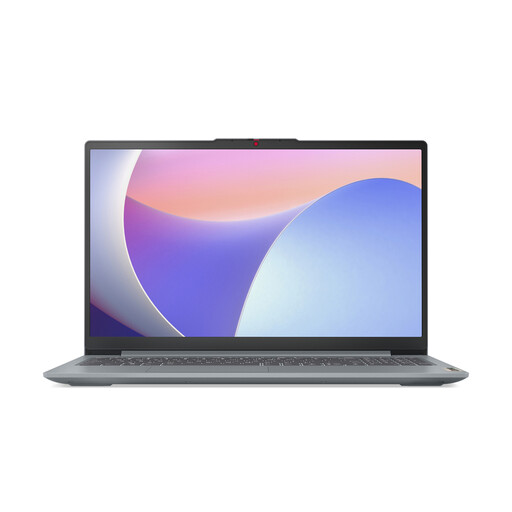
Consider this Windows laptop if you want a 15.6-inch screen for planning documents, but confirm the panel brightness for your window-side desk.
Intel N150, 8GB DDR4 RAM, 128GB SSD and Windows 11 Home. Check whether the storage capacity and any S Mode restrictions fit your school's applications.
 No image available
Consider this model if a compact planning laptop appeals, while checking its exact screen against the daylight at your desk.
16GB RAM and a 512GB SSD. Confirm that school-required software, accounts and device policies work with the selected configuration.
 No image available
The 15.6-inch format is worth considering if you want more room for planning materials; check the exact panel brightness for bright-window use.
24GB memory and a 1TB SSD. Confirm school-app compatibility, and do not treat a standby battery figure as working runtime.
 No image available
Consider its 15.6-inch screen if you plan on one laptop, while checking brightness and how much unplugged work your day requires.
Intel Core i5, 8GB RAM and a 512GB SSD. Check the stated battery-life conditions and school-app compatibility before relying on it away from a socket.
 No image available
Consider this MacBook Air if your school permits macOS and you prefer a 13-inch laptop for moving between planning spaces.
M5 chip with 10-core CPU and 10-core GPU, 24GB memory and a 1TB SSD. Check the precise screen finish, required school apps and classroom-display connection before buying for a bright-window setup.
No: a 500-nit specification cannot account for every window position or reflection. Check the selected panel's finish as well as its brightness, and position the screen to avoid direct reflections where possible.
Not necessarily. Microsoft's education-plan comparison distinguishes online-only access for Office 365 A1 core apps from plans that include desktop apps. Ask school IT which licence and applications your account provides before choosing a laptop around them.
Contact the seller and keep your order details. The UK Consumer Rights Act 2015 requires goods to be of satisfactory quality; the appropriate remedy depends on the fault and circumstances under the Act, rather than solely on a retailer's voluntary returns policy.
Use an appropriate electrical-equipment recycling or take-back route rather than putting it with ordinary waste. UK government guidance describes the Waste Electrical and Electronic Equipment framework for recovery, reuse and recycling; back up and erase your data before handing over the device.