Teachers with required school software
If your lessons depend on a particular virtual learning environment, assessment platform, printer, scanner or presentation display, check that the laptop supports those tools before comparing other features.


Start with the applications, school services and classroom equipment you must use: a conventional Windows laptop is a sensible starting point for Windows-only software or drivers, while macOS needs confirmed Mac support. Windows on Arm needs checks for essential applications and peripherals; a Chromebook suits lesson planning conducted through compatible browser-based services. Then choose a screen, memory configuration and connections that fit how you prepare and present materials.
If your lessons depend on a particular virtual learning environment, assessment platform, printer, scanner or presentation display, check that the laptop supports those tools before comparing other features.
If you keep slides, documents, browser research, cloud files and calls open together, pay close attention to the selected configuration’s memory, storage and screen workspace.
If you prepare materials mainly through web services and Google Workspace while travelling between home, school and meetings, consider carry weight alongside software compatibility and the device’s update schedule.
Check your school’s essential software and equipment before comparing screen space, portability and browser-led working. The right balance depends on which of those needs takes priority in your lesson preparation.
| Concern | What to check | Who this matters to |
|---|---|---|
| School software and equipment | Check the supported operating system for each required application and school service, plus printer, accessibility and classroom-display requirements. Ask suppliers about essential Windows-on-Arm software and drivers. | If I rely on a particular assessment tool or classroom device, I need it to work before anything else. Around 33% of consumers would put that compatibility need first. |
| Multitasking and workspace | Compare the exact model’s installed memory, SSD capacity, screen size and resolution, particularly if you keep local resources or work across several windows. | Keeping slides, research and documents open together matters more to me than choosing the lightest laptop; around 27% of consumers would make multitasking their primary need. |
| Carrying and unplugged use | Compare the specified weight, charging connection and ports. Treat advertised battery life as a claim for stated conditions, not a promise for calls or presentation work. | Moving between classrooms and working away from a socket makes carrying and charging central to my choice. Those needs would come first for around 20% of consumers. |
| Browser-led work and support | Test required school services in Chrome and, for a Chromebook, check the exact model’s update schedule with Google. | I prepare lessons in web services and need that workflow to remain usable over time; around 20% of consumers would prioritise browser-led work and support. |
A laptop may suit everyday documents yet leave you unable to use a required desktop application, accessibility tool or peripheral. Microsoft notes that applications on Windows on Arm may run natively or through emulation, so essential software deserves a supplier check.
List your school services, presentation software, printer or scanner, display equipment and any required security or accessibility tools. Check each against the platform you intend to buy.
Memory, storage and displays can vary within a series. Lenovo UK specifies 16 GB RAM and a 512 GB SSD for the ThinkPad E14 Gen 7 model 21SX0046UK; those figures should not be assumed for another E14 Gen 7.
Compare the full model number with the product page’s memory, SSD, display, ports, charger and warranty details before ordering.
Google publishes update schedules for individual Chromebook models. The date that matters to a longer-term purchase is the one for the device you are considering.
Check that model’s final scheduled update and confirm that the school services you need work in Chrome.
A display, older USB accessory or wired network may need a connection the laptop does not provide directly. For example, Apple UK lists two Thunderbolt 4/USB-C data ports on the 13-inch M5 MacBook Air.
Identify the inputs on your classroom equipment, then check the laptop’s ports and any required adapter specifications.
A compatible adapter or dock can also become another item to carry between rooms.
These examples illustrate different lesson-planning routes. Check the precise model and configuration rather than treating a brand name as a compatibility guarantee.
Lenovo UK lists the ThinkPad E14 Gen 7 model 21SX0046UK as a 14-inch Windows 11 Pro configuration with 16 GB RAM and a 512 GB SSD.
The 13.8-inch Surface Laptop 8th Edition is a Windows-on-Arm option for buyers who can confirm their required applications and peripherals.
The 13-inch M5 MacBook Air is a macOS option where the school’s required applications and services are confirmed to work on Mac.
The ASUS Chromebook Plus CX14 offers a ChromeOS route for lesson preparation carried out through compatible browser-based school services.
These models cover conventional Windows, Windows on Arm and Chromebook options for preparing lessons. Choose by your required school tools first, then compare the configuration and screen size that suit your working routine.
 No image available
Consider this configuration if a 15.6-inch screen and space for local lesson files matter more to you than choosing a smaller laptop.
Its stated configuration includes 16 GB RAM, a 1 TB SSD and a 144 Hz FHD display. Check your required school software and classroom connections against the exact model.
 No image available
This Windows-on-Arm route is worth considering for lesson planning only after checking essential school applications, accessibility tools and peripheral drivers with their suppliers.
The named configuration has 16 GB RAM and a 512 GB SSD. Confirm the connections needed for your classroom equipment before buying.
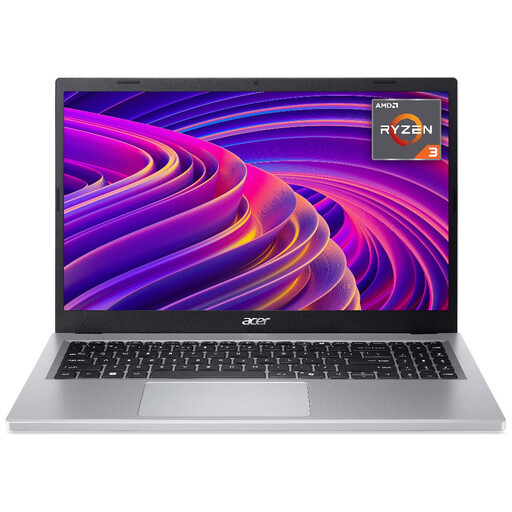 No image available
The 15.6-inch Full HD screen may appeal if you prepare slides and documents on a larger display.
This named configuration has 8 GB RAM and a 256 GB SSD; consider whether that meets your multitasking and local-file needs. Confirm the exact Acer model designation and your required school connections before ordering.
 No image available
Consider this Windows 11 Home convertible if a larger touchscreen is useful for preparing or showing lesson materials.
The named configuration has a 16-inch touchscreen, 16 GB RAM and a 512 GB SSD. Check its weight, ports and compatibility with required school equipment if you will carry it between classrooms.
 No image available
This Chromebook is a choice for lesson preparation through school services that work in Chrome, rather than for a required Windows or Mac desktop application.
The named configuration has a 14-inch WUXGA display, 8 GB RAM and a 256 GB SSD. Check your school services and Google’s update schedule for the exact model before choosing it for longer-term use.
Choose the platform that supports your required school applications and classroom equipment. Conventional Windows is a starting point for Windows-only tools; confirm Mac support before choosing macOS, check essential software and drivers for Windows on Arm, and choose ChromeOS only when your required work can be done through compatible services.
Yes, Microsoft Support lists native Arm versions of Word, PowerPoint, Excel, Outlook, Teams, OneDrive and OneNote. Check non-Microsoft teaching applications, assistive tools and hardware drivers with their suppliers before relying on the laptop for school work.
Check that every required school website and application works in Chrome, then look up the exact Chromebook model’s update schedule. Google says that schedule identifies when the device will receive its last update; a browser-first workflow does not establish support for a required desktop application.