For slides shared in a workplace that uses Windows PowerPoint, favour a Windows laptop; a MacBook Air suits a macOS workflow if its USB-C display connections fit your setup, while a touchscreen 2-in-1 is worth considering if you will use touch or annotation. Microsoft documents feature differences between PowerPoint platforms, so rehearse an important deck in the application and display setup you will use, then check memory, screen space and the exact monitor or projector connection.
Who this is for
PowerPoint collaborators
You create or edit decks for colleagues or clients and need files, fonts and media to behave as expected when someone opens them elsewhere. Microsoft documents differences between PowerPoint platforms and explains how eligible embedded fonts can help preserve a deck’s appearance.
Desk-based, multi-window slide creators
You keep a presentation open alongside research, notes, browser tabs or calls. Your choice needs enough memory and screen space for that working pattern, with a suitable connection if you use a second display.
Touch and annotation users
You want to sketch, mark up or review slides by touch rather than only type at a desk. Check touch and stylus support on the exact model: ASUS, for example, lists both for its Vivobook S14 Flip TP5408QA.
What matters when buying
Start with the presentation application and file-sharing workflow, then decide how much screen space you need and how the laptop will connect to your displays. Touch input matters only if it is part of the way you work.
| Concern |
What to check |
Who this matters to |
| Application and file compatibility |
Confirm the required presentation app and operating system. Open a representative deck on the intended platform, particularly if it uses custom fonts, media or advanced PowerPoint features. |
If I share editable decks with colleagues, I need the files to retain their intended layout and behaviour on the receiving setup. Around 42% of consumers put application and file compatibility first. |
| Multitasking and screen space |
Compare installed memory, storage and display size on the exact configuration; check external-display support if you work across two screens. Microsoft’s 4GB Microsoft 365 minimum is not a multitasking recommendation. |
When I edit slides beside research, notes and calls, I need a workspace that accommodates those simultaneous tasks. Roughly 33% of consumers make multitasking and screen space their primary concern. |
| Display connection and annotation |
Match the laptop’s confirmed video output to your monitor or projector. If you plan to draw or mark up slides, check the exact model’s touch and stylus support. |
I need to connect to the display I will present on, or use pen input when reviewing a deck. For around 25% of consumers, connection and annotation flexibility comes first. |
Buying pitfalls
-
Choosing by processor name without checking display ports
Apple’s MacBook Air specification lists Thunderbolt 4/USB-C connections rather than a built-in HDMI port, while a Dell Inspiron 14 configuration lists HDMI and USB-C DisplayPort. Neither tells you whether a different configuration will connect directly to your particular screen.
Check the ports on your home monitor and likely presentation display, then confirm the exact laptop’s video-output capabilities.
A compatible cable, adapter or dock may be needed when the laptop and display do not share a connection.
-
Assuming every version of PowerPoint behaves alike
Microsoft documents feature differences between PowerPoint on Windows, Mac and the web. A deck that looks acceptable in one version still needs checking in the setup used to present it.
Create and rehearse an important deck in the intended application and operating-system setup, including any media or presentation features you rely on.
-
Sharing a deck without planning for its fonts
Custom fonts can change the appearance of a deck when a recipient lacks them. Microsoft explains that embedding eligible fonts can help preserve layout, although not every font can be embedded.
Test font embedding early if you need an editable deck. For a viewing or printing copy, export a PDF backup; its fixed layout comes at the expense of editability.
-
Treating a laptop series name as a specification
Configurations within the laptop lines discussed here differ in memory, storage and ports. A family name alone cannot establish which combination you are ordering.
Check the exact model or order code for memory, storage, display, connections, keyboard layout and included accessories before buying.
Brands to consider for this workflow
Apple
MacBook Air is a macOS option for preparing slides on a built-in screen and connecting external displays.
- Apple lists a 13.6-inch MacBook Air display option, two Thunderbolt 4/USB-C ports and support for up to two external displays, subject to the specified display conditions.
- The cited MacBook Air specification does not list built-in HDMI; check the cable, adapter or dock needed for an HDMI-only display. These details do not describe every Apple laptop.
Lenovo
IdeaPad Slim 5 configurations offer conventional Windows laptop options with different screen sizes for desk-based slide work.
- Lenovo lists a 16-inch IdeaPad Slim 5 configuration with 32GB RAM, a 1TB SSD and a 2880 × 1800 OLED display; a separate 14-inch Slim 5i configuration lists 16GB RAM, a 512GB SSD and a 1920 × 1200 OLED display.
- Those figures belong to different configurations. Check the precise model and its current specifications rather than applying either set to the whole series.
ASUS
Vivobook S14 and Vivobook S14 Flip address different needs: a conventional laptop workflow and a touch-and-stylus workflow, respectively.
- ASUS lists up to 16GB DDR5 memory and up to a 1TB SSD for the Vivobook S14 S3407. Its separate Vivobook S14 Flip TP5408QA specification lists touch and stylus support, HDMI 2.1 and USB-C display-output ports.
- The cited Flip configuration lists 8GB onboard memory. Do not transfer the S14’s capacity figures or the Flip’s input and port features to another Vivobook configuration.
Dell
The cited Inspiron 14 configuration illustrates a compact Windows laptop with both HDMI and USB-C display connections.
- Dell lists HDMI 1.4 and USB-C with DisplayPort and Power Delivery for this Inspiron 14 configuration.
- The same configuration lists 8GB RAM and a 256GB SSD. Assess those capacities against your simultaneous applications and files, and confirm the exact order code.
Joybuy laptops for slide preparation
These choices cover conventional Windows laptops and one touchscreen Windows 2-in-1 for home-office slide work. Compare the exact configuration with your applications and display setup, particularly where a required video connection or pen feature needs confirming.
 No image available
ASUS Vivobook 15 X1504VA, Core 5 120U, 24 GB RAM, 1 TB SSD, Cool Silver
Consider this Windows laptop if you prepare slides while keeping other applications open at your desk.
The named configuration has a 15.6-inch display, Intel Core 5 120U, 24 GB RAM and a 1 TB SSD.
Check the video connection required by your monitor or projector, including USB-C video output if you intend to use it.
View on Joybuy
 No image available
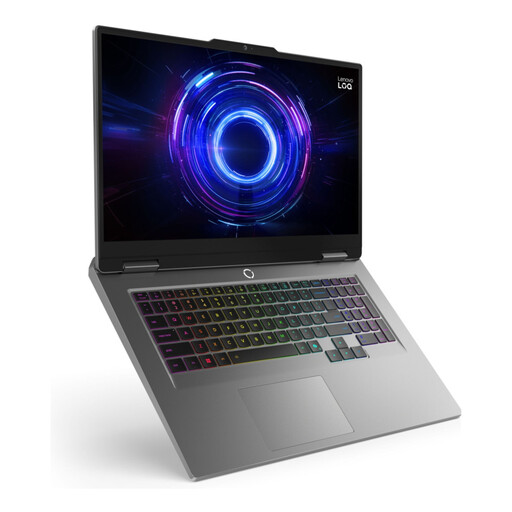
LOQ 17IRX10, i7-13650H, 24GB, 1TB, W11H
Consider its large built-in screen for predominantly desk-based slide work, rather than choosing its gaming-focused configuration for ordinary slides alone.
The listing identifies a 17.3-inch display, an i7-13650H processor, 24GB memory and 1TB storage.
Its stated approximate weight is 2.9 kg, which matters if you will carry the laptop regularly. Confirm the connection needed for your presentation display.
View on Joybuy
 No image available
Acer Aspire Lite AL15-36P-C29Z, Intel N150, 8GB RAM, 128GB SSD, Silver
This is a Windows laptop to assess for everyday slide editing and browser work if its memory and storage fit your workload.
The named configuration has a 15.6-inch Full HD display, Intel N150, 8GB DDR4 RAM and a 128GB SSD.
Its title identifies Windows 11 Home, but the detailed specification says Windows 11 Home in S Mode. Confirm the supplied edition and any app-installation restrictions before buying, as well as whether 128GB storage is sufficient.
View on Joybuy
 No image available
HP OmniBook X Flip 16-as0004na, Core Ultra 5 226V, 16GB RAM, 512GB SSD
Consider this touchscreen 2-in-1 if you want to review slides in different screen positions as well as edit them at a desk.
The named configuration has a 16-inch touchscreen, Intel Core Ultra 5 226V, 16GB RAM, a 512GB SSD and Windows 11 Home.
Confirm its video-output compatibility with your monitor or projector. Check stylus support separately if pen annotation is essential; a touchscreen alone does not establish it.
View on Joybuy
 No image available
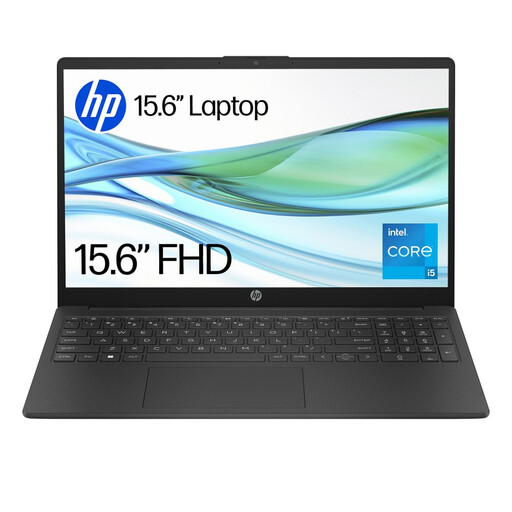
HP 15-fd0064na, Core i5-1334U, 8GB RAM, 256GB SSD
Consider this Windows laptop for slide work and browser research if its memory and storage suit the applications and files you keep open.
The named configuration has a 15.6-inch display, Intel Core i5-1334U, 8GB RAM, a 256GB SSD and Windows 11 Home.
Confirm HDMI or USB-C video-output support against your monitor or projector before ordering.
View on Joybuy
Common questions
Do I need a gaming laptop to prepare presentation slides?
No gaming-specific configuration is required for ordinary PowerPoint or Google Slides work. Microsoft lists 4GB RAM as a Microsoft 365 software minimum, not a guarantee of comfortable multitasking; assess the memory and screen space you need when slides, browser tabs and calls are open together.
Should I choose Windows or Mac for PowerPoint?
Choose the platform that fits the PowerPoint workflow your colleagues or presentation venue use, especially for decks with features you cannot test easily. Microsoft documents differences between PC, Mac and web PowerPoint; rehearse a representative deck on your intended setup before relying on it for an important presentation.
How can I stop fonts or layout changing when I share slides?
Use commonly available fonts where practical, or test embedding if you need an eligible custom font in an editable deck. Microsoft explains that a PDF preserves formatting and layout for viewing or printing, but a PDF is not a substitute for an editable presentation.
What should I do if a laptop develops a fault or reaches the end of its useful life?
Keep your proof of purchase and contact the seller about a fault; Citizens Advice explains that a refund, repair or replacement may be available depending on the circumstances. For a laptop you are discarding, use an appropriate electrical-recycling route; GOV.UK describes the Waste Electrical and Electronic Equipment framework as encouraging recovery, reuse and recycling.


