Teachers who mainly type feedback
If detailed written comments take up most of your time, measure the available desk space and assess the keyboard before choosing a screen size. Connections to the equipment you use at school matter too.


For mainly typed pupil feedback, start with a compact clamshell laptop whose keyboard, desk footprint and operating system work for your school. Consider a pen-enabled 2-in-1 if you regularly annotate work by hand, or a Chromebook if your required tools work in the browser; whichever route you take, confirm school approval for handling pupil information and check classroom connections before buying.
If detailed written comments take up most of your time, measure the available desk space and assess the keyboard before choosing a screen size. Connections to the equipment you use at school matter too.
If you regularly write or draw directly on digital documents, check touch and pen support on the exact configuration. Dell lists these features for a Latitude 7350 2-in-1 configuration, but pen support alone does not establish that a pen is included.
A Chromebook may suit feedback carried out through web-based school systems. Confirm that school accounts, the feedback platform and every required document feature work in the browser; Microsoft says its Windows and Mac desktop Microsoft 365 applications cannot be installed on a Chromebook.
Check which devices and applications your school permits before comparing keyboards and desk fit. Then decide whether annotation or classroom connections change the type of laptop you need.
| Concern | What to check | Who this matters to |
|---|---|---|
| Compact typing space | Compare the laptop’s width and depth with the usable desk area, and check the keyboard layout and typing position. | If I write long comments at a crowded desk, I need room to type without giving up too much space to the laptop. Around 31% of consumers put compact typing space first. |
| School systems and pupil data | Ask school IT about approved operating systems, required applications, personal-device rules and where pupil information may be stored. | Before using my own laptop for feedback, I need to know it can access school systems and be used under school policy. Roughly 25% of consumers make this their primary concern. |
| Annotation and document viewing | If you write on digital work, confirm touch, active-pen support and pen inclusion for the exact configuration; otherwise assess the screen for reading documents. | When feedback involves marking directly on pupil work, I need an input method that fits that task. Around 25% of consumers prioritise annotation and viewing. |
| Moving between desks and classrooms | Check the connectors on displays and accessories you actually use, along with the laptop’s ports and charging arrangements. | If I carry the laptop between rooms and connect to a classroom display, I want to know what must travel with it. About 19% of consumers put mobility and connections first. |
Microsoft supports access to Microsoft 365 through the web on a Chromebook, but its Windows and Mac desktop applications cannot be installed there. A required desktop-only feature could interrupt the feedback workflow.
Ask school IT to check the feedback platform, document features, browser support and any offline requirements before choosing ChromeOS.
Google says a Chromebook stops receiving ChromeOS and browser updates, including security fixes, after its final scheduled update. The relevant date is specific to the model.
Check the exact model’s update schedule before buying, particularly if you expect to use it for several school years.
Buying a laptop does not establish whether your school allows it to handle pupil information. Department for Education guidance says staff are responsible for protecting personal data and should follow school procedures.
Confirm personal-device rules, account access, permitted storage and reporting procedures with your school or trust before using the laptop for feedback.
Compact laptops can have different connections: Lenovo lists USB-A and HDMI on the ThinkPad X13 Gen 6, while Apple lists two Thunderbolt 4 USB-C ports on the 13-inch MacBook Air. Existing classroom equipment may therefore need a suitable adapter or dock.
List the inputs on your classroom display and other accessories, then compare them with the exact laptop configuration.
Its ThinkPad X13 Gen 6 and 14e Chromebook Gen 3 illustrate different approaches to a compact school-work setup.
The 13-inch MacBook Air is a compact macOS option when school systems permit its use.
A Latitude 7350 2-in-1 configuration is relevant when on-screen annotation is a regular part of feedback.
The Chromebook Plus 514 CB514-5H illustrates a ChromeOS route for browser-based feedback.
These compact Windows, macOS and Chromebook options suit different approaches to typed feedback. Choose by school compatibility and your working setup rather than treating the list as a single route for every teacher.
 No image available
Consider this 14-inch clamshell for typed feedback if your school approves the required software and device setup.
Its listed configuration has a Snapdragon X processor, 16GB RAM and a 512GB SSD. Measure the available desk space and confirm the keyboard layout and connections you need.
 No image available
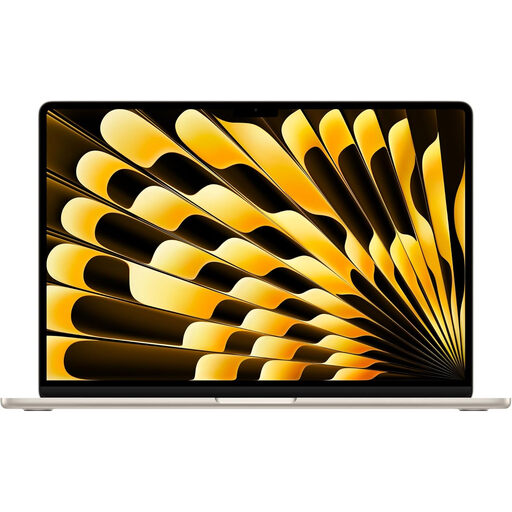
This compact macOS option is worth considering if your school supports macOS and permits the device for pupil feedback.
The listed variant has 16GB memory and a 1TB SSD. Apple’s specifications for the 13-inch MacBook Air list two Thunderbolt 4 USB-C ports; check whether classroom HDMI or USB-A equipment needs an adapter, and confirm the exact processor configuration before purchase.
 No image available
This 14-inch Chromebook is a choice for feedback carried out in school-approved browser tools, provided their required features work on ChromeOS.
The listed variant has a 1920 × 1200 display, an Intel Core i3-1315U processor, 8GB RAM and a 256GB SSD. Confirm its ports if you need a wired display, and check the exact model’s final ChromeOS update date.
 No image available
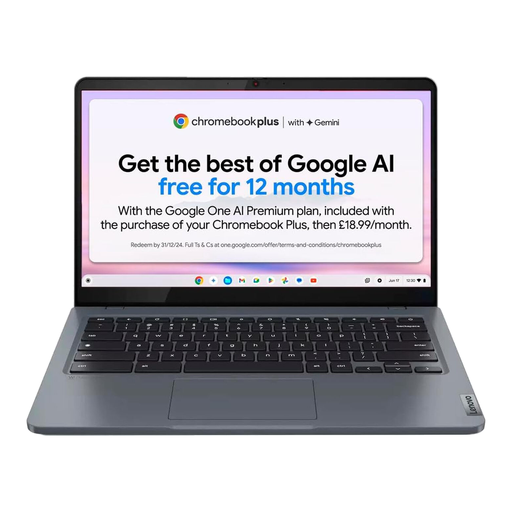
Consider this 14-inch Chromebook when feedback is primarily browser-based and your school supports ChromeOS.
The listed variant has an Intel Core i3 N305 processor, 8GB RAM and 256GB eMMC storage. Check its dimensions, keyboard, classroom connections and model-specific update end date before deciding whether it fits your desk and workflow.
Yes, if the school’s workflow works in the browser. Microsoft says Word and other Microsoft 365 apps are accessible through the web on a Chromebook, but their Windows and Mac desktop versions cannot be installed; check any document features your school requires.
Yes: confirm your school or trust permits the device and how pupil information must be accessed and stored. Department for Education guidance says staff handling personal data are responsible for protecting it and should follow school policies and procedures.
Check the final automatic-update date for the exact Chromebook model. Google explains that ChromeOS and browser updates, including security fixes, end after that model’s final scheduled update.
That depends on the ports of the exact laptop and the screen’s input. Lenovo lists HDMI on the ThinkPad X13 Gen 6, whereas Apple lists Thunderbolt 4 USB-C ports on the 13-inch MacBook Air; check the classroom screen and any approved dock or adapter before buying.