Shared-desk PowerPoint users
You regularly connect to a shared monitor, dock or peripherals and want to reconnect without rearranging several cables each time.


Choose a laptop that runs your required PowerPoint workflow and can connect to the monitor and peripherals at your shared desk. A Windows business laptop is a sensible route when your workplace depends on Windows-specific tools; a MacBook Air may suit an established macOS workflow, provided you check the PowerPoint features, external displays and accessories you actually use.
You regularly connect to a shared monitor, dock or peripherals and want to reconnect without rearranging several cables each time.
You keep slides open alongside source material, notes and collaboration tools, making screen space and the exact memory configuration important.
You already work in macOS and carry your laptop between desks, but still need to check that your PowerPoint features and desk accessories work with the Mac you choose.
Settle your software requirements first, then match the laptop’s connections to the actual shared desk. Screen space, memory and portability can be weighed against how often you work away from its monitor.
Consider it when: Your workplace uses desktop PowerPoint features or Windows-specific tools alongside its desk equipment.
Trade-off: Screen, memory and connections vary by configuration, so a business-laptop family name does not establish that a particular model fits your desk.
Consider it when: Your presentation files and colleagues’ workflow already fit macOS, and portability and a fanless design matter to you.
Trade-off: Microsoft Support documents PowerPoint feature differences between platforms; confirm the features you use and the exact Mac’s display arrangement before committing.
| Concern | What to check | Who this matters to |
|---|---|---|
| Desk connections | Match the exact laptop’s video output and charging support to the desk’s monitor, dock and cable. | If I move between desks, I want my monitor and peripherals to reconnect without a different setup each time; around 33% of consumers put dependable desk connections first. |
| Editing workspace | Check the exact screen size, resolution and memory configuration for working across slides and other windows. | When I have a deck, sources and messages open together, I need room to work without constantly switching views; around 27% of consumers make editing workspace their primary concern. |
| Portability and noise | Compare the exact model’s weight and charger arrangement; check its design if quiet operation matters. | Moving between rooms makes carrying weight important to me, and I would rather avoid fan noise near colleagues; around 20% of consumers prioritise portability and quiet use. |
| PowerPoint workflow | Confirm your required licence, fonts, templates, add-ins and collaboration setup on the intended platform. | If my team shares decks with organisation-specific features, I need those files to work in the version I will use; around 20% of consumers put workflow compatibility first. |
A USB-C connector alone does not establish video output, charging or compatibility with a particular dock. Dell lists different power delivery for Dell and non-Dell systems on its Thunderbolt 4 dock.
Match the exact laptop, dock, cable and monitor requirements, including display resolution and charging wattage. For a managed workplace desk, ask the team responsible for the setup to confirm compatibility.
An incompatible setup may call for a different adapter, dock or charger.
Microsoft Support documents differences between PowerPoint platforms. A deck that relies on particular fonts, add-ins, templates or presentation features needs checking in the version you intend to use.
Try a representative presentation on that platform before buying, including any editing or presenting tasks your team relies on.
Screen, memory and port options can differ within the business-laptop families described by HP, Dell and Lenovo. A specification for one configuration should not stand in for another.
Compare the exact model identifiers and their display, memory and connection specifications before choosing accessories.
HP’s UK listing for the cited ProBook 440 G11 configuration states that a charger is not included; that does not establish the contents of other configurations.
Check the box contents and required charging specification on the exact listing you plan to order.
You may need to obtain a compatible power adapter separately.
The HP ProBook 440 G11 illustrates a Windows business-laptop route: HP UK lists a configuration with Windows 11 Pro, 16 GB RAM, a 512 GB SSD and a 14-inch 1920 × 1200 display.
Dell’s Latitude 5450 family and Thunderbolt 4 dock provide a business-laptop and desk-connection route.
The 14-inch ThinkPad E14 family is another business-laptop route to examine for slide work.
MacBook Air is a macOS route for consumers whose presentation workflow already works on that platform.
These laptops offer different ways to prepare slides and return to a shared desk. Check your presentation software and the desk’s display connection against the exact model, particularly when considering a Chromebook for browser-based work.
 No image available
Consider this 14-inch laptop if you want to edit slides on the laptop screen as well as at a desk. The product name specifies a Snapdragon X processor, 16 GB RAM and a 512 GB SSD. Confirm that your required PowerPoint features and the desk’s monitor or dock work with this exact configuration.
 No image available
Consider this Windows 2-in-1 if its convertible format suits the way you review slides away from the shared desk. The product name specifies 16 GB RAM and a 1 TB SSD. Check your PowerPoint licence, required features and exact dock and monitor compatibility before ordering.
 No image available
Consider this Chromebook if your slide work can be done in the browser rather than requiring desktop PowerPoint features. Its named configuration has a 14-inch 1920 × 1200 display, 8 GB RAM and a 512 GB SSD. Confirm the presentation workflow and shared-desk connections you need.
 No image available
Consider this Chromebook for browser-based slide preparation if its storage configuration meets your needs. Its named variant has a 14-inch 1920 × 1200 display, 8 GB RAM and a 256 GB SSD, distinguishing it from the other Chromebook Plus 514 shown here. Check your required PowerPoint features and the desk’s dock and monitor requirements.
 No image available
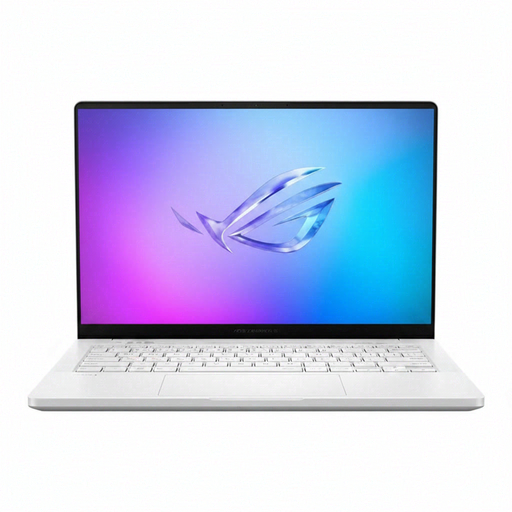
Consider this Windows laptop if you want the named 32 GB memory configuration while working across slides and other applications. The product name also specifies a 14-inch WQXGA+ display and a 2 TB SSD. Check its video-output ports, desk-dock compatibility, carrying weight and PowerPoint licence before choosing it for a shared desk.
Not necessarily: PowerPoint is available on PC, Mac and the web. Microsoft Support documents platform differences, so check your team’s fonts, add-ins, templates and required editing features before choosing; Microsoft 365 collaboration also depends on the cloud workflow your team uses.
No: the connector alone does not establish video output, charging or dock compatibility. Check the exact laptop and dock specifications against the monitor and cable; Dell, for example, lists different power delivery for Dell and non-Dell systems on its Thunderbolt 4 dock.
A MacBook Air may work with external displays, but check the exact Mac and desk arrangement. Apple states that current MacBook Air models can connect to up to two external displays, while the number and resolution supported depend on the Mac model and chip.
No, so check the box contents for the exact laptop. HP’s cited UK ProBook 440 G11 listing states that a charger is not included; confirm the required adapter specification if you need to obtain one separately.
Use a suitable electrical-equipment reuse or recycling route, and erase personal data before handing the laptop over. GOV.UK describes the UK’s waste electrical and electronic equipment rules as intended to encourage recovery, reuse and recycling rather than disposal with ordinary household waste.