If you plan to catalogue or edit photos in Lightroom Classic, start with a compatible laptop configured with at least 16GB of memory and a fast SSD, in line with Adobe’s recommended specifications. At a shared desk, also plan separate user accounts, a recoverable encryption setup and a backup stored away from the laptop; choose the operating system and connections around the software and peripherals you will actually use.
Who is this for?
Growing photo-catalogue organisers
If you regularly import, search, rate or edit photos, your software and active library should guide your memory and storage choices. Adobe’s Lightroom Classic recommendations are particularly relevant if that is your editing application.
Shared-desk privacy planners
If several people use the laptop, separate sign-ins and a workable recovery plan matter alongside its specifications. Microsoft describes how Windows accounts can keep users’ files separate; Apple advises keeping FileVault recovery information safe.
Monitor-and-peripheral desk users
If your desk includes a monitor, external drive or card reader, check the laptop’s display support and connections before deciding whether you also need a compatible hub or dock.
What matters when choosing?
Decide which photo software you will use and how much of the archive must stay on the laptop, then check the shared sign-in setup and every connection needed at the desk. An internal SSD can hold working files, but it does not replace a separately stored backup.
| Concern |
What to check |
Who this matters to |
| Catalogue work and storage |
For Lightroom Classic, check for at least 16GB of memory and a fast SSD, as Adobe recommends. Compare usable SSD space with your active library. |
If I am regularly sorting or editing a growing catalogue, I need enough working space without constantly moving files. Around 40% of consumers would put catalogue work and local storage first. |
| Privacy and access |
Plan separate accounts for regular users and check the chosen device’s encryption and recovery setup. Microsoft says Windows Device Encryption does not turn on automatically with a local account. |
When other people use the same laptop, I want my photos and sign-in kept separate, with a recovery route I can retain safely. For around 30% of consumers, shared-device privacy would be the primary concern. |
| Desk connections |
Count the monitor, drive, card reader and charging connections you need; confirm display support, port types and compatibility with any proposed dock. |
I reconnect a monitor and photo-import equipment at the shared desk, so the connection arrangement needs to work with those devices. Desk connectivity would come first for around 20% of consumers. |
| Backup and device handover |
Arrange a copy in a separate safe location. Before passing on an old laptop, remove personal data and check the applicable local recycling instructions. |
If I would struggle to replace these photos, I need a separately stored copy and a safe way to clear the old computer. Around 10% of consumers would make archive resilience their first priority. |
Buying pitfalls
-
Treating the internal SSD as a backup
If the laptop is lost, damaged or erased, files kept only on that drive may be lost with it. The National Cyber Security Centre describes a backup as a copy kept in a separate safe location.
Set up a separate backup destination and test that you can retrieve files before moving the archive’s only copies onto the new laptop.
That arrangement may require an external drive, cloud storage or both.
-
Choosing a processor name without checking the configuration
Memory and SSD options can differ within a laptop range. For Lightroom Classic, Adobe recommends at least 16GB of memory and a fast SSD, so a model-family name alone does not settle the choice.
Check the exact memory, SSD capacity, display and operating system selected before ordering.
-
Assuming every shared Windows laptop is already encrypted
Microsoft says Device Encryption depends on device requirements and does not turn on automatically when a local account is used.
After setup, check encryption status, retain the recovery information safely and create a separate account for each regular user.
-
Forgetting recovery and data removal when replacing a laptop
Apple warns that losing the FileVault recovery route can prevent access to files. An old laptop may also retain personal archive data when it leaves your possession.
Confirm that you can access the backup, retain recovery information securely and remove personal data before following your local authority’s or retailer’s recycling instructions. Oxfordshire County Council specifically advises clearing personal information from devices before recycling.
Relevant brands to consider
Apple
The M5 MacBook Air is a macOS option for organising photos on a portable laptop and reconnecting to an external-display desk.
- Apple UK lists 16GB, 24GB and 32GB memory choices for the 13-inch model, while Apple says the M5 MacBook Air supports up to two external displays.
- Apple specifies two Thunderbolt 4 ports for the M5 MacBook Air, so check whether your accessories require a hub or dock. Keep any FileVault recovery information somewhere safe and separate.
Dell
The Dell UK XPS 14 DA14260 is a configurable Windows option if your archive workflow requires Windows software.
- Dell lists a 16GB LPDDR5x configuration and selectable SSD capacities, including 1TB, 2TB and 4TB options.
- Check the selected storage, screen and Windows edition rather than assuming that every XPS 14 has the same configuration.
Lenovo
The examined ThinkPad X1 Carbon Gen 13 Aura Edition configuration is a Windows option for a shared desk where its stated security features and support cover matter.
- Lenovo lists Windows 11 Pro, 16GB memory, a fingerprint reader, an anti-glare display and three years of Premier Support for that UK configuration.
- Its listed 512GB SSD must leave enough room for your active files; confirm the exact configuration and arrange separate archive storage or backup as needed.
Laptops for a shared-desk photo archive
These Joybuy choices include Windows laptops and an M5 MacBook Air with memory and SSD configurations relevant to an active photo archive. Match the operating system to your software, check the connections your desk requires and keep a separate backup regardless of which laptop holds the working files.
 No image available
ASUS Vivobook 14 X1407QA-LY003W, 16GB, 512GB SSD, Quiet Blue
The 16GB memory and 512GB SSD make this a configuration to assess for a working photo catalogue.
Its name specifies a Snapdragon X processor. If you use particular photo software or peripherals, confirm compatibility with this configuration before ordering.
View on Joybuy
 No image available
HP OmniBook Ultra Flip 14-fh0006na, 16GB, 1TB SSD
This 2-in-1 configuration offers a 1TB SSD for consumers who want more local room for active photo files.
The product name specifies 16GB memory and Windows 11 Home. Check your card reader, monitor and dock requirements against the connections of the configuration you order.
View on Joybuy
 No image available
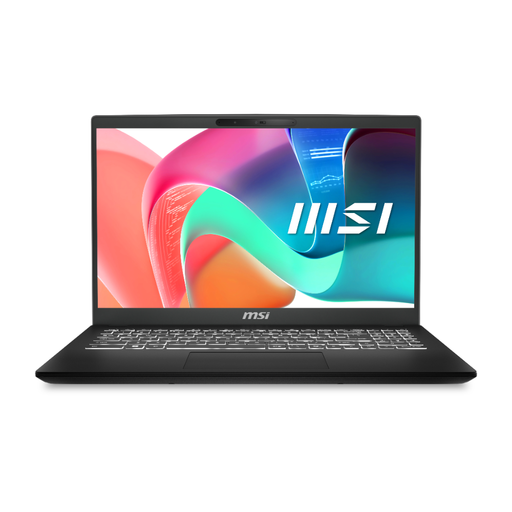
MSI Modern C2RMG-282UK, 9S7-15H431-282, 16GB, 512GB SSD
This is a 16GB, 512GB SSD option for an active photo catalogue; compare that capacity with the files you intend to keep locally.
The product name specifies a 15-inch FHD display and Intel Core 5 processor. Check the exact monitor and peripheral connections needed at your desk.
View on Joybuy
 No image available
Microsoft Surface Laptop 7 15-inch, 16GB, 256GB SSD, Maya Color
The 15-inch touchscreen may suit consumers who want a larger built-in workspace, but check whether the 256GB SSD leaves enough room for applications and active photos.
Its name specifies a Snapdragon X Elite processor. Confirm that your photo software and intended desk accessories work with this configuration.
View on Joybuy
 No image available
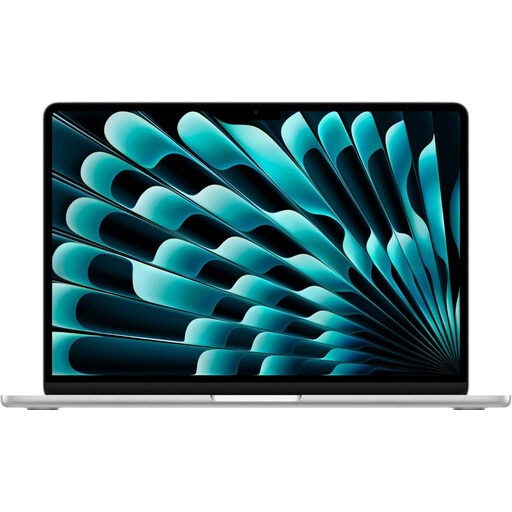
Apple MacBook Air 15-inch M5, 16GB, 1TB SSD, Silver
This macOS configuration pairs 16GB unified memory with a 1TB SSD for consumers keeping an active photo library on the laptop.
Apple says the M5 MacBook Air supports up to two external displays. Check the connections needed for your particular desk, and store FileVault recovery information safely if you enable it.
View on Joybuy
Frequently asked questions
Do I need 16GB of memory to organise photos?
For Lightroom Classic, Adobe recommends 16GB or more, while listing 8GB as its minimum. If you only sort files without that application, choose memory around the software you will use and the work you expect to do at the same time.
How can several people use the same laptop without sharing one sign-in?
Give each regular user a separate account and check the device’s encryption settings. Microsoft says separate Windows accounts can keep files and desktops private, but Device Encryption does not turn on automatically with a local account; on a Mac, retain FileVault recovery information securely if you enable it.
Can I keep my only copy of the archive on the laptop’s SSD?
No: an internal SSD is not a separate backup. The National Cyber Security Centre advises keeping a copy of important data in a separate safe location, so arrange another destination for photos you want to preserve.
What should I do with the old laptop after moving my photos?
Check that your archive is accessible from its new location and backup, then remove personal data before passing on or recycling the old device. Oxfordshire County Council advises clearing personal information from electrical equipment; follow your own local authority’s current disposal instructions.


