Choose a laptop according to what “two screens” means in your setup: two independent external monitors require documented support for that arrangement, while the laptop screen plus one external display may need only a suitable direct video connection. If you plan to use a dock, check both the laptop’s video-capable port and the dock’s supported display modes; port count alone does not establish that the setup will work.
Who needs which setup?
Desk-based slide creators using two external monitors
If you keep slides on one external monitor and notes, source material or a call on another, check the laptop’s stated independent-display support and the complete connection path. Lenovo’s ThinkPad T14 Gen 6 Intel specifications illustrate why the exact configuration matters: supported display arrangements vary by processor series.
Mobile presenters using one external display
If your two screens are the laptop panel and a meeting-room projector or monitor, focus on a connection that works with that display. Microsoft Support provides Windows controls for detecting, arranging and extending displays; test the intended layout before the presentation.
macOS slide creators
If your presentation software and collaboration tools work on macOS, check external-display support for the exact Mac and chip. Apple’s UK specifications state that MacBook Air with M5 supports up to two external displays; that limit should not be assumed for every MacBook.
What should you check before buying?
Decide whether you need two external monitors or the laptop panel plus one external display. Then check the exact laptop and any dock against that arrangement, rather than choosing by the number of similarly shaped ports.
| Concern | What to check | Who this matters to |
|---|
| Independent external displays |
Check the exact model and processor variant for its supported number of independent external monitors and your intended resolution and refresh rate. |
I need slides on one external monitor and notes or source material on another, so both must show separate content. Around 42% of consumers put independent external displays first. |
| Dock and port compatibility |
Match the laptop’s USB-C video protocol to the dock’s requirements, then check its simultaneous display modes. |
At a fixed desk, I want the displays and peripherals connected through a repeatable dock setup. For around 33% of consumers, dependable dock integration is the primary need. |
| Simple mobile presenting |
Confirm the projector or monitor input, use a suitable cable or adapter, and test separate-screen mode before presenting. |
Moving between meeting rooms, I only need my laptop screen and one external display without a desk dock. Keeping that setup simple comes first for around 25% of consumers. |
Common setup mistakes
-
Assuming two connectors mean two extended monitors
Display connectors alone do not establish independent-display support. Microsoft Support notes that an HDMI splitter duplicates a signal rather than creating two separate desktops.
Check the exact laptop’s supported external-display count and the connection method at your intended monitor settings.
-
Choosing a USB-C dock by its connector shape
A dock’s display capability depends on its host connection as well as the dock. HP specifies DisplayPort Alt Mode, Thunderbolt 3 Alt Mode or USB4 support through the host USB-C port for full data and video capability with its Thunderbolt 4 100W G6 Dock.
Match the laptop port to the requirements of the dock you intend to use, including its stated simultaneous monitor modes.
-
Confusing one external monitor with two
A laptop screen plus one monitor is a different arrangement from two independent external monitors. Support for the former does not establish support for the latter.
Write down the screens you will actually use, then check the manufacturer’s display-support statement for that arrangement.
-
Testing the display connection at the last moment
A cable, adapter or dock issue can leave a display undetected or showing duplicate content when you need separate windows.
Try the intended laptop, connection and destination display beforehand. In Windows, use the Detect, Identify and Extend controls where needed.
Relevant brands to consider
Lenovo
The ThinkPad T14 Gen 6 Intel family is relevant when you want manufacturer documentation for a desk-based multi-display setup.
- Lenovo’s product specifications identify HDMI and two Thunderbolt 4 ports and document independent-display support for specified processor variants.
- Display support varies by configuration. Match the retail model and processor to Lenovo’s applicable display-support notes.
Apple
MacBook Air with M5 is relevant if your slide software works on macOS and you also need external monitors at a desk.
- Apple’s UK MacBook Air M5 specification lists two Thunderbolt 4 USB-C ports and support for up to two external displays.
- Check your required software, meeting-room connections and monitor settings; the M5 specification does not describe every MacBook.
Dell
The Latitude 7450 is a business-laptop option to examine if operating-system and memory configurations matter to your workflow.
- Dell’s UK Latitude 7450 listing includes Windows 11 Pro or Ubuntu options and 16GB, 32GB or 64GB memory configurations.
- For two independent external monitors, check the technical manual for the exact Latitude configuration and any intended dock before choosing it.
Joybuy laptop choices
These MacBook Air M5 configurations are choices for macOS-compatible slide work. Apple documents support for up to two external displays for this model family; choose between the listed sizes and configurations only after checking your software, monitor modes and connections.
 No image available
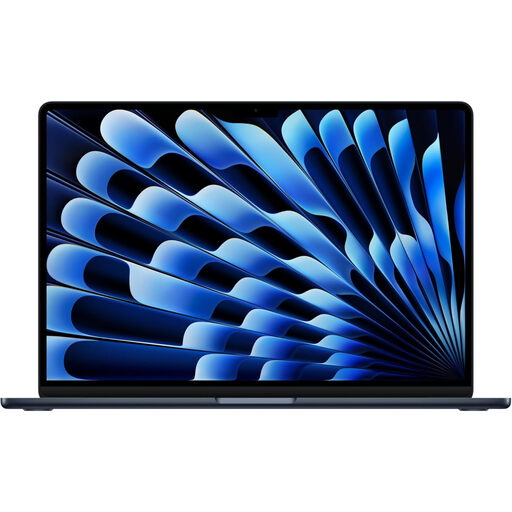
Apple 13-inch MacBook Air M5, 24GB, 1TB SSD, Midnight
For macOS-compatible slide work where two external monitors may be needed, Apple documents support for up to two external displays on MacBook Air M5. This configuration has an M5 chip with a 10-core CPU and 10-core GPU, 24GB memory and a 1TB SSD. Check the intended monitors’ resolution and refresh rates, and the cables or adapters needed to connect them.
View on Joybuy
 No image available
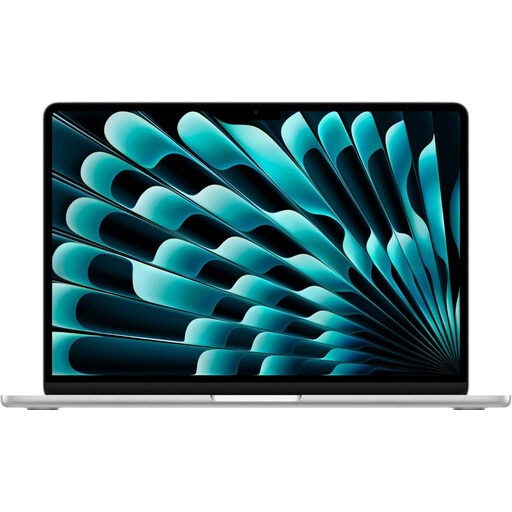
Apple 15-inch MacBook Air M5, 16GB, 1TB SSD, Silver
Consider this configuration if you want a 15-inch built-in screen for slide work as well as Apple’s documented MacBook Air M5 support for up to two external displays. It has an M5 chip with a 10-core CPU and 10-core GPU, 16GB memory and a 1TB SSD. Confirm the connection method, supported monitor settings and any adapters required for your setup.
View on Joybuy
Questions about two-screen slide work
Can an HDMI splitter run two separate external monitors?
An HDMI splitter duplicates a display signal rather than creating two independent desktops, according to Microsoft Support. For separate content on two external monitors, check the laptop’s independent-display support and use a compatible connection or multi-display dock.
Will any USB-C port run two monitors through a dock?
No: the connector shape does not establish video support. HP says its Thunderbolt 4 100W G6 Dock requires a host USB-C port supporting DisplayPort Alt Mode, Thunderbolt 3 Alt Mode or USB4 for full data and video capability; check the requirements of your chosen dock and laptop together.
How do I show different content on each screen in Windows?
Select Extend rather than Duplicate after connecting the displays. Microsoft Support directs Windows users to Settings > System > Display, where you can detect and arrange the screens to match your physical setup.
What should I do with an old laptop when replacing it?
Back up and erase your personal data before using an appropriate electronics recycling or take-back route. UK government guidance on waste electrical and electronic equipment covers the recovery, reuse and recycling of devices such as laptops.


