Standing-desk minute editors
People who type and review notes for sustained periods while standing. The Health and Safety Executive advises separating the keyboard and mouse from a raised laptop screen so each can be positioned appropriately.


Choose a laptop that runs your workplace software and gives you enough document space without becoming awkward to carry between meetings. For sustained editing at a standing desk, plan the workstation as well as the laptop: the Health and Safety Executive advises using a separate keyboard and mouse when raising the laptop screen, so you can adjust the screen and typing positions independently.
People who type and review notes for sustained periods while standing. The Health and Safety Executive advises separating the keyboard and mouse from a raised laptop screen so each can be positioned appropriately.
People carrying a laptop between meeting rooms and work locations who need a practical balance between screen space and portability.
People whose document tools, VPN, security software or device management depend on an approved operating system and configuration.
Check workplace compatibility and the standing-desk arrangement before deciding how much screen space you want to carry. The percentages below express how consumers might prioritise one primary need each; they are not survey findings.
| Concern | What to check | Who this matters to |
|---|---|---|
| Standing-desk setup | Check how you will raise the screen while positioning a separate keyboard and mouse, as the Health and Safety Executive advises for laptop use. | If I edit notes for long stretches while standing, I need to adjust the screen without forcing my hands up to the laptop keyboard. Around 34% of consumers may put workstation positioning first. |
| Portability | Compare the configured laptop's weight and screen size with how often you move between meetings and desks. | When I carry my laptop from one meeting to the next, its size and carrying burden matter alongside room to read my notes. Portability may be the primary concern for around 33% of consumers. |
| Workplace compatibility and workspace | Confirm required applications, VPN and security tools work with the operating system and processor; consider how many windows you use together. | If I rely on employer-managed tools or keep an agenda beside my minutes, the laptop has to accommodate that workflow. Around 20% of consumers may prioritise compatibility and working space. |
| Accessory planning | Check whether your existing keyboard, mouse, riser or display can be used with the laptop's connections. | I want to use the desk equipment I already have rather than discover that it will not connect to my new laptop. For around 13% of consumers, making the complete setup work may come first. |
Raising a laptop screen also raises its built-in keyboard. The Health and Safety Executive advises using a separate keyboard and mouse so the display and typing position can be adjusted independently.
Decide how you will position the screen, then check that your chosen keyboard and mouse can connect to the laptop.
For prolonged use, you may also need a laptop riser or a separate display.
A larger display gives you a different amount of workspace, but it does not separate screen height from the built-in keyboard.
Choose screen size for your documents and carrying needs, then arrange the screen and input devices for standing work.
A laptop suitable for writing can still be the wrong choice if required document, VPN, security or device-management tools do not work with its configuration.
Ask your employer or IT team to confirm the required software and peripherals against the exact operating system and processor before purchase.
Manufacturer battery figures depend on their stated test conditions; calls, connected devices and other work can change how long a charge lasts.
Consider where you will charge the laptop during meetings and desk work, rather than relying on a headline rating alone.
The ThinkPad X13 Gen 6 is a reference point for people who move between desks but want a business-oriented laptop.
The Latitude 7450 illustrates a 14-inch business-laptop route for organisation-managed work.
MacBook Air is relevant when an employer permits macOS and a compact laptop suits the meeting-to-meeting workflow.
The 13-inch Surface Laptop offers a compact Windows option for document-focused work.
These laptops offer different screen sizes and configurations for editing meeting minutes. Choose among them by checking your workplace software, the space you need for documents and how you will connect separate desk equipment.
 No image available
Consider this 14-inch model if you want a laptop to move between meeting rooms and a standing desk. Its title specifies a Snapdragon X processor, 16 GB of memory and a 512 GB SSD. Confirm that required employer applications and peripherals work with this configuration before buying.
 No image available
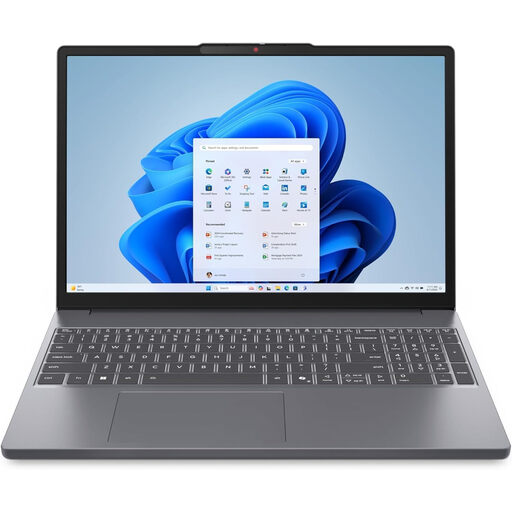
The 15.3-inch WUXGA screen is worth considering if you want more laptop display space for meeting documents. This variant lists 24 GB DDR5 memory, a 512 GB PCIe SSD and Windows 11 Home. Check your employer's software requirements and how you will use a separate keyboard and mouse when the screen is raised.
 No image available
Consider the 2-in-1 format if you expect to use it beyond typing minutes at a desk. This variant lists 16 GB of memory, a 1 TB SSD and Windows 11 Home. Confirm the exact graphics configuration and workplace-software compatibility before choosing it; the convertible design does not replace a separate keyboard and mouse for sustained raised-screen use.
 No image available
The 15.6-inch screen is an option if seeing more of a minutes document on the laptop matters more to you than keeping the device compact. This variant lists an Intel Core 5 120U processor, 24 GB of memory and a 1 TB SSD. Check its connections for your desk equipment and confirm workplace-software requirements.
 No image available
This compact macOS option makes sense only if your organisation's document, VPN and device-management tools support it. The listed variant has an M5 chip with a 10-core CPU and 10-core GPU, 24 GB of unified memory and a 1 TB SSD. Confirm the exact device's carrying weight and compatibility with your separate desk equipment.
A laptop alone makes it difficult to adjust the screen and typing position independently when its screen is raised. For prolonged laptop use, the Health and Safety Executive advises a separate keyboard and mouse so the screen can be elevated on a riser or similar setup.
Position them so you can view the screen and type comfortably without relying on the raised laptop keyboard. The Health and Safety Executive advises placing the top of the screen around eye level and the separate keyboard just below elbow height, with the screen and keyboard in front of you.
Choose a 13-inch-class laptop if compactness matters more when moving between meetings; consider a 14-inch screen if you more often keep notes alongside an agenda or other window. Either size still needs a suitable keyboard and mouse arrangement when its screen is raised for sustained standing work.
The Health and Safety Executive says employers must carry out a display screen equipment workstation assessment for workers who use such equipment daily as part of their normal work for continuous periods of an hour or more. The assessment concerns the workstation as a whole, not just the laptop model.
The Health and Safety Executive says display screen equipment rules can apply to workers who work from home permanently or on a long-term basis. If the laptop is for work, ask your employer how its workstation assessment and equipment arrangements apply to your home setup.