What to check when choosing
Start with the operating systems and browsers you must test. A Windows business configuration suits Windows-specific or managed-device work; a macOS device serves a separate Safari or macOS test requirement rather than replacing Windows coverage.
Windows business laptop
Choose when: Your test plan requires Windows browsers, accessibility controls or an organisation-managed Windows environment.
Check first: Windows 11 Pro on a cited business configuration does not establish that a different Windows 11 Home laptop meets your team’s management or test-tool requirements.
macOS laptop
Choose when: Safari or macOS behaviour is explicitly included in the test matrix.
Keep in mind: A macOS setup does not replace Windows-specific browser, assistive-technology or managed-device tests.
| Concern |
What to check |
Who this matters to |
| Test-environment coverage |
Confirm the operating system, required browsers, test-tool permissions and physical keyboard layout against your test matrix. |
If I have to reproduce keyboard behaviour in specific browsers and assistive settings, a machine that cannot run the required setup leaves a gap in my tests. Around 33% of consumers put environment coverage first. |
| Workspace and multitasking |
Check the exact display configuration and installed memory, plus external-monitor and dock compatibility if you use them. |
When I keep a browser, developer tools, notes and evidence open together, I need a workable view of the task without constantly rearranging windows. For around 25% of consumers, that workspace is the primary concern. |
| Privacy and collaboration |
If side viewing is a concern, confirm whether the exact configuration has a switchable privacy display and whether it suits side-by-side review. |
I may need to shield sensitive test material from nearby desks, but still show a colleague what went wrong. That balance comes first for around 17% of consumers. |
| Support and service life |
Confirm the model-specific support route, replaceable-part information and compatibility with your organisation’s device-management policy. |
For repeated QA work, I need a device my team can deploy and maintain under its own policies. Around 25% of consumers make support and service life their first priority. |
Joybuy laptop choices
These Windows 11 Home laptops are choices to examine when Windows testing is in scope. Compare each exact configuration with your keyboard layout, test-tool and workplace-management requirements; the selection does not cover the separate macOS test route.
 No image available
ASUS Vivobook 14 X1407QA-LY003W Copilot+ PC, Quiet Blue
Consider this model for a Windows test setup if Windows 11 Home and its keyboard layout fit your team’s requirements.
The listed configuration has a Snapdragon X processor, 16GB RAM and a 512GB SSD. Confirm compatibility with required test tools and workplace device management before choosing it.
View on Joybuy
 No image available
ASUS ProArt P16 H7606WW-SE006W, Black
Consider the 16-inch display if you prefer a larger built-in workspace for a Windows-based test setup.
The listed configuration has a 4K OLED touchscreen, an AMD Ryzen AI 9 HX 370 processor, NVIDIA GeForce RTX 5080 16GB graphics, 64GB RAM, a 2TB SSD and Windows 11 Home. Check your required tools, workplace-management setup and keyboard layout against this exact model.
View on Joybuy
 No image available
HP OmniBook Ultra Flip 14-fh0006na 2-in-1
This is a Windows option to examine if a 2-in-1 design suits how you work between test sessions.
The listed configuration has 16GB RAM, a 1TB SSD and Windows 11 Home. Confirm the physical keyboard layout and compatibility with your team’s testing and device-management tools.
View on Joybuy
 No image available
HP OmniBook X Flip 16-as0004na 2-in-1
Consider this model if you want a 16-inch built-in screen for a Windows test setup and can accommodate that size at your desk.
The listed configuration has a touchscreen, an Intel Core Ultra 5 226V processor, 16GB RAM, a 512GB SSD and Windows 11 Home. Check its keyboard layout and your organisation’s tool and management requirements.
View on Joybuy
 No image available
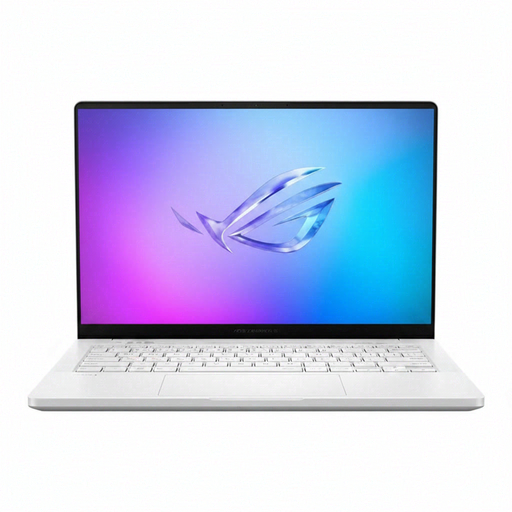
ASUS ROG Zephyrus G14 GA403WR-QS088W
This is another 14-inch Windows option to compare if your test workflow calls for the listed memory and storage configuration.
Its title specifies a WQXGA+ display, AMD Ryzen AI 9 HX 370 processor, 32GB LPDDR5x-SDRAM, 2TB SSD, NVIDIA GeForce RTX 5070 Ti graphics and Windows 11 Home. Check the keyboard layout, workplace-management compatibility and shared-office noise requirements for this exact model.
View on Joybuy
Questions about keyboard-navigation testing
Do I need a specially certified laptop to test keyboard navigation?
A laptop certification is not what determines whether a website or app works with a keyboard. The W3C Web Accessibility Initiative’s keyboard criterion concerns operation of the content itself, with an exception for functions inherently dependent on movement path; choose a laptop that can run your required test environments, then test the product in them.
What should I check first with the keyboard?
Start with Tab and Shift+Tab to check focus order and whether focus remains visible, then try the keys needed to operate each control. The Home Office User-Centred Design Manual describes Tab navigation as a quick starting check; if a widget or dialog seems to trap focus, check whether you can leave it with the keyboard, including Escape where appropriate.
Does every shared-office test laptop need a privacy display?
No; it is relevant when someone nearby could see sensitive material from the side. HP describes Sure View as switchable on devices that include it, so confirm the exact configuration and consider whether narrower viewing angles would interfere with reviewing results together.
Which Windows accessibility controls should I check?
Check the controls your test process actually uses in the organisation’s managed Windows configuration. Microsoft Support lists keyboard shortcuts for features including Magnifier, Narrator, the On-Screen Keyboard and Accessibility Settings; access to a shortcut does not replace testing keyboard operation in the website or app.


