For a laptop that will handle photo edits alongside coursework and gallery tools, a 16GB-memory configuration is a practical starting point; choose SSD capacity according to how many original images you will keep locally. A compact laptop may suit daily travel, while a larger or colour-oriented screen deserves more attention if reviewing and editing images is central to the project. Check the exact display, required software and connections before deciding.
Who is this for?
Student photo editors
If you edit and organise original images as well as running course applications, consider memory, local storage and the exact screen configuration together. Adobe notes that Lightroom Classic performance varies with file size, catalogue size and editing activity.
Students carrying one laptop between study and gallery work
If the same computer goes to lectures and runs a browser-based gallery editor in your room, balance its carrying weight and connections against the screen space you want at your desk. Check the memory and SSD configuration you are buying rather than choosing on size alone.
Creators with required Windows software
If your course, camera or editing workflow depends on particular Windows applications or plug-ins, check each one against the processor architecture of the laptop you intend to buy. Adobe publishes separate compatibility guidance for Copilot+ PCs using Snapdragon X-series ARM processors.
What matters when choosing?
Start with the software needed to build and maintain the gallery, then decide how much editing and local image storage the laptop must handle. Compare screens and portability using the exact configuration, not just the laptop family name.
| Concern | What to check | Who this matters to |
|---|
| Editing and storage |
Check for 16GB memory if you will edit while multitasking, and choose SSD capacity around the size of the image library you plan to keep locally. Keep a separate backup. |
If I am editing original photographs while coursework and gallery tools remain open, I need enough room for both the work and its files; around 31% of consumers put editing headroom and local storage first. |
| Screen and colour |
Check the panel fitted to the exact variant. For colour-critical work, confirm the requirements of the wider display and output workflow rather than relying on an OLED or colour-gamut label alone. |
When I select and adjust images on the built-in screen, its size and stated colour characteristics shape my choice; roughly 31% of consumers prioritise the display for image review. |
| Portability |
Compare stated weight, charger, ports and the conditions behind battery-life claims. A compact screen may leave less editing workspace. |
If the laptop travels with me to classes most days, carrying it comfortably matters alongside gallery work; around 25% of consumers make daily portability their primary concern. |
| Software and connections |
Check your gallery platform, photo editor, plug-ins and course software on the chosen operating system and processor. Confirm the connections needed for a room display or storage device. |
If one required application or desk connection determines whether I can complete the project, I need to settle that before choosing a model; approximately 13% of consumers put workflow compatibility first. |
Buying pitfalls
-
Choosing a laptop family instead of a configuration
Memory, SSD and panel options can differ within one family. ASUS, for example, lists multiple configurations for the Zenbook S 14 UX5406.
Record the full model and variant number, then check its installed memory, SSD, screen and ports before buying.
-
Assuming a colour-gamut claim covers the whole workflow
Stated P3 or DCI-P3 coverage describes a display characteristic; it does not establish how your camera files, browser, printer or external screen will handle colour.
For colour-critical assessed work or prints, check the complete workflow and whether display calibration is needed.
-
Assuming every Windows photo tool works on every Windows laptop
Snapdragon X laptops use ARM architecture. Adobe provides separate compatibility guidance for Copilot+ PCs, so the operating-system name alone cannot settle whether a required tool will work.
Check each editor, plug-in, camera utility and course application with its publisher before choosing an ARM-based model.
-
Keeping the only copy of your gallery on the laptop
More internal SSD space accommodates more local files, but it does not protect the only copy if the laptop is lost, damaged or fails.
Maintain a separate, routinely updated copy of original photographs and exported gallery files on suitable external storage or a cloud service.
Brands to consider for this use
Apple
The MacBook Air range is relevant if you want a compact macOS laptop for study and gallery work.
- Apple lists 16GB unified memory, a 512GB SSD, P3 wide colour and two Thunderbolt 4 ports for the relevant 13-inch configuration.
- Choose internal storage with your image library in mind, and confirm that required university and gallery software runs on macOS.
ASUS
The Zenbook S 14 UX5406 line is relevant to Windows users comparing compact laptops with colour-oriented display options.
- ASUS lists OLED variants with 100% DCI-P3 coverage and PANTONE validation, alongside differing memory and SSD options.
- Those specifications belong to particular UX5406 configurations; check the exact panel, memory and storage in the listing.
Lenovo
The Yoga Pro 7 Gen 10 offers a creator-oriented Windows route if a larger built-in display matters to your editing.
- Lenovo describes the 14-inch AMD model with a 14.5-inch 3K PureSight Pro OLED display.
- Check the retail variant's processor, memory, storage, weight and ports; product-line display claims do not establish every configuration.
Microsoft
The 13-inch Surface Laptop range is relevant if you want a portable Windows touchscreen for general study and gallery tasks.
- Microsoft lists a 13-inch Surface Laptop configuration using Snapdragon X Plus.
- For a photo workflow on this ARM-based model, check required editors, plug-ins and course applications against their publishers' compatibility guidance.
Joybuy laptop choices for student gallery work
These laptops cover different ways to combine local photo storage, a built-in viewing area and student work. Compare each configuration against how often you will carry it and whether your gallery needs colour-critical editing or particular software.
 No image available
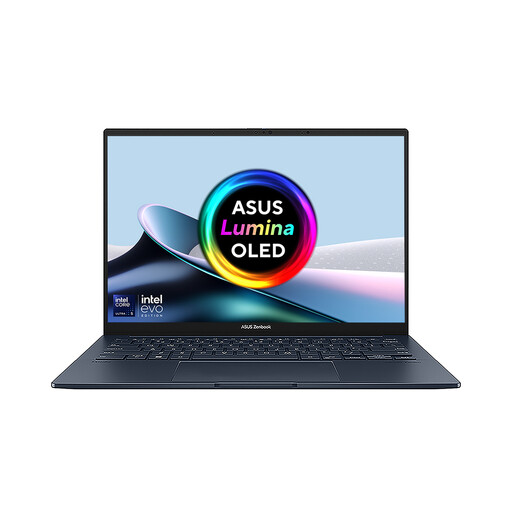
ASUS Zenbook DUO UX8406CA-QL135W, 16GB, 1TB SSD
Consider this dual-screen configuration if you want room for gallery work and other tasks on the laptop itself.
Its product name specifies dual 14-inch OLED touchscreens and an Intel Core Ultra 7 255H. Check the exact panel resolution before buying, as the configuration descriptions differ.
View on Joybuy
 No image available
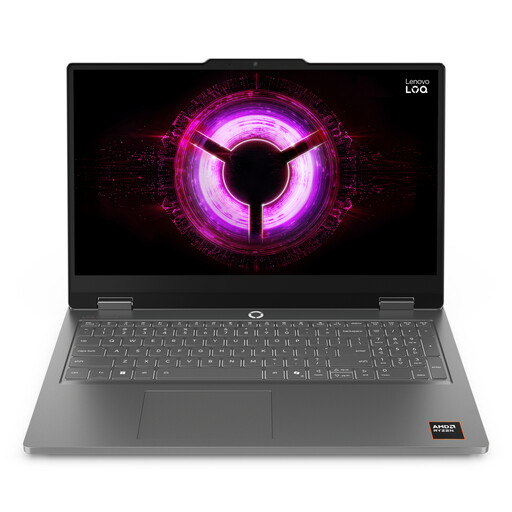
Lenovo LOQ Essential 15ARP11, Ryzen 7 170, RTX 5050
This 15.6-inch option is worth comparing if a larger built-in viewing area and locally stored photographs matter more than carrying a compact laptop.
The named configuration has 16GB memory, a 1TB SSD and a 144Hz FHD display. Its stated 2.30kg weight is worth considering if you travel to campus regularly.
View on Joybuy
 No image available
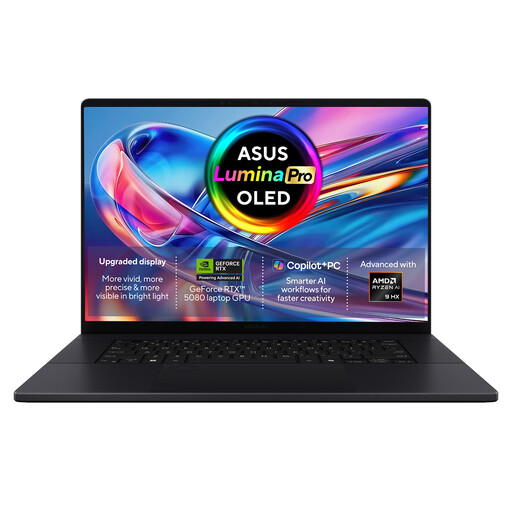
ASUS ProArt P16 H7606WW-SE006W, 64GB, 2TB SSD
Consider this configuration if you expect to keep a substantial active image library locally and want a 16-inch screen for editing.
The product name specifies a 4K OLED touchscreen, AMD Ryzen AI 9 HX 370 and GeForce RTX 5080 16GB. Check the exact panel's colour specifications if your work has colour-critical requirements; the stated laptop weight is 1.95kg.
View on Joybuy
 No image available
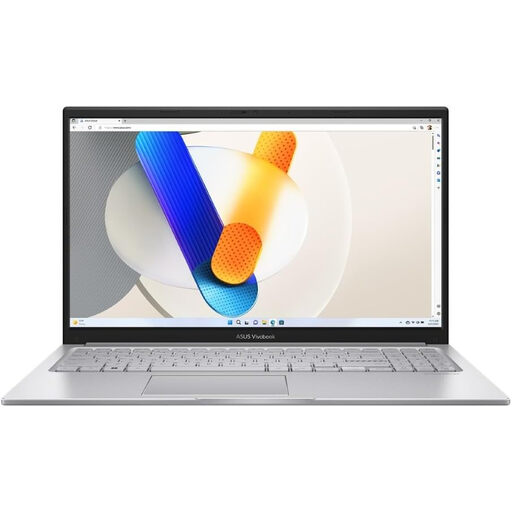
ASUS Vivobook 15 X1504VA, Core 5 120U, 24GB, 1TB SSD
This configuration suits someone who wants memory and local file capacity for coursework and a gallery on a general-purpose laptop.
It has a 15.6-inch screen in the product name. If you will make colour-critical edits on that screen, check the exact panel specification before deciding; the stated weight is 1.70kg.
View on Joybuy
 No image available
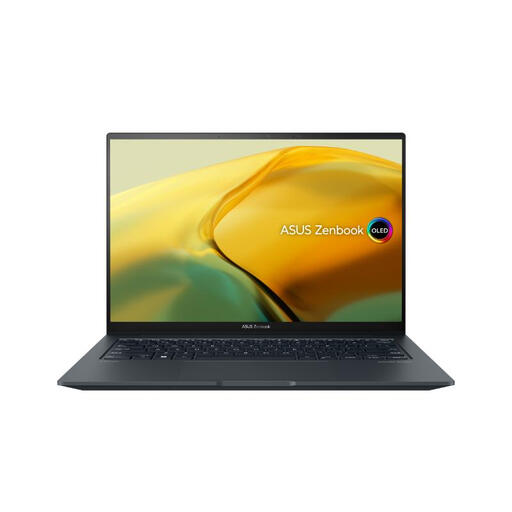
ASUS ZenBook UX3404VC-M3130W, Core i9, RTX 3050
Consider this model if you want a smaller built-in OLED viewing area while keeping gallery files and study work on the same laptop.
The product name specifies a 14.5-inch touchscreen, 16GB memory and a 1TB SSD. Check its exact colour coverage and ports if you need dependable colour review or a particular external-display connection.
View on Joybuy
Common questions
Is 8GB of memory enough for a student photo gallery?
For photo editing alongside coursework and browser tabs, 16GB is a more useful configuration to consider. Adobe recommends 16GB or more for the cited Lightroom Classic release and notes that performance varies with file size, catalogue size and editing activity; lighter browser-based work may have different demands.
Should I choose a 512GB or 1TB SSD?
Choose capacity according to the original photographs, exports, applications and coursework you intend to keep on the laptop. A 512GB configuration may suit a modest local library with a separate backed-up archive; consider 1TB or backed-up external storage if you expect to retain many original high-resolution or RAW files locally.
Will my photo software run on a Snapdragon Windows laptop?
Check the exact applications and plug-ins before buying rather than relying on the Windows name alone. Adobe maintains separate compatibility guidance for Copilot+ PCs with Snapdragon X-series ARM processors; also check camera utilities and university software with their publishers.
Can I use a larger display in my student room?
You can if the laptop's display output and your monitor connection are compatible. Apple lists two Thunderbolt 4 ports and support for up to two external displays for the relevant MacBook Air specification; check the precise laptop and monitor connections and whether you need a cable, adapter or dock.


