Choose a direct HDMI cable when your laptop has an HDMI output, your TV has an available HDMI input and a cable run suits the room. If the laptop has a different video output, check whether a suitable adapter can connect it to the TV. For cable-free sharing, choose a route only after confirming that the laptop and receiver use the same casting standard and meet any network requirements.
Who each connection suits
Cable-first photo and video sharers
If you mainly show files stored on a laptop or want the TV to display the whole desktop, a cable is a straightforward route when both devices have suitable ports and can sit close enough together. Which? covers this household sharing use, while Apple documents using a connected TV as a Mac display.
Owners of laptops without HDMI
If the laptop lacks an HDMI output, identify its actual video-output port before choosing an adapter for the TV. Apple documents different adapter routes for Mac ports and advises checking the adapter’s supported display specifications.
Households that prefer wireless sharing
Cable-free viewing can suit a compatible Windows wireless-display, Google Cast or Apple AirPlay setup. Check the receiving TV or device against the laptop’s casting route; Google Cast also calls for a strong connection to the same Wi-Fi network.
What matters when choosing
For an existing TV, start with the laptop’s output and the TV’s input or casting capability. Then decide whether a physical cable is practical for where you want to use the laptop.
| Concern |
What to check |
Who this matters to |
| Direct sharing of stored media |
Check for an HDMI output on the laptop, an available HDMI input on the TV and a practical cable length. |
If I mainly want to show stored photos or the whole laptop screen on the TV, a direct display connection matters more than avoiding a cable; around 29% of consumers put straightforward media sharing first. |
| Connecting a laptop without HDMI |
Identify the laptop’s video-output port and check the adapter’s TV-side connector and supported display modes. |
When my laptop has no HDMI port, I need to connect its actual video output to the TV; around 21% of consumers make port matching their primary concern. |
| Cable-free Windows or Chrome sharing |
For Windows wireless display, check Miracast support at both ends. For Chrome casting, check for a Google Cast receiver and strong same-network Wi-Fi. |
I would rather keep the laptop away from the TV than run a cable across the room, provided the receiver works with my computer; around 29% of consumers prioritise cable-free casting. |
| Using an Apple/AirPlay setup |
Check for an Apple TV or AirPlay-supported TV. If connecting by cable instead, match the Mac port, adapter and TV input. |
With a Mac and a compatible AirPlay receiver, I want to share without adding a wired connection; around 21% of consumers focus primarily on their Apple/AirPlay setup. |
Connection mistakes to avoid
-
Buying a cable before checking both ports
An HDMI cable alone will not connect a laptop whose video output requires an adapter. Apple distinguishes between HDMI and port-specific Mac adapter routes.
Identify the laptop’s display-output port and the TV’s available input, then check the adapter’s supported resolution and features.
-
Assuming wireless casting standards are interchangeable
Windows wireless display uses Miracast-compatible equipment, while Chrome casting calls for a Google Cast receiver; the names do not establish cross-compatibility.
Check the laptop’s supported route, the receiver’s named standard and any network requirements before choosing a device.
-
Expecting screen casting and tab casting to handle sound alike
Google says audio may remain on the computer when casting the whole screen, whereas casting a Chrome tab sends its sound to the TV.
If TV sound matters for a video, try the casting mode you intend to use before relying on it for shared viewing.
-
Overlooking power for a wireless display adapter
Microsoft’s Wireless Display Adapter uses HDMI for the TV connection and also needs USB power.
Check whether the TV has an available HDMI input and a usable USB charging port.
Without usable USB power at the TV, this adapter needs a separate 5V/1A USB power source.
Brands and connection routes
These brands’ documentation helps identify compatible routes; the relevant ports, receivers and display capabilities still depend on the devices you own.
Apple
Apple documents wired Mac-to-TV connections and AirPlay routes for compatible equipment.
- Apple Support explains how a connected TV can serve as a mirrored or extended Mac display.
- Supported output and adapter features vary by Mac model and adapter, so check the exact combination before buying.
Google
Google Cast is a route for Chrome users with a compatible receiver or TV.
- Google Cast Help documents casting a Chrome tab, a local file opened in Chrome or the screen.
- The computer and receiver need strong same-network Wi-Fi; whole-screen audio may remain on the computer.
Microsoft
Microsoft documents Windows wireless display with a Miracast-capable TV or receiver.
- A compatible Windows PC can use a Miracast receiving display or adapter without a laptop-to-TV video cable.
- Microsoft’s Wireless Display Adapter requires an HDMI input and USB power at the TV or a separate suitable power source.
Joybuy connection accessories and devices
These choices cover a USB-C-to-HDMI adapter, two lengths of HDMI cable and a wireless display device. Match any choice to your laptop, TV and intended viewing setup before buying.
 No image available
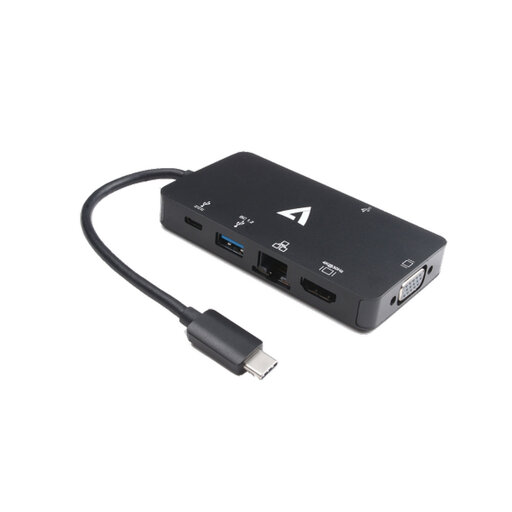
V7 V7UC-U3CRJ45HDVG-BLK USB-C adapter
Consider this for a laptop with USB-C video output when the TV has an HDMI input; confirm that the laptop supports USB-C Alt Mode video.
The listed connections include 4K HDMI, VGA, Gigabit Ethernet, two USB 3.0 ports and USB-C Power Delivery rated at 100W. HDMI output is stated as up to 4K UHD at 30Hz, so check that display mode against your needs.
View on Joybuy
 No image available
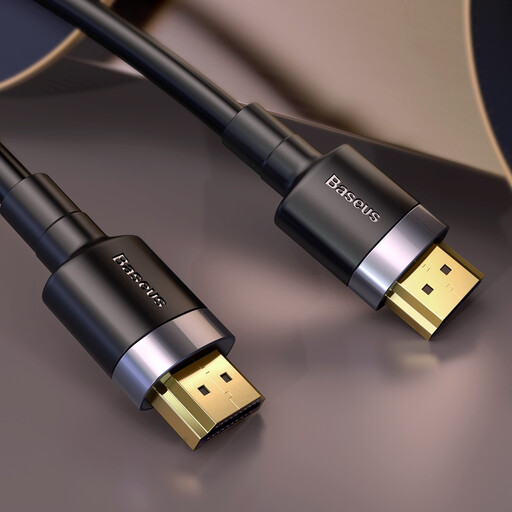
Baseus Cafule 4KHDMI male-to-male cable, 3m, black
This 3m cable is a direct-connection option if the laptop and TV both have available, compatible HDMI ports and the length fits their positions.
Check the supported resolution and refresh rate for this specific 3m variant before relying on a particular display mode.
View on Joybuy
 No image available
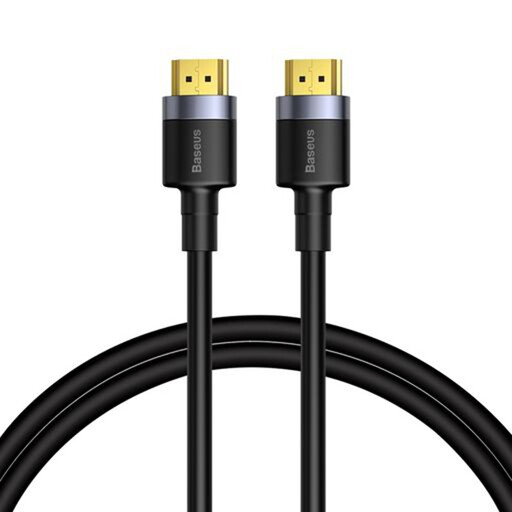
Baseus Cafule 4KHDMI male-to-male cable, 2m, black
This 2m cable suits a direct connection when both devices have available, compatible HDMI ports and the measured cable run is within reach.
The product is described as 4K, but check its supported refresh rate if you need a particular display mode.
View on Joybuy
 No image available
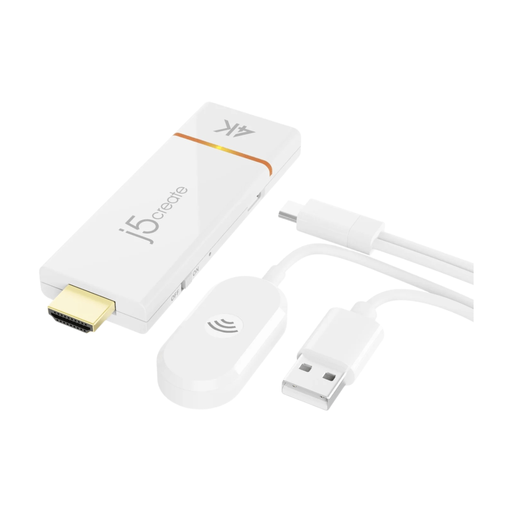
j5create JVAW56 ScreenCast HDMI™ wireless display, white
Consider this for sharing a laptop screen without a video cable running from the laptop to an HDMI display.
Before buying, check its supported sender devices and casting standards, network requirements and display resolution against your setup.
View on Joybuy
Laptop-to-TV questions
Should I use HDMI or a wireless connection for laptop photos and videos?
Use HDMI if both devices have compatible ports and a cable is practical; choose wireless sharing when the laptop and receiver support the same route. Check Miracast for Windows wireless display, Google Cast and same-network Wi-Fi for Chrome casting, or a compatible AirPlay receiver for a Mac.
Will any USB-C port work with a USB-C-to-HDMI adapter?
Do not assume that it will: check whether your laptop’s USB-C port supports the required video output and whether the adapter supports your intended display mode. Apple Support lists relevant Mac port families and advises checking adapter specifications, including supported resolutions.
Why does the Microsoft Wireless Display Adapter need USB as well as HDMI?
The Microsoft Wireless Display Adapter uses USB for power as well as an HDMI connection to the TV. Microsoft says it can use a TV USB charging port or, if that is unavailable, a standard USB Type-A charger rated at 5W (5V/1A).


