Multi-VM developers and testers
If several guest systems run alongside an IDE, browser and collaboration tools, plan memory for everything active at once and allow storage for the guest images.


Choose a laptop for the memory and storage needed by its host operating system, every VM you expect to run at once and the applications inside them—not just the hypervisor’s minimum requirements. If you plan to use Hyper-V, check the exact Windows edition and hardware requirements before comparing configurations; for shared-office use, check the desk equipment and portability as well.
If several guest systems run alongside an IDE, browser and collaboration tools, plan memory for everything active at once and allow storage for the guest images.
If you move between desks, check the exact laptop’s ports, networking and display connections against the equipment you use, alongside its VM capacity and portability.
If Linux will be your host system, check compatibility for the exact laptop configuration and Ubuntu release where relevant. Check your hypervisor and guest operating systems separately.
Work out your busiest VM session and required hypervisor before settling on a specification. Then check how the laptop will connect at a shared desk and how practical it is to move and maintain.
| Concern | What to check | Who this matters to |
|---|---|---|
| VM capacity | Add up host and concurrent guest memory needs; allow internal SSD space for virtual disks and snapshots. Check whether RAM can be upgraded. | If several guests must stay open while I work in host applications, memory and space for their images come first. Around 37% of consumers put VM capacity first. |
| Hypervisor compatibility | For Hyper-V, check Windows Pro or Enterprise, a 64-bit processor with SLAT and enabled firmware virtualisation. Check other hypervisors against your planned setup. | If my team depends on a particular hypervisor or existing VM images, I need the chosen configuration to support that workflow. For around 27% of consumers, compatibility is the primary concern. |
| Shared-desk connections | Match the exact laptop’s ports, dock and display support, networking and charger requirements to the office equipment. | When I change desks, I need to reconnect to the displays and network my work requires. Desk connectivity comes first for around 18% of consumers. |
| Portability and support | Check the exact configuration’s weight, included warranty, repair arrangements and memory or SSD serviceability. | If I carry my VM host between work locations, I care about moving it and getting it repaired without losing access to my work. Around 18% of consumers prioritise portability and support. |
Microsoft lists Windows Pro or Enterprise for enabling Hyper-V; the processor and firmware requirements matter too.
Check the operating-system edition, SLAT support and firmware virtualisation setting for the exact configuration before buying.
A host must also accommodate its own applications, active guest systems and their applications. Virtual disk files take up local storage.
Plan for your busiest expected session, including guest memory allocations, images and snapshots.
Memory, storage and other options vary between configurations in the Lenovo, Dell and HP ranges.
Compare the full part number with the listed RAM, SSD, Windows edition, ports and warranty rather than relying on a family description.
Microsoft warns that VMware Workstation or VirtualBox VMs might not start or might run unreliably while the Hyper-V hypervisor is running.
Confirm the hypervisor your team requires and test its VM images and security setup before standardising a configuration.
Changing host virtualisation settings or rebuilding a VM workflow can take additional time after deployment.
ThinkPad P Series is Lenovo’s mobile-workstation range, with configurations across different laptop sizes.
Precision is Dell’s mobile-workstation line for professional applications.
ZBook is HP’s mobile-workstation range, with configurations relevant to high-memory Windows work.
This high-memory Windows laptop is a configuration to consider for local VM images and shared-office work. Its listed Windows 11 Home edition does not meet Microsoft’s edition requirement for Hyper-V.
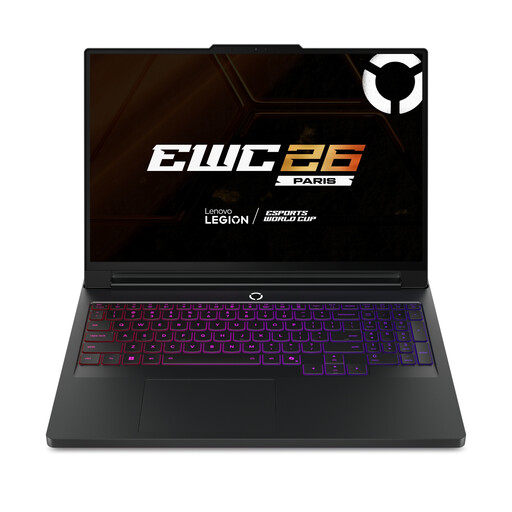 Image unavailable
Consider its listed memory and storage if you keep several local VM images, but size your busiest session before deciding whether it meets your needs.
The 16-inch configuration lists an Intel Core Ultra 9 processor, 64 GB RAM, a 2 TB SSD and NVIDIA GeForce RTX 5090 graphics. It comes with Windows 11 Home, so it does not meet Microsoft’s Windows-edition requirement for Hyper-V. If Hyper-V is essential, also check SLAT support and the firmware virtualisation setting; check the laptop’s weight and your desk equipment before choosing it for frequent moves.
No. Microsoft lists Windows 11 Pro or Enterprise for enabling Hyper-V. Check that the laptop also has a 64-bit processor with SLAT, enabled hardware virtualisation and enough memory for the host and active VMs.
Do not treat a hypervisor’s low host-memory requirement as a target for that workload. Broadcom documents a 4 GB-and-above recommendation for the VMware Workstation host, but your host applications and every active guest also need memory; calculate their combined requirements.
The applications can be installed, but Microsoft warns that third-party VMs using the same processor features might not start or might run unreliably while the Hyper-V hypervisor is running. Test the combination your team needs before choosing a standard setup.
Match the exact laptop’s ports and networking to the office dock, displays and network, then confirm the required firmware virtualisation setting. Arrange an independent backup for VM images so a problem with the laptop does not leave the only copy on its internal drive.