For repeated transfers of large photo, video or work folders, consider a portable SSD if the devices and cable support its connection speed. A flash drive can suit a smaller working set that needs to travel regularly; a portable hard drive is worth assessing for occasional, multi-terabyte transfers. If compatible devices are nearby and the files do not need to travel with you, direct sharing may avoid a drive altogether. Whichever route you choose, check capacity and write compatibility, and keep another copy of important files.
Who is each option for?
The size of each transfer, how often you make it and which devices are involved matter more than the storage label alone.
People moving large folders repeatedly
If photo libraries, video projects or work folders regularly travel between computers, a portable SSD is a useful route to assess. Check the ports and cable as well as the drive: USB-IF says a USB connection operates at the lowest common speed capability.
Home-to-work document carriers
A compact flash drive may suit a smaller set of files carried between home and work or school. Confirm that its connector fits both computers and that the workplace permits removable storage before relying on it.
Windows and Mac users sharing one drive
Both computers need to write to the drive, not merely recognise it. Apple identifies ExFAT as a Windows-compatible format for disks over 32GB in Disk Utility; it says a Mac may read an NTFS drive but might not be able to save files to it.
What should you check before choosing?
Start with the largest batch of files you expect to move, then check both ends of the journey. If the devices will stay nearby, consider whether direct sharing would do the job before choosing a drive.
| Priority | What to check | Your needs |
|---|
| Capacity |
Compare the largest transfer batch with usable space, rather than treating the labelled capacity as entirely available. Check whether the files must travel together. |
I want to carry a whole project in one trip. For occasional multi-terabyte batches, I would assess a portable hard drive; for a smaller working set, I may not need that capacity. |
| Connection |
Identify USB-A or USB-C ports on both devices and the cable or adapter needed. Check the documented data capability of the drive, ports and any hub: USB-IF says they operate at the lowest common speed capability. |
The drive has to connect at both ends of my journey. A matching plug alone would not tell me how quickly a large folder will transfer. |
| Write access |
Check the drive’s file system against both devices. For a Windows-and-Mac drive over 32GB, Apple identifies ExFAT as a Windows-compatible format; do not assume a Mac can write to NTFS. |
I need to edit or add files on both computers, not just open them on one. If I must reformat a drive, I will copy its existing files elsewhere first. |
| Transfer time |
Consider how often large batches move, then read speed claims with their host and cable conditions. Kingston says optimal DataTraveler Max performance needs USB 3.2 Gen 2 (10Gbps); that condition does not describe every flash drive. |
Repeated video or photo transfers make waiting time important to me. For occasional transfers, I may put more weight on carrying the required volume or using a smaller device. |
| Where files go |
Check whether both devices are nearby and support the same local-sharing method. Microsoft describes Nearby sharing between Windows PCs; Apple describes AirDrop between nearby Apple devices. |
If the files only need to reach another compatible device beside me, I may not need to carry a drive. If they must go to another location, portable storage remains worth considering. |
| File handling |
Safely remove USB storage before disconnecting it, as Microsoft advises. Open the receiving copy before deleting the original; assess encryption and workplace rules for personal or work information. |
I do not want the transfer device to become my only copy. If it carries sensitive information, I also need to consider what happens if I lose it. |
Direct sharing and portable storage solve slightly different journeys. Microsoft says Nearby sharing sends files to nearby Windows PCs using Bluetooth or Wi-Fi, while Apple describes AirDrop for nearby Apple devices. Neither is a general substitute for a drive that must carry files away or connect to a different device ecosystem.
What can go wrong when moving files?
-
Judging speed by a USB-C plug
USB-C describes the connector, not one transfer rate. USB-IF identifies different USB 3.2 data rates and says a connection operates at the lowest common speed capability; a slower port, cable or hub can therefore limit a capable drive.
Check the documented USB data rate along the whole connection path before using an advertised read or write figure to plan a transfer.
-
Reformatting before saving the files already on a drive
A file system can make a drive readable but not writable on another computer. Apple also warns that formatting erases the files on the disk or volume.
Copy anything you need to keep elsewhere before reformatting. If one drive must work with Windows and Mac, assess ExFAT and check any device-specific format requirements.
-
Using the transfer drive as the only copy
A portable copy can be misplaced or disconnected before a transfer is complete. Microsoft recommends safely removing external USB storage to help avoid data loss; the Information Commissioner’s Office explains that encryption protects stored personal information against unauthorised access, not against losing the only copy.
Keep the source files until you have opened and checked the receiving copy. Follow your organisation’s storage rules when carrying work information.
Relevant storage ranges
These examples illustrate different storage routes; a brand name alone does not establish a particular model’s capacity, connection or suitability.
Samsung
The T7 Shield is a portable SSD range to examine for repeated large-file transfers. Samsung’s UK figures cited here concern the 2TB T7 Shield MU-PE2T0S/EU, not every Samsung drive.
- Samsung states up to 1,050 MB/s read and 1,000 MB/s write for that model, subject to its USB 3.2 Gen 2 connection conditions.
- Check the exact model, host port and cable before treating a quoted maximum as an expected transfer time.
Kingston
DataTraveler Max is a flash-drive range to consider when compact carry matters alongside connection capability; its specifications should not be applied to other Kingston drives.
- Kingston identifies USB 3.2 Gen 2 (10Gbps) as the interface needed for optimal DataTraveler Max performance.
- Choose the connector and capacity variant for the devices and files involved, and check the host connection rather than assuming the drive alone determines speed.
Seagate
Expansion Portable is a hard-drive range to examine when carrying a large volume of files is the main requirement.
- Seagate’s UK support information lists Expansion Portable models including a 5TB STKM5000400 variant.
- Check the precise model’s connector, cable and formatting; capacity alone does not establish its transfer time or compatibility.
Portable storage options on Joybuy
These options span portable SSDs for repeated large-file moves, a compact flash drive for carrying a working set and a portable hard drive for larger batches. Compare each model’s capacity and connection with your own files and devices.
 No image available
Samsung T7 Shield 1 TB portable SSD, blue
A 1 TB portable SSD to assess for repeated large-file transfers. The listing specifies USB 3.2 Gen 2 and includes USB-C to USB-C and USB-C to USB-A cables; its stated maximum read and write speeds depend on the connected equipment. Check that 1 TB accommodates your files and that both devices can write to the drive. The listing’s IP65 claim does not mean it can be submerged.
View on Joybuy
 No image available
Samsung T7 4 TB portable SSD, grey
The stated 4 TB capacity is worth comparing with a larger transfer batch when you want a portable SSD. The listing specifies USB 3.2 Gen 2 and USB-C to USB-C and USB-C to USB-A cables. Confirm the ports, available space and write format for your devices; the advertised maximum speed is not a promised transfer result. Keep this model away from liquids.
View on Joybuy
 No image available
Samsung T7 2 TB portable SSD, blue
This 2 TB portable SSD is an option for moving sizeable folders repeatedly if its usable space fits the batch. The listing specifies USB 3.2 Gen 2 and USB-C to USB-C and USB-C to USB-A cables. Check both devices’ ports and write compatibility before relying on a particular transfer time. The listing does not describe this model as waterproof or dustproof.
View on Joybuy
 No image available
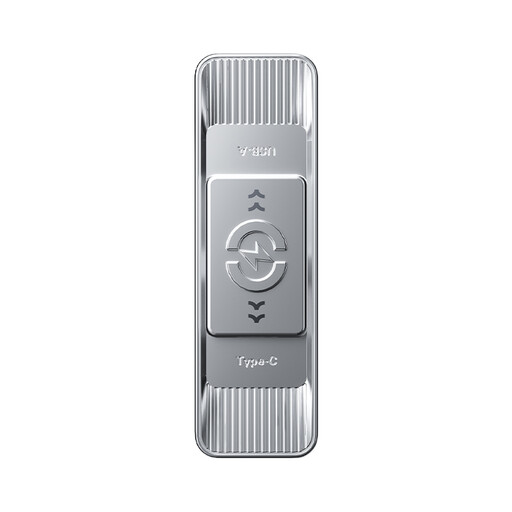
MOVESPEED YSUSP05-512GSR 512 GB dual-interface flash drive
A compact option for carrying a working set between devices with USB-A and USB-C connections. The listing states USB 3.2 Gen 1 and a 512 GB capacity. Compare that capacity with the complete batch, and check write compatibility on each device; the listing’s speed figures depend on the host connection.
View on Joybuy
 No image available
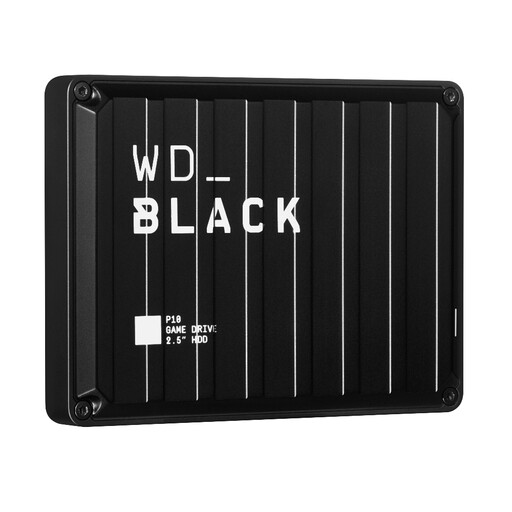
Western Digital WD_BLACK P10 5 TB Game Drive
This portable hard drive’s stated 5 TB capacity makes it worth assessing for occasional, large-volume file moves. The listing specifies a USB-A to Micro-B cable and a USB 3.2 Gen 1 interface. Although marketed as a game drive, its connection and file-system requirements still need to suit the computers used for transfers; its stated speed is not a measured result for your files.
View on Joybuy
Frequently asked questions
Should I use ExFAT for a drive shared between Windows and Mac?
ExFAT is a sensible format to assess when both computers need to write to the same transfer drive. Apple identifies it as Windows-compatible for disks over 32GB in Disk Utility and warns that formatting erases existing files. Check any other device’s format requirements before changing the drive.
Does USB-C mean a large file will transfer quickly?
No: USB-C identifies the connector, not a single data rate. USB-IF distinguishes USB 3.2 Gen 1 at 5Gbps, Gen 2 at 10Gbps and Gen 2x2 at 20Gbps, and says a connection operates at its lowest common speed capability. Check the drive, device ports, cable and any hub.
Should I eject a portable drive before unplugging it?
Yes. Microsoft advises safely removing USB flash drives and external hard drives before disconnecting them to help avoid data loss. Once a transfer finishes, open the files on the receiving device before deleting the original copies.
When can I transfer files without carrying a drive?
Direct local sharing is worth considering when compatible devices are nearby and the files do not need to travel with you. Microsoft describes Nearby sharing between Windows PCs using Bluetooth or Wi-Fi; Apple describes AirDrop between nearby Apple devices. Check the feature’s requirements on both devices.


