For frequent large transfers, a portable SSD makes sense if both computers and the cable support its faster USB connection. Choose a portable HDD when the file set is large and copying time matters less, or a flash drive when the files fit and a small, easy-to-carry device matters most. Cloud storage is another route when moving a drive between computers is impractical, provided you have suitable internet access.
Who needs to move files?
People replacing a computer
If you are moving folders, photos or videos from an old computer to a replacement, check the size of everything you plan to copy before choosing a transfer method. Which? identifies an external USB drive as one way to move files to a new computer.
People carrying files between home and work
For repeated transfers, carrying convenience and copying time both matter. Check your workplace’s rules before putting work files on a personal drive.
People using both USB-A and USB-C computers
A drive with both connectors, or one supplied with suitable cables, can connect to different port shapes. Check the ports on both computers and whether each can read and write the drive’s file format.
What should you check before choosing?
Start with the size of the files and how often you will move them; then check the connection, file format and any rules governing the files.
| Priority | What to check | Your needs |
|---|
| Capacity |
Measure the complete file set. Choose a drive with enough available space for the copy and some working headroom. |
For a computer move, I want to copy the folders together rather than divide them across several trips. |
| Transfer time |
For repeated large copies, compare the storage type and the connection supported by the drive, cable and both computers. Which? says SSDs are usually faster than HDDs; a stated maximum speed is not a promise for every setup. |
If I move large work folders regularly, waiting for each copy affects which route I choose. |
| Ports and format |
Match USB-A or USB-C connections at both ends. For Windows-to-Mac transfers, check that both computers can write to the drive; Apple identifies ExFAT as Windows-compatible and cautions that a Mac may read an NTFS drive without being able to write to it. |
One computer may have USB-A and the other USB-C, or I may need to copy files between Windows and macOS. |
| Location |
A physical drive needs a connection to each computer. Which? also describes cloud storage as a way to move files to a new PC; check that upload and download access suits the transfer. |
If I cannot carry a drive between the computers, access to the files from another location matters more than a USB connector. |
| File protection |
Use the operating system’s eject function before unplugging a drive, as Microsoft advises. For work files, check the organisation’s removable-media rules; the Information Commissioner’s Office discusses encryption and limiting personal data on insecure USB storage. |
When I carry personal or work files, I need a transfer method I am permitted to use and a way to disconnect it safely. |
What can disrupt a transfer?
-
Assuming a USB-C port guarantees the drive’s stated speed
USB-C describes the connector, not the data rate. The USB Implementers Forum distinguishes USB 3.2 Gen 1, Gen 2 and Gen 2x2 by their respective 5Gbps, 10Gbps and 20Gbps signalling rates.
Check the USB capability of the drive, cable and ports on both computers before relying on a maximum speed claim.
-
Assuming Windows and macOS can both write to any drive
Apple says a Mac may be able to read an NTFS drive without being able to write to it. That matters if the Mac must send files, not merely receive them.
Inspect the drive’s format before copying. ExFAT is a Windows-compatible option identified by Apple; move any existing files elsewhere before reformatting, which erases the drive.
-
Choosing a flash drive before measuring the files
A file set larger than the available space will need to be divided into separate transfers.
Measure the folders you intend to move, then compare that total with the capacity of the exact drive variant.
-
Unplugging as soon as the copy appears complete
Disconnecting a drive while data is still being written risks losing files. Microsoft advises safely removing USB flash drives and external hard drives before disconnecting them.
Use Eject or Safely Remove Hardware, wait for confirmation, then unplug the drive.
Relevant brand references
Samsung
Samsung offers examples of both portable SSD and dual-connector flash-drive routes.
- Samsung lists the 2TB T7 portable SSD with USB 3.2 Gen 2 and stated maximum read and write speeds of 1,050MB/s and 1,000MB/s; reaching those figures depends on compatible equipment.
- Its cited DUO Plus flash-drive model offers USB-C and USB-A connections but is listed at capacities up to 256GB, so check whether the exact file set will fit.
Seagate
The Expansion portable-drive line is a mechanical-drive option for carrying large files.
- Seagate describes the Expansion portable drive as USB-cable-powered and intended for taking large files on the go.
- For frequent large copies, consider the HDD transfer-time trade-off: Which? says SSDs are usually faster.
Western Digital
The WD Elements portable HDD line provides a reference for larger-file transfers using a USB drive.
- Western Digital specifies USB 3.2 Gen 1/USB 3.0 connectivity for the Elements portable line.
- That interface description does not establish how quickly a particular file set will copy; check the drive and both computers when transfer time matters.
Joybuy USB storage for file transfers
These options cover a portable SSD, portable HDDs and flash drives for moving files between computers. Compare the exact capacity, connectors and format requirements with your transfer before choosing.
 No image available
Samsung Portable SSD T7 2 TB, Grey
Consider this portable SSD for recurring large transfers if its 2 TB capacity fits the file set. Samsung states maximum read and write speeds of 1,050MB/s and 1,000MB/s for the T7; check both computers’ USB capabilities and the cable before relying on those figures. For Windows-to-Mac copying, confirm that both computers can write to the drive’s format.
View on Joybuy
 No image available
Western Digital My Passport Ultra for Mac 5TB, Silver
This portable HDD is an option for a larger file set when capacity matters more than minimising copy time. Check its format and any software requirements before using it to write files from both macOS and Windows; the “for Mac” name alone does not settle that question.
View on Joybuy
 No image available
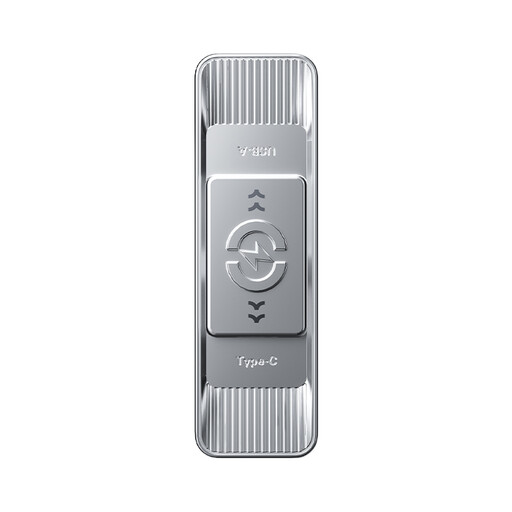
MOVESPEED YSUSP05-512GSR 512GB dual-interface flash drive
A compact route for transfers that fit within 512GB. The product name specifies USB 3.2 Gen 1 and Type-C; check the connector needed at each computer, along with the drive’s file format, before moving files between them.
View on Joybuy
 No image available
Western Digital Elements Portable 4TB, Black
This portable HDD offers a 4TB variant for a sizeable transfer set. Its name specifies USB 3.0; check the receiving computer’s port and whether both computers can write to the drive’s format. If you copy large folders frequently, weigh the HDD transfer-time trade-off noted by Which?.
View on Joybuy
 No image available
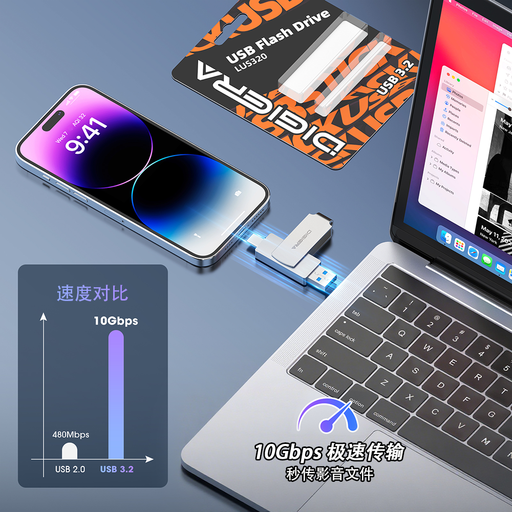
DigiEra LUS320 128GB USB-A and USB-C flash drive
Its two connector types address a USB-A-to-USB-C port mismatch for a transfer that fits within 128GB. Compare that capacity with the full file set, and check that both computers can read and write the drive’s format.
View on Joybuy
Frequently asked questions
Which format should I check for a drive shared by Windows and Mac?
Check ExFAT first for a transfer drive that both computers need to write to. Apple identifies it as Windows-compatible and recommends it for Windows volumes over 32GB. Apple also cautions that a Mac may read an NTFS drive without being able to write to it. Copy existing files elsewhere before reformatting, which erases the drive.
Does USB-C guarantee a fast file transfer?
No. USB-C describes the connector shape, while the USB Implementers Forum identifies different USB 3.2 data rates: Gen 1 at 5Gbps, Gen 2 at 10Gbps and Gen 2x2 at 20Gbps. Check the drive, cable and computer ports together rather than judging speed by the connector alone.
Should I eject a USB drive before unplugging it?
Yes. Microsoft advises safely removing USB flash drives and external hard drives before disconnecting them to avoid losing data. Wait for the operating system’s confirmation after using Eject or Safely Remove Hardware.
Can I move work files on a personal USB drive?
Check your employer’s information-security rules before transferring work files to personal storage. For organisations handling personal information, the Information Commissioner’s Office discusses encryption for removable media and advises minimising personal data held on insecure USB storage. Your workplace may require an approved drive or another transfer method.


