Dense-interface simulation players
If you regularly read production chains, city statistics or crowded menus, compare native resolution and usable vertical space before choosing the widest screen.


Choose the screen format around the information you need to see, rather than diagonal size alone. A 49-inch 32:9 display favours horizontal space for a map and adjacent panels; the 5120 × 2160 displays listed by Dell UK and LG UK have more pixels than Samsung UK’s 5120 × 1440 example for a dense interface. Check your games’ layout, your PC’s display output and the monitor’s fit on your desk before buying.
If you regularly read production chains, city statistics or crowded menus, compare native resolution and usable vertical space before choosing the widest screen.
If you want a map alongside panels, reference material or another input, a 49-inch 32:9 screen is worth considering—provided your games and desk suit its width.
If the monitor also serves a laptop or work setup, connections, stand adjustment and seated position may matter as much as its gaming specifications.
Choose between horizontal workspace and pixel area first; then check whether the exact monitor works with your games, computer and desk.
Choose it when: a broad map beside panels or a second input matters most. Samsung UK lists Picture-by-Picture for its Odyssey G91F.
Trade-off: Samsung UK’s 5120 × 1440 example has fewer pixels than a 5120 × 2160 display, and the extra width requires a game-layout and desk-fit check.
Choose it when: pixel area for dense maps and menus takes priority while you still want an ultrawide screen. Dell UK and LG UK list displays in this format.
Trade-off: check that your PC and connection can deliver the resolution and refresh rate you intend to use; the Dell and LG models also offer different panel and connectivity features.
| Concern | What to check | Who this matters to |
|---|---|---|
| Detailed maps and menus | Compare native resolution and test the game’s interface scaling at the intended aspect ratio. | If I spend sessions reading small figures and crowded panels, I need room for those details more than extra width. Around 33% of consumers put interface detail first. |
| Panoramic workspace | Check 32:9 game support and whether you need a second-input feature such as Picture-by-Picture. | Keeping the map visible beside other information matters more to me than gaining vertical pixels; for around 27% of consumers, horizontal workspace is the primary need. |
| Smooth navigation | Confirm the refresh rate at your chosen resolution and whether the PC and connection can supply it. | When I pan and zoom around a large map, I care most about responsive motion. Around 20% of consumers place that need first. |
| Desk and connections | Measure the screen and stand footprint; match required ports and charging features to your computer. | The same desk has to work for games and everyday computing, so placement and connections drive my choice. That is the main concern for around 20% of consumers. |
A wide 5120 × 1440 screen and a 5120 × 2160 screen offer different shapes and pixel areas. LG UK lists 7.37 million pixels for the former resolution and 11.05 million for the latter.
Decide whether you need a wider side-by-side layout or more pixels for maps and menus, then check your games’ aspect-ratio support.
A monitor’s maximum refresh specification does not establish the frame rate your computer will produce in an economic simulation. Samsung UK also notes that refresh rate can vary with the input source.
Check your graphics output, connection and expected game performance at the monitor’s native resolution.
A very wide or curved display needs a workable seated position. The Health and Safety Executive advises placing a work screen directly in front of you, with its top around eye level and the screen about an arm’s length away.
Measure the usable desk area and check stand or arm compatibility before ordering.
Your existing desk arrangement or monitor arm may need changing to accommodate the screen.
Samsung’s Odyssey G91F is a reference point for a single, panoramic 49-inch screen.
LG’s 45GX950A is a 45-inch ultrawide option for buyers weighing pixel area alongside gaming features.
Dell’s UltraSharp U4025QW is relevant when the same large screen must also serve a connected work setup.
These Joybuy choices include curved monitors for a broad simulation layout and a smaller-screen alternative. Compare each screen’s stated resolution with the space your games’ maps and menus need.
 No image available
Consider this model if a wide, single-screen layout is your priority. Its title specifies 32:9, an 1800R curve, a 240Hz maximum refresh rate and HDMI, DisplayPort and USB-C connections. Check the native-resolution output you need, game support and desk clearance for your setup.
 No image available
Its stated 32:9, 5120 × 1440 format suits a buyer seeking horizontal room for maps and adjacent information. The title also lists a 1500R VA panel, 165Hz maximum refresh rate, HDMI 2.1 and DisplayPort 1.4. Confirm stand adjustment, game compatibility and the output your PC can deliver.
 No image available
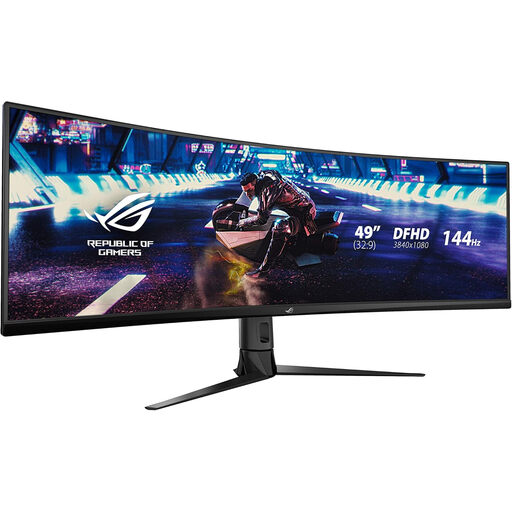
Consider its curved-screen format if a broad view is more important to you than maximum pixel area. The product name specifies DFHD and a 144Hz maximum refresh rate. Check the exact native resolution, your games’ layout, stand adjustment and desk fit before choosing it for dense simulation menus.
 No image available
This is a smaller-screen choice for consumers who do not need a 49-inch layout. Its title specifies 2560 × 1440 resolution, a 1500R curve, a 165Hz maximum refresh rate and 100 × 100mm VESA mounting. Check the aspect ratio and the usable layout in your preferred simulations rather than assuming it provides a super-ultrawide view.
No: choose 32:9 when horizontal workspace is your priority, not simply because the diagonal is larger. Samsung UK’s 5120 × 1440 Odyssey G91F offers a different layout from the 5120 × 2160 ultrawides listed by LG UK and Dell UK; check how your games display maps, panels and text at the intended aspect ratio.
Measure the usable desk area and check the exact stand or monitor arm before ordering. The Health and Safety Executive advises positioning a work screen directly in front of you, with its top around eye level and the screen about an arm’s length away.
Yes, if the exact monitor, laptop and cable support the required USB-C display connection and charging power. LG UK lists power delivery up to 90W for the 45GX950A; confirm the laptop’s display-output and charging requirements before relying on a one-cable setup.
Yes, especially when the large display is part of a regular work setup. The Health and Safety Executive says employers must carry out a workstation assessment when workers use display-screen equipment daily for continuous periods of an hour or more; consider the screen’s position alongside the rest of the workstation.