Capacity-first photo archivists
People keeping years of photos and videos locally who mainly need space for an export, rather than a drive they will work from every day.


Check how you can export the library before choosing storage. A portable hard drive suits an occasional, capacity-focused archive; a portable SSD suits repeated transfers; and home-network storage suits a household that wants ongoing backup and access. Whichever route fits, allow room for the extracted files to grow and keep an independent copy rather than relying on one connected device.
People keeping years of photos and videos locally who mainly need space for an export, rather than a drive they will work from every day.
People moving large photo batches between devices or locations regularly, for whom transfer time and a portable enclosure matter.
Households that want continuing camera-roll backup and access from several devices after the initial copy, without plugging a drive into one computer for every update.
Consider it: For a large library copied occasionally to a USB-powered archive drive.
Trade-off: Check the drive's format before use, particularly if the files must move between Mac and Windows.
Consider it: For repeated large transfers or a drive carried between locations.
Trade-off: Quoted transfer speeds depend on the computer and connection; an SSD cannot speed up the cloud service's export.
Consider it: For continuing phone and computer backups with access across a household.
Trade-off: It needs network setup and its own separate backup; cloud-photo integrations can change.
| Concern | What to check | Who this matters to |
|---|---|---|
| Capacity for an archive | Measure the library after downloading and extracting it; leave room for new files and any earlier export you intend to retain. | If years of photos and videos need a local home, I want space beyond today's library size. Around 40% of consumers put archive capacity first. |
| Export and transfer workflow | Test the photo service's download process with a small batch, then check the computer's port and cable before choosing a drive for repeated transfers. | When I move large batches often, I need a download process I can repeat and a connection that suits the drive. Roughly 30% of consumers prioritise this workflow. |
| Ongoing access and recovery | Plan an independent backup; check device access and the required file system or home-network setup. | My household needs photos to remain accessible across devices, and one local device should not be our only copy. Around 30% of consumers place ongoing access and recovery first. |
A copy left connected to a computer can also be affected if that computer is compromised. The National Cyber Security Centre advises disconnecting an external backup when it is not in use.
Keep another independent copy where practical, and reconnect the external drive only when you need to update or check it.
The download method depends on the photo service. Google Photos offers a Takeout archive, Apple limits an iCloud.com selection to 1,000 items, and Amazon says its browser workflow cannot download whole albums as albums.
Download and extract a small batch first. Check the resulting files and their size before settling on drive capacity or a full-library workflow.
Toshiba lists Canvio Basics as NTFS-formatted for Windows and says Mac use requires reformatting. The format that suits file transfer may also differ from one required by backup software.
Decide which computers and applications will use the drive before copying files. Apple's Disk Utility guidance identifies ExFAT for a disk over 32 GB intended for both Mac and Windows.
Formatting erases files already on the drive, according to Apple Support.
Samsung says its T7 Shield's quoted maximum speeds require a USB 3.2 Gen 2-capable host and cable, with UASP enabled. Those speeds do not describe every computer setup.
Check the computer port and cable if faster local transfers are the reason for choosing an SSD. The cloud export must still finish before those files can be copied.
The Canvio Basics line is a portable hard-drive reference for a capacity-focused archive.
The T7 Shield line is a portable SSD reference for frequent transfers and a drive carried between locations.
The One Touch portable-storage line is another hard-drive reference for keeping a growing local library.
BeeStation represents the home-network route for continuing camera-roll, computer and cloud-photo workflows.
These portable hard drives and SSDs are options for copying an exported photo library from a computer or compatible device. Measure the extracted library before choosing a capacity, and plan a separate backup.
 Image unavailable
A capacity-focused choice for an occasional local photo archive.
The product name specifies 4 TB and USB 3.0. Check the drive's format against the computer and backup workflow before copying files.
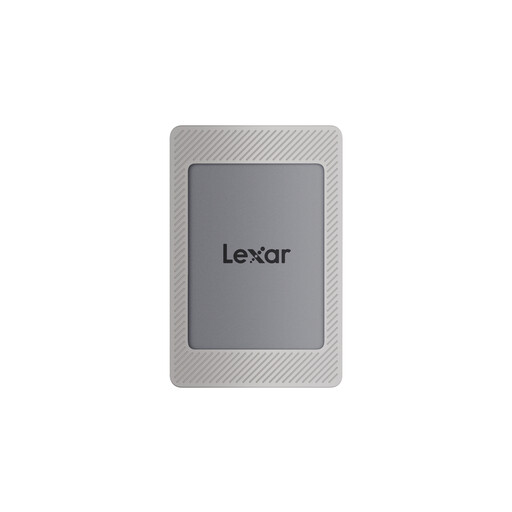 Image unavailable
Consider this SSD for repeated transfers between compatible devices once the photo-service export is complete.
The product name specifies USB 3.2 Gen 2 and quotes maximum speeds of 1,050 MB/s read and 1,000 MB/s write; actual transfer speed depends on the setup. Its named compatibility includes iPhone 15/16, PC and Mac. Confirm the connection and file format needed for your workflow.
 Image unavailable
A portable SSD option for retaining a photo export or moving batches between locations.
The named capacity is 2 TB. Compare the extracted library size with that capacity, and confirm the connection and file-system requirements for the devices you will use.
 Image unavailable
Consider this portable SSD for repeated transfers if the extracted library and planned growth fit within 1 TB.
The named connection is USB Type-C 3.2 Gen 2. Samsung's maximum T7 Shield speed figures require a compatible host, cable and UASP; do not treat a portable drive as the only backup.
 Image unavailable
A portable hard-drive option for an occasional computer-based photo archive.
The named capacity is 2 TB. Check that it accommodates the extracted library and future additions, and confirm the access method and any software needed on a Mac before copying files.
Google Takeout can create an archive of Google Photos data for download to a computer. Extract and check the files before copying them to local storage; Google Photos Help says an archive may not include changes made between the export request and archive creation, so check for later additions.
No: Apple Support limits an iCloud.com selection to 1,000 items at a time. For a Mac-based alternative, Apple documents downloading the entire library in full resolution by choosing Download Originals to this Mac; check that the Mac has sufficient space before using it as the transfer step.
Amazon Customer Service says its browser workflow cannot download an entire album as an album. Open an album and select the pictures you want to download, then test that process with one album before planning a large transfer.
Apple's UK Disk Utility guidance identifies ExFAT for a disk over 32 GB intended for use with both Mac and Windows. Check whether your backup software requires another format before changing it, and move existing files elsewhere first: formatting erases the drive.