For black-and-white A4 quotations prepared digitally, start with a compact mono laser printer that has automatic two-sided printing and a connection your flat can use. Consider a multifunction model if you also need to scan signed paperwork or copy documents; before ordering, check its consumables, desk clearance and connection options.
Who needs which functions?
PDF-only quotation printers
If you prepare quotations on a laptop or phone and only need to print them, focus on black-and-white A4 output, automatic two-sided printing and a connection you can use in the flat. Scan and copy functions need not drive the choice.
Freelancers handling paper documents
If customers return signed forms or you need to digitise receipts, a mono multifunction printer brings scanning and copying into the same workspace. Check that its scan destinations suit the way you send documents.
Frequent document printers in shared flats
If quotations are part of regular business-document printing, paper capacity and toner changes may matter more than they do for occasional jobs. Check the exact model’s operating modes and the space it needs for loading paper and collecting prints.
What should you check?
Decide whether you need printing alone or document capture as well. Then check how the machine will fit, connect and use replacement supplies in your flat.
Print-only mono laser
Choose when: You create quotations digitally and need to print black-and-white documents, rather than scan or copy paper.
Trade-off: A print-only model cannot capture signed forms; if that becomes part of your workflow, you will need another way to digitise them.
Mono multifunction laser
Choose when: You regularly scan accepted quotations or receipts, or copy supporting paperwork.
Trade-off: Those functions add little to a workflow in which every document remains digital until it is printed.
| Concern |
What to check |
Who this matters to |
| Straightforward A4 output |
Check A4 support, whether two-sided printing is automatic and whether the tray suits your usual batch. |
If I mainly print finished quotations, I want to produce a multi-page document without turning sheets by hand. Around 36% of consumers would put straightforward document output first. |
| Space and connection |
Measure the surface and paper-access clearance; check USB, Wi-Fi and compatibility with your devices and flat network. |
With limited desk space or a managed network, I need a printer I can place and connect in my own room. For around 29% of consumers, physical fit and setup would be the primary concern. |
| Scanning and copying |
Check the model’s scan and copy functions and whether its scan destinations suit your paperwork. |
When a customer returns a signed form, I need a practical way to send it back digitally. Document capture would come first for around 21% of consumers. |
| Consumables |
Identify the compatible toner, stated yields, any separate drum and restrictions on replacement cartridges. |
If I print business documents regularly, I want to plan toner changes and know which supplies I can use. Consumables would be the leading concern for around 14% of consumers. |
Common buying pitfalls
-
Choosing scan and copy functions for a print-only workflow
Printing a quotation created as a PDF does not require a scanner or copier. Those functions become useful when signed forms, receipts or other paper documents enter the workflow.
Think through the documents you actually handle: if they stay digital, compare print-only models first; if you regularly receive paper, check the multifunction model’s scan options.
-
Overlooking the exact toner system
Consumables differ by model. Brother UK describes separate toner and drum components for the HL-L2400DW, while HP says its LaserJet MFP M234dw can block cartridges using modified or non-HP circuitry.
Check the compatible toner code, supplied-toner yield, drum arrangement and any cartridge restrictions for the particular printer you are considering. Compare stated yields on the same basis.
-
Assuming Wi-Fi means an easy flat setup
A printer’s wireless capability does not establish whether your accommodation’s managed network will permit the connection method you need.
Check the flat’s network rules and your device compatibility before buying. If a wired fallback matters, confirm that the exact model has a suitable USB connection; measure space for cables and paper access too.
-
Choosing by rated print speed alone
A manufacturer’s pages-per-minute figure does not describe every part of a quotation job, including two-sided printing, paper handling or sending the job from your device.
For occasional quotations, check duplexing and connection options before comparing rated speeds. For frequent batches, consider tray capacity and the supplied toner yield as well.
Relevant printer brands
These examples illustrate different document workflows; features and limitations belong to the named models, not every printer from each brand.
Brother
Brother’s HL-L2400DW and HL-L2865DW are print-only mono laser models to compare for quotation and other A4 document printing.
- Brother UK specifies automatic two-sided printing, a 250-sheet tray and Wi-Fi for the HL-L2400DW. It rates the HL-L2865DW at up to 34 pages per minute and lists supplied toner with a 1,500-page yield.
- The HL-L2400DW has separate toner and drum components to account for when planning replacements. Neither print-only model provides scanning or copying.
Canon
Canon’s i-SENSYS LBP122dw is a print-only mono laser option worth checking when the printer’s physical fit matters.
- Canon UK specifies a 356 × 283 × 213 mm body, automatic two-sided A4 printing, Wi-Fi and mobile-print options for the LBP122dw.
- Its stated cassette holds 150 sheets, and the model does not scan or copy. Allow additional room to load paper and access the output.
HP
HP’s LaserJet MFP M234dw addresses quotation workflows that also involve copying or scanning paper documents.
- HP Store UK lists print, copy and scan functions, including scan-to-email and scan-to-PDF, for the M234dw.
- HP states that the M234dw uses dynamic security that can block cartridges with modified or non-HP circuitry. Check this condition against the supplies you intend to use.
Joybuy printer options
These mono laser models are options to consider for black-and-white quotations. Compare their two-sided-printing arrangements, and confirm scan or copy functions on the exact model if your work includes paper documents.
 No image available
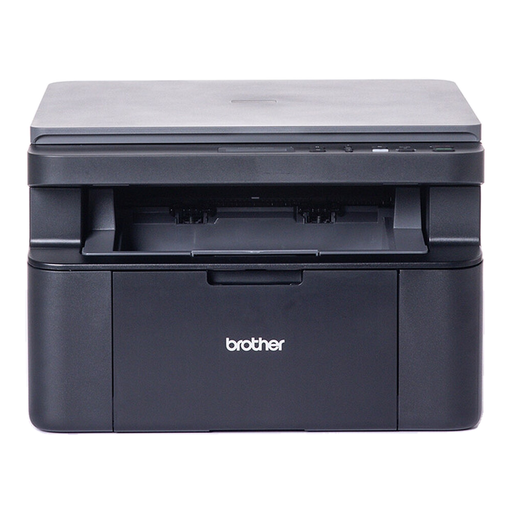
Brother DCP-L1640W Mono Laser Printer
Consider this model for black-and-white quotation printing if paper-document handling is also part of your work. Confirm that its scan and copy functions suit your tasks, and check the duplex method before relying on it for two-sided quotations.
View on Joybuy
 No image available
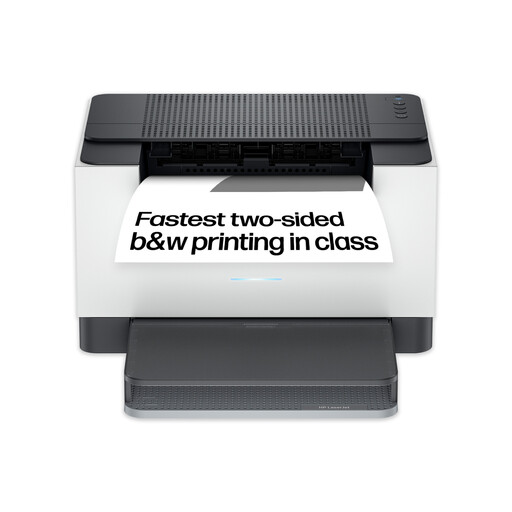
HP LaserJet M209dw Black-and-White Printer
Consider this model for black-and-white quotations when two-sided printing and a 150-sheet input tray fit your routine. Its product title lists both features; confirm how two-sided printing works, and check scan or copy functions separately if you need them.
View on Joybuy
Questions about choosing and using a printer
Do customer quotations require a colour laser printer?
A mono laser printer suits quotations made up of black text, figures and other content that does not depend on colour. If your template relies on colour branding or charts to convey information, check the printed result you need before choosing a black-and-white model.
Is automatic two-sided printing useful for quotations?
It is useful when you often produce multi-page quotations or several copies and want to avoid turning sheets manually. Check that the exact model specifies automatic duplex printing: a listing that says only “two-sided printing” may need a closer look.
When is a multifunction laser printer worth considering?
Consider one when you regularly copy documents or scan signed quotations, receipts or supporting paperwork. HP Store UK lists print, copy and scan, including scan-to-email and scan-to-PDF, for the LaserJet MFP M234dw; check the functions of any other model individually.
What laser-safety information should I check?
Check the printer’s stated laser classification and follow its instructions for normal use. The UK Health Security Agency describes Class 1 laser products as safe during normal use; that guidance is not a reason to dismantle a printer or disregard its manual.


