Shared-studio schedule coordinators
If several people print recurring A4 schedules, focus on a connection they can all use, the paper capacity needed between refills and automatic duplexing if schedules have multiple pages.


For mostly black-and-white A4 room schedules, start with a mono laser printer that authorised studio users can access and that handles the paper and monthly workload you expect. Automatic duplexing is worth checking for multi-page schedules; choose scan and copy functions if staff work with paper updates, or consider greater paper capacity and network controls if the printer will serve a busier, managed workspace.
If several people print recurring A4 schedules, focus on a connection they can all use, the paper capacity needed between refills and automatic duplexing if schedules have multiple pages.
If staff annotate schedules, make copies or digitise changes, print-only hardware may leave those tasks to a separate device. Check whether a multifunction printer’s scanner and copier match the way updates are handled.
Where more documents pass through the printer or an administrator manages shared access, compare recommended print volume, expandable paper input and the network controls the studio can configure.
Decide how the studio will connect to the printer and how it handles schedule updates, then check paper handling, expected monthly output and consumables. A feature matters most when it removes a task your staff actually perform.
| Concern | What to check | Who this matters to |
|---|---|---|
| Shared access | Confirm the required Ethernet, Wi-Fi or USB connection and compatibility with the devices staff will use. | If several authorised people need to print schedules from their usual workstations, I need a connection that fits the studio network. Around 29% of consumers put reliable shared access first. |
| Duplexing and paper input | Check whether two-sided printing is automatic and distinguish standard tray capacity from optional expansion. | When schedules run to several pages or are printed repeatedly, I want to avoid turning sheets by hand and refilling the tray too often. Paper handling is the primary concern for around 29% of consumers. |
| Workload and upkeep | Compare expected monthly output with the recommended volume where stated; check toner options and cartridge restrictions for the exact model. | If the printer also handles other studio documents, I need its regular workload and toner arrangements to remain manageable. Roughly 24% of consumers prioritise that fit. |
| Paper updates | Decide whether staff need copying or scanning and whether batches of originals call for an automatic document feeder. | If room changes arrive as marked-up sheets, I need a way to copy or digitise them without relying on another device. That is the main need for around 18% of consumers. |
A maximum figure need not describe sustainable routine use. Xerox UK lists up to 2,500 recommended pages per month for the B230 separately from its 30,000-image maximum duty cycle, which Xerox says is not expected to be sustained regularly.
Estimate schedules and other documents together, then compare that total with the manufacturer’s recommended monthly volume where available.
Canon UK lists a 250-sheet cassette and a 100-sheet multipurpose tray for the i-SENSYS LBP246dw; reaching its stated maximum of 900 sheets requires an optional cassette.
Compare standard input capacity before deciding whether an additional tray is necessary.
An optional cassette also needs space when the printer is installed.
Copying, scanning and an automatic document feeder help with paper originals, but do not simplify printing schedules that are already final digital files. Brother UK lists shared connectivity and automatic duplexing on its print-only HL-L2445DW.
Check how often staff actually copy or scan schedule changes before choosing a multifunction device.
HP states that its LaserJet Pro 4002dn uses dynamic security measures that can block cartridges with a non-HP chip, including after firmware updates. That statement concerns the 4002dn, not every HP printer.
If you plan to use third-party toner, check the policy and compatible supplies for the exact model before purchase.
Brother UK lists both print-only and multifunction mono laser models relevant to a small shared workspace.
Canon’s i-SENSYS LBP246dw is relevant where a studio needs greater paper input or configurable controls on a managed network.
HP’s LaserJet Pro 4002dn is an office-oriented mono laser model to assess when a shared printer will handle more than occasional schedules.
Xerox’s B230 is a mono printer to consider for a small team that needs shared connectivity and standard two-sided output.
These mono laser choices offer different starting points for studio schedules: one for considering paper-update tasks and one for a wireless, two-sided print workflow. Check each model’s exact functions and workload fit before deciding.
 No image available
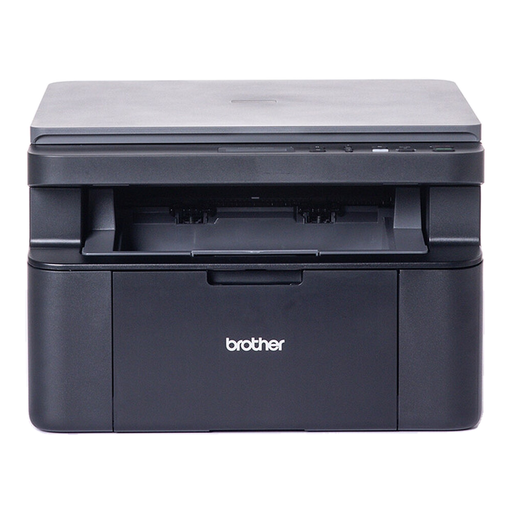
If staff need to copy or scan marked-up room schedules, check that the listed functions and flatbed handling suit their paperwork. Two-sided printing requires staff to turn pages, so consider whether that will interrupt repeated schedule runs.
 No image available
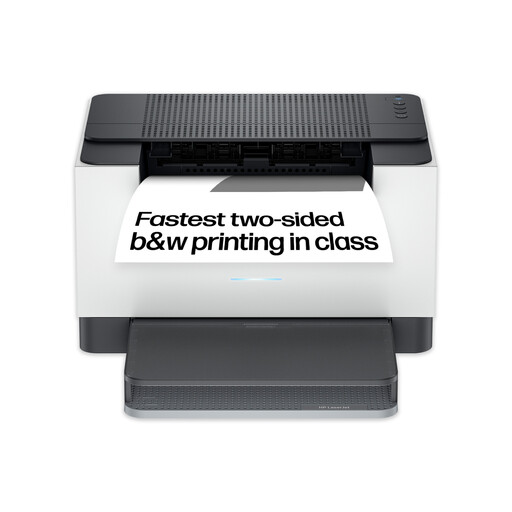
For a studio printing final schedules rather than processing paper updates, consider whether this model’s stated two-sided printing and 150-sheet input tray fit the routine. Confirm the connection options your network requires and compare expected output with the model’s recommended workload before buying.
Use the connection that fits the studio’s network and the devices authorised staff print from. Ethernet suits a fixed wired connection; Wi-Fi avoids cabling where wireless access is properly configured. Confirm the exact model’s connection options before purchase.
Automatic duplexing is useful when schedules have several pages or staff regularly print on both sides without turning sheets by hand. Check that duplexing is automatic on the exact model and that it supports the paper size and weight you intend to use.
Choose multifunction hardware if staff regularly copy annotated schedules or scan paper updates for distribution. If schedules are finalised digitally and only need printing, compare print-only models before adding those functions.
Check an appropriate reuse, collection or recycling route for the old electrical device rather than treating it as ordinary waste. GOV.UK describes the UK Waste Electrical and Electronic Equipment Regulations 2013, as amended; the suitable collection arrangement depends on the studio’s location and whether the printer is handled as household or business equipment.