Shared-studio worksheet coordinators
Several people need to send A4 worksheets to one printer. Network access, a tray suited to their batches and automatic two-sided printing can reduce interruptions between jobs.


For a shared studio printing mainly text, equations and diagrams that remain clear in greyscale, start with a mono A4 laser printer that supports the studio’s connection method and two-sided printing. Choose colour when it carries meaning in the worksheets, or a multifunction model when people need to copy or scan originals; check tray capacity, device compatibility and consumables on the exact model before buying.
Several people need to send A4 worksheets to one printer. Network access, a tray suited to their batches and automatic two-sided printing can reduce interruptions between jobs.
Colour may distinguish labels, chart series or annotations that become difficult to interpret in greyscale. They also need to check that the colour printer has the shared-access and paper-handling features the studio uses.
When people regularly duplicate handouts or digitise marked worksheets, a multifunction printer may fit the task better than a print-only model. A mono multifunction printer still cannot reproduce colour distinctions in printed copies.
For A4 science worksheets in a shared studio, establish whether colour carries meaning and whether originals need copying or scanning. Then check how users will connect and handle their usual print batches.
| Concern | What to check | Who this matters to |
|---|---|---|
| Shared access and batches | Check the exact model’s network connection, A4 tray capacity and automatic two-sided printing against the studio’s devices and usual batch size. | When several people send worksheets to one printer, I need jobs to reach it and enough paper for consecutive batches. Around 33% of consumers put shared access and batch handling first. |
| Colour in diagrams | Try representative sheets in greyscale; if labels or data series become ambiguous, check colour output alongside duplex and connection options. | If colour distinguishes parts of a diagram or chart, I need those distinctions to survive on paper. For about 25% of consumers, preserving that meaning is the primary concern. |
| Paper and consumables | Confirm automatic rather than manual duplex and identify the replacement toner and, where separate, drum for the exact model. | For repeated two-sided worksheet packs, I want to avoid turning pages by hand and plan for consumable changes. Roughly 25% of consumers prioritise paper and consumable handling. |
| Copying and scanning | List the originals people will handle, then confirm the model’s copy and scan functions and its document-feeding method. | If marked work or handouts need copying or scanning in the studio, printing alone will not cover my tasks. Approximately 17% of consumers put those functions first. |
Colour matters when it distinguishes instructional information, but many text and line-drawing worksheets can be assessed in greyscale.
Print representative pages in greyscale before choosing. Move to colour if labels, data series or other essential markings become unclear.
A colour model uses separate black, cyan, magenta and yellow toner consumables, so there are more replacements to manage.
Shared access also depends on the studio’s network arrangements and the devices and operating systems people use.
Confirm the exact printer’s Wi-Fi, Ethernet or USB options and supported devices against the way the studio will submit jobs.
A model can remain useful for comparing features even when its store listing no longer represents a current purchase option.
Check the exact model and its replacement toner at the point of purchase. Canon UK Store marks its i-SENSYS LBP633Cdw reference listing as permanently unavailable.
The Health and Safety Executive’s statement about lasers in office printers is conditional on the casing remaining undamaged.
Take damaged equipment out of ordinary use and arrange authorised servicing rather than opening the laser area in the studio.
Brother UK lists mono print-only and colour business models with different combinations of network access and paper capacity.
Canon’s i-SENSYS examples illustrate the difference between mono printing with scan and copy functions and colour print-only output.
HP’s LaserJet Pro range guidance distinguishes smaller shared groups from larger workgroups, but individual specifications still matter.
These two monochrome choices address worksheets that remain understandable without colour. The HP LaserJet M209dw is a printing-focused option; the Brother DCP-L1640W is relevant when copying or scanning originals also matters. Check the exact functions needed before relying on either model for those tasks.
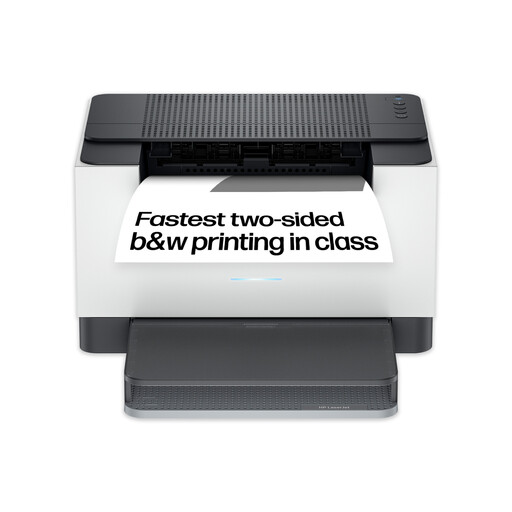 Image unavailable
Consider this model for worksheets that remain clear in monochrome when wireless printing and two-sided pages are priorities.
Its product name specifies two-sided printing and a 150-sheet input tray; check whether that capacity suits the studio’s batches.
Confirm scan or copy capability separately if either task is essential.
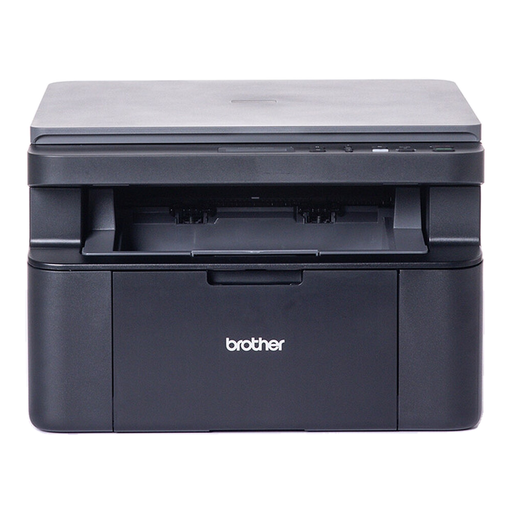 Image unavailable
Consider this monochrome model when the studio also needs to copy or scan originals.
Two-sided printing requires manual page turning. Check whether its document-handling method suits the originals people need to scan or copy.
It will not retain colour-coded distinctions in printed worksheets.
Choose mono if representative worksheets remain understandable in greyscale; choose colour when distinctions between labels, diagrams or chart series depend on it. Check the actual pages rather than deciding from the subject matter alone.
Consider a multifunction laser when people regularly need to copy handouts or scan originals in the studio. If the work starts as digital files and only needs printing, those extra functions may not serve the task; Canon UK Store describes its mono i-SENSYS MF272dw as a print, copy and scan example.
Check the exact model’s connection methods, supported devices, automatic or manual duplex setting and tray capacity against the studio’s workflow. Brother UK lists Ethernet, 5 GHz Wi-Fi, automatic duplex and a 250-sheet input tray for the HL-L2445DW, but those specifications should not be assumed for other Brother models.
Take a printer with a damaged casing out of ordinary studio use and arrange appropriate servicing. The Health and Safety Executive’s statement about lasers in office printers applies when equipment casings remain undamaged; it should not be read as permission to open the laser area for an informal repair.
Place it where its use fits the room’s ventilation arrangements, and ask whoever manages the workspace to assess the room if airflow is a concern. The Workplace (Health, Safety and Welfare) Regulations 1992 address sufficient fresh or purified air in enclosed workplaces; they do not specify a particular printer location.