Shared-desk rota coordinators
If several staff members print current A4 rotas from different devices, prioritise a connection they can all use, automatic two-sided printing and enough room to open the printer’s trays.


For mainly black-text A4 rotas, start with a mono laser printer that offers automatic two-sided printing and a connection everyone who needs it can use. Choose a print-only model for routine output, consider greater paper capacity if refills interrupt the team, or look at a multifunction model if staff also need to copy or scan paperwork. Check the rota’s legibility in black and white, the available desk clearance and the workplace’s toner policy before buying.
If several staff members print current A4 rotas from different devices, prioritise a connection they can all use, automatic two-sided printing and enough room to open the printer’s trays.
When rotas and accompanying notices create repeated print runs, compare the paper capacity included with each printer against a normal batch. Greater capacity matters most when refilling interrupts the work.
If rota administration also involves copying notices or scanning marked-up changes, consider whether a multifunction printer would replace trips to another device. Allow for the space its trays and doors need when open.
Decide whether the desk needs printing alone or regular copy and scan functions, then check shared access, paper handling and how the rota reads without colour.
| Concern | What to check | Who this matters to |
|---|---|---|
| Shared access | Confirm that the intended devices can use the printer’s Wi-Fi or Ethernet connection and that the chosen position leaves room for its trays. | When different colleagues need the latest rota, I want them to print without relying on one person’s computer; around 29% of consumers put shared access first. |
| Paper refills | Compare the included tray capacity with a normal rota batch; check whether any advertised maximum needs an optional tray. | Repeated rota packs and notices make refilling disruptive during a shift handover. Around 29% of consumers chiefly want fewer paper interruptions. |
| Copying and scanning | Check which non-print tasks are needed regularly and allow clearance to open a multifunction device fully. | If marked-up rotas need scanning or notices need copying, I would rather handle that paperwork at the shared desk; around 21% of consumers put those extra functions first. |
| Simple mono output | Check that shifts and other important distinctions remain clear in black and white, and whether automatic two-sided printing is included. | For straightforward black-text rotas, I do not need extra functions that take up desk space; around 21% of consumers chiefly favour simple print-only output. |
A quick printer can still hold up a rota handover if its tray needs frequent refilling. Brother and HP specify 250-sheet input for the HL-L2445DW and LaserJet Pro MFP 3102fdw respectively; Canon describes the i-SENSYS LBP243dw with capacity of up to 900 sheets, which should not be assumed to be the included configuration.
Compare the included capacity with your largest usual batch before weighing print-speed figures.
Copying and scanning can help with paper-based rota changes, but a print-only model is worth considering if the desk only produces finished sheets.
List the non-print tasks staff perform each week before choosing between a print-only and multifunction device.
HP states that dynamic security on the LaserJet Pro MFP 3102fdw can block cartridges using a non-HP chip, including after firmware updates.
If the workplace uses a particular toner supplier, check cartridge compatibility for the exact model before committing to it.
A shared-desk printer also needs space for open trays and doors, a suitable electrical supply and a workable location. HP’s setup guidance for its 3101–3108 fdw family calls for a sturdy, well-ventilated, dust-free site.
Measure the usable space with access to the trays, and include cables and plugs in routine workplace equipment checks.
Brother’s HL-L2445DW is a mono print-only reference for a shared desk where staff need network access to routine documents.
Canon’s mono print-only i-SENSYS LBP243dw is a reference when paper handling matters more than adding scan or copy functions.
HP’s LaserJet Pro MFP 3102fdw is a mono multifunction reference where rota work also requires copying or scanning.
These mono laser options cover two ways to handle shared-desk rotas: straightforward wireless printing and a model to consider when copying or scanning is also part of the job. Check each model’s paper handling and functions against the desk’s actual workflow.
 No image available
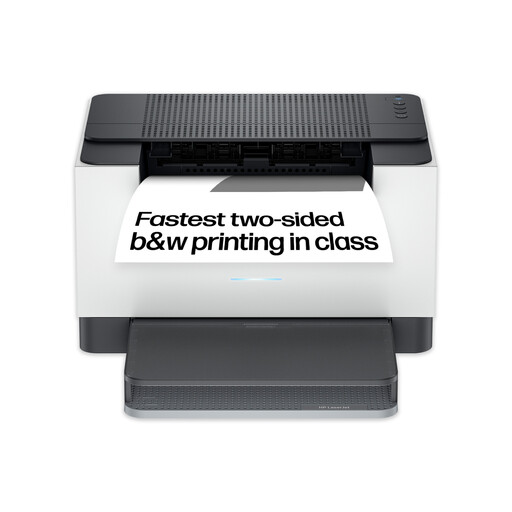
Consider this for black-and-white rota printing where wireless access meets the desk’s needs. Its product title specifies two-sided printing and a 150-sheet input tray; compare that capacity with the team’s usual batch. Confirm wired-network support, any required non-print functions and opening clearance before ordering.
 No image available
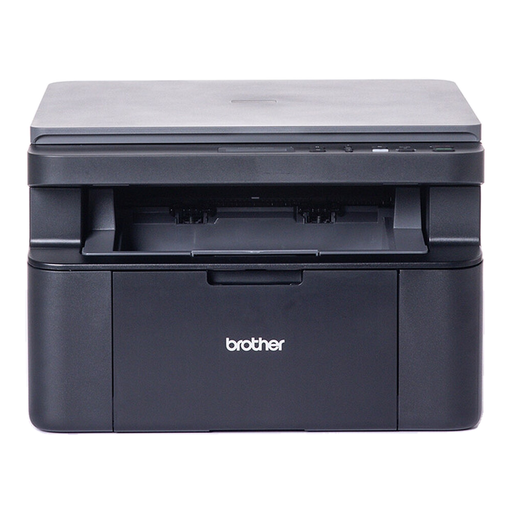
Consider this model if rota administration also involves copying or scanning, and confirm the exact functions and network options for the variant offered. Double-sided printing requires manual page handling; check whether that suits the rota format, as well as the usual paper batch and available desk clearance.
Not if the rota remains unambiguous in black and white. Check whether colour distinguishes shifts, roles or safety-critical information before choosing a mono printer; the models discussed here print in mono.
Check the usable space with trays and doors open, as well as the work surface and electrical supply. For its 3101–3108 fdw family, HP also calls for a well-ventilated, dust-free location.
HP’s setup guidance lists wireless and Ethernet options for fdw models in the 3101–3108 family, alongside USB. Confirm that the connection you intend to use fits the workplace network policy.
Do not assume that it will. HP states that the model’s dynamic security can block cartridges using a non-HP chip and that firmware updates can affect cartridges that worked previously; check the intended supply arrangement before purchase.
No. The Health and Safety Executive says it is a myth that every portable electrical appliance in a low-risk office needs a portable appliance test every year. Follow the workplace’s risk-based arrangements for checking and maintaining electrical equipment.