What matters when choosing?
Check whether the forms need colour or two-sided printing, then decide whether staff must copy or scan paper records. Consider greater paper capacity if refills interrupt shared use.
| Concern |
What to check |
Who this matters to |
| Routine checklist printing |
Check A4 mono printing and whether automatic duplex is available for two-sided forms. |
If I regularly print black-and-white equipment checklists, I want the forms ready without manually turning pages. Around 50% of consumers would put routine checklist printing first. |
| Paper-record handling |
Check that the exact model can both copy and scan, and that its connection method suits staff devices. |
When signed sheets need copying or digitising, I want to handle them at the printer rather than use a separate device. Copying and scanning would be the primary need for roughly 30% of consumers. |
| Shared printing |
Check paper capacity and approved network access alongside rated A4 speed. |
If several staff print batches, repeated refills and queues would interrupt our work. Around 20% of consumers would prioritise keeping that shared workflow moving. |
Joybuy printers for these workflows
These models address mono checklist printing in different ways: one is worth considering when staff also handle paper records, while the other is a print-focused option for two-sided forms. Check each configuration against the school’s connection and placement requirements.
 No image available
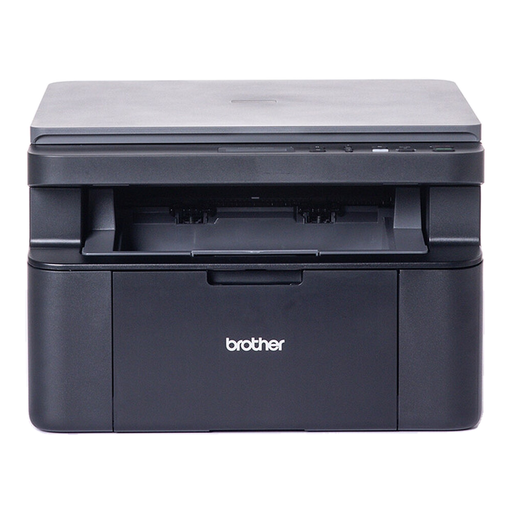
Brother DCP-L1640W Mono Laser Printer
Consider this mono model when checklist printing is paired with handling paper records; confirm the copy and scan functions on the exact configuration. Two-sided printing requires manual page handling, so check whether that suits the forms and whether the connection meets school IT requirements.
View on Joybuy
 No image available
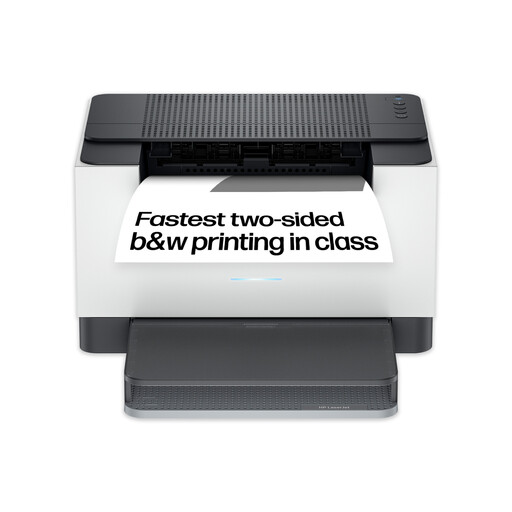
HP LaserJet M209dw Wireless Black & White Printer
Consider this model for recurring black-and-white checklists where two-sided printing matters. Its listed variant has two-sided printing and a 150-sheet input tray; confirm school-network compatibility, and check the exact configuration if copying or scanning is required.
View on Joybuy
Frequently asked questions
Do equipment checklists need a colour laser printer?
Choose mono for black-and-white, text-led checklists. If staff rely on colour-coded warnings, categories or statuses, check that the chosen printer preserves that information in the printed form.
When is a multifunction printer worth considering?
Consider one when staff regularly copy or scan paper records as well as print checklists. Canon UK lists the i-SENSYS MF272dw as an A4 print, copy and scan model; check that those functions are included on the exact model being purchased.
What should the school check before connecting a wireless printer?
Confirm that its connection methods work with the school network, staff devices, access controls and IT policy. A printer’s listed wireless capability alone does not establish that it will work with a particular network configuration.
Could firmware updates affect toner choices?
They can for some models: HP says updates for its LaserJet Pro 3002dw can block cartridges that previously worked. Check the exact printer’s toner compatibility and the school’s procurement requirements before choosing.
Is a laser printer safe to use in a classroom?
The Health and Safety Executive says lasers in office equipment pose no risk provided the casing remains undamaged. If the enclosure is damaged, remove the printer from ordinary use; maintenance involving access to the laser should be left to trained, authorised people.


