Choose a lesson-planning laptop only after the school confirms its required applications, account controls and policy on personally owned devices. An approved Windows laptop, Chromebook or MacBook can suit different workflows; for a shared office, also check software support, the connections at your desk and how comfortably you can work away from it.
Who this guide is for
Teachers using school-managed software
If lesson planning depends on named applications, school accounts, printers or IT support, establish those requirements before comparing laptop specifications. The Department for Education says staff have a responsibility to protect personal data, while the National Cyber Security Centre advises considering a product’s support lifetime.
Planners handling sensitive work in a shared office
If you access pupil-related information around colleagues or use a personal laptop for work, check the school’s rules for accounts, access control and storage. The Department for Education and the Information Commissioner’s Office both provide guidance relevant to protecting work data on devices.
Staff moving between desks and classrooms
If you alternate between a shared monitor and the laptop’s own screen, match the exact model’s connections and display support to your equipment. Apple’s MacBook Air and Lenovo’s cited ThinkPad E14 configuration illustrate different port arrangements; neither arrangement can be assumed for every laptop in those lines.
What matters when choosing
Settle school approval and software compatibility before choosing a hardware configuration. Then decide how much your shared desk, data-handling requirements and movement between rooms affect the purchase.
Windows laptop
Consider it when: The school requires Windows applications, management tools or peripherals, alongside browser-based planning.
Accept the trade-off: Configurations vary; Microsoft’s Windows 11 hardware minimums establish operating-system eligibility, not comfortable performance in school applications.
Chromebook
Consider it when: The school approves ChromeOS for its planning platform, documents, printing, meetings and any specialist tools.
Accept the trade-off: Windows- or macOS-only software needs a separate compatibility check, and Google’s automatic-update end date depends on the Chromebook model.
MacBook Air
Consider it when: The school supports macOS and its applications, and you want the cited MacBook Air’s built-in screen and USB-C/Thunderbolt connections.
Accept the trade-off: Apple’s cited specifications list Thunderbolt 4 ports rather than built-in HDMI or USB-A, so an existing desk setup may need an adapter or dock.
| Concern | What to check | Who this matters to |
|---|
| School-system compatibility |
Ask IT which operating system, applications and account or device-management arrangements it approves. |
If school software or accounts determine whether I can prepare lessons at all, compatibility comes before extra hardware features. Around 33% of consumers put that need first. |
| Privacy and software support |
Confirm the personal-device policy, required access controls and the exact device’s update support. |
Working with school information around colleagues makes approved access and current updates my main concern. Roughly 27% of consumers prioritise that protection. |
| Shared-desk connections |
Match the laptop’s ports and external-display support to the monitor, projector and accessories you use. |
When I rely on a shared monitor and existing accessories, I need a workable connection without assuming an adapter is included. About 20% of consumers place desk connectivity first. |
| Portable planning |
Assess the keyboard, screen, carrying weight and battery information for your work away from a socket. |
Moving between rooms makes a usable built-in screen and manageable laptop more important to me than a fixed-desk setup. Around 20% of consumers put portable working first. |
Buying pitfalls
-
Choosing a laptop before checking school requirements
A device may not fit the school’s lesson-planning workflow or personal-device rules. The Department for Education says staff must protect personal data, and Information Commissioner’s Office guidance identifies risks associated with personally owned devices.
Ask school IT to confirm the approved operating system, applications, accounts, printing arrangements and device rules before ordering.
-
Using Windows 11 minimums as a buying target
Microsoft’s 4 GB RAM and 64 GB storage figures are operating-system minimums; they do not establish how well a particular laptop will handle your school applications.
Check Windows 11 eligibility, then assess the exact configuration against the applications and files you will use.
-
Overlooking the end of software updates
The National Cyber Security Centre advises considering support lifetime when choosing hardware. Google provides a model-specific final automatic-update date for Chromebooks.
Check the operating system’s support status and, for a Chromebook, the exact model’s update schedule before purchase.
-
Assuming a USB-C port solves every desk connection
Connectors differ by model: Apple’s cited MacBook Air uses Thunderbolt 4, while Lenovo’s cited ThinkPad E14 configuration lists HDMI, USB-A, USB-C and Thunderbolt 4.
List the shared desk’s monitor, projector and accessory connections, then check the selected laptop’s ports, display support and included adapters.
Relevant brands to consider
These product lines illustrate different approved-workflow and desk-connection questions; the exact configuration matters more than the brand name alone.
Lenovo
The ThinkPad E14 line is relevant if you need a conventional Windows laptop and mixed shared-desk connections.
- Lenovo’s UK ThinkPad E14 Gen 7 configuration lists a 14-inch 1920 × 1200 anti-glare display alongside USB-A, USB-C, Thunderbolt 4 and HDMI.
- Those specifications describe the cited configuration, not every E14; check the selected operating system and ports.
HP
The EliteBook 640 G11 line is relevant when an organisation selects Windows business hardware centrally.
- HP lists Windows 11 Pro and Windows 11 Pro Education among the line’s operating-system options.
- HP says components vary by custom configuration, so confirm the exact memory, ports and other required features.
Apple
MacBook Air is relevant where the school approves macOS and your desk can accommodate USB-C/Thunderbolt connections.
- Apple’s cited UK specifications list 16 GB unified memory, 512 GB SSD storage and two Thunderbolt 4 ports for the specified models.
- Check macOS compatibility and whether HDMI or USB-A equipment will require an adapter or dock.
Google Chromebook
Chromebooks are relevant to school-approved ChromeOS workflows built around browser access and cloud management.
- Google provides a device-specific automatic-update schedule that buyers can check before choosing a model.
- Confirm the school’s applications, peripherals and management requirements; a Chromebook update schedule does not establish their compatibility.
Joybuy product choices
These laptops offer Windows and ChromeOS options for lesson planning. Match any candidate to the school’s approved workflow first, then compare the screen, storage and connections that matter at your shared desk.
 No image available
ASUS Vivobook 14 X1407QA-LY003W Copilot+ PC, Quiet Blue
Consider this 14-inch model for a Windows planning workflow if the school approves its exact configuration and required applications.
The product name specifies Snapdragon X, 16 GB RAM and a 512 GB SSD. Check the desk connections and working battery runtime against your routine.
View on Joybuy
 No image available
ASUS Vivobook 15 X1504VA, Cool Silver
Its larger built-in screen may be worth considering if you usually prepare lessons at a desk and the school approves the Windows configuration.
The product name specifies a 15.6-inch screen, Intel Core 5 120U, 24 GB memory and a 1 TB SSD. Check working battery runtime separately if you often move away from a socket; a standby-time figure does not describe that workload.
View on Joybuy
 No image available
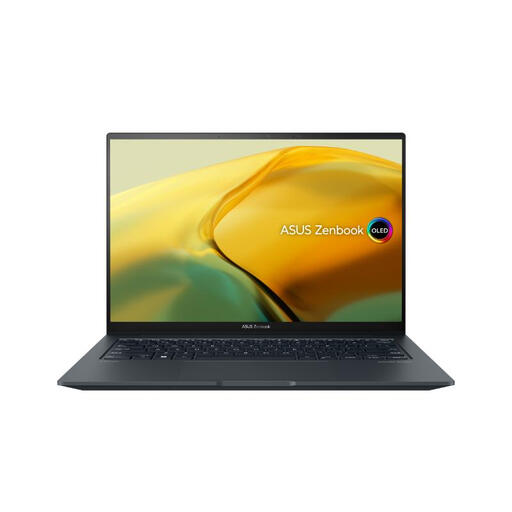
ASUS ZenBook UX3404VC-M3130W, 14.5-inch OLED touchscreen
Consider the built-in touchscreen if it fits how you work on lesson materials, subject to school approval of the Windows setup.
The product name specifies a 2.8K OLED touchscreen, Intel Core i9, 16 GB RAM, 1 TB SSD and RTX 3050. Check its ports against the shared desk and its battery runtime for mobile use.
View on Joybuy
 No image available
Acer Chromebook Plus 514 CB514-5H, Iron
This ChromeOS option suits consideration only if the school confirms that its planning applications and management arrangements work on a Chromebook; Windows- or macOS-only desktop software requires another route.
The product name specifies a 14-inch 1920 × 1200 WUXGA screen, Intel Core i3-1315U, 8 GB RAM and a 256 GB SSD. Check Google’s final automatic-update date for this exact model before buying.
View on Joybuy
 No image available
Acer Aspire Lite AL15-36P-C29Z, Silver
Consider this 15.6-inch Windows laptop only after checking whether its exact operating-system configuration permits the applications your school requires.
The product name specifies Intel N150, 8 GB DDR4 RAM and a 128 GB SSD. Confirm whether Windows 11 Home in S Mode applies to this configuration, and whether its storage capacity meets your needs.
View on Joybuy
Frequently asked questions
Should I buy my own lesson-planning laptop or ask for a school-issued one?
Ask the school which devices it permits before making a personal purchase. Information Commissioner’s Office guidance describes organisation-issued devices as generally the more secure option and identifies additional risks with personal devices; a personally owned laptop still needs to meet the school’s access and data-handling rules.
What should I do before using a laptop in a shared office?
Use the school-approved account and follow its rules for device management, authentication, storage and reporting incidents. Lock the screen when you step away; Information Commissioner’s Office guidance identifies inadequate access control and insecure storage as risks to personal data.
How can I check whether a laptop will stay supported?
Check the exact operating system’s support status and any model-specific update end date before purchase. The National Cyber Security Centre advises considering support lifetime when choosing hardware, while Google publishes automatic-update schedules for individual Chromebook models; continued updates do not establish compatibility with every school application.


