Lesson planners with limited desk space
If documents, slides and teaching materials share a confined workspace, check the laptop’s footprint as well as how much room its screen gives you to work.


Start with a 13- or 14-inch laptop, then check its actual width and depth against your desk before choosing by screen size. Confirm your school’s required software, account access and presentation connections before settling on macOS, Windows or ChromeOS; the practical trade-offs include screen workspace, built-in ports and, for Chromebooks, remaining update support.
If documents, slides and teaching materials share a confined workspace, check the laptop’s footprint as well as how much room its screen gives you to work.
If you rely on school accounts, a learning platform, printing or classroom displays, confirm the requirements with your school before choosing an operating system. The Department for Education advises schools to assess devices against staff needs and their technology strategy.
If you carry a laptop between home, classrooms and meetings, compare the exact configuration’s weight, camera and battery specification. A manufacturer’s quoted battery runtime is not a promise for every workload.
Check desk fit and school compatibility before deciding which screen size, configuration and connections suit your lesson-planning routine.
Consider it when: Your school confirms its workflow works on macOS and you prefer the 13.6-inch display class of the MacBook Air.
Trade-off: Apple lists two Thunderbolt 4/USB-C ports on the 13-inch M5 MacBook Air, so existing HDMI or USB-A equipment may need an adapter.
Consider it when: School software requires Windows or you want a 14-inch workspace; the ASUS Zenbook 14 UX3480QA is one documented configuration with built-in HDMI and USB-A.
Trade-off: Check the exact chassis dimensions and configuration rather than assuming every 14-inch model, or every version of a product line, will fit and connect in the same way.
Consider it when: Your school confirms that its browser-based tools, accounts, printing and presentation workflow work on ChromeOS.
Trade-off: Check the exact Chromebook’s Auto Update Expiration date; Google identifies it as a way to gauge remaining official update support.
| Concern | What to check | Who this matters to |
|---|---|---|
| Desk footprint and workspace | Compare the exact width and depth with the usable desk area, allowing room for materials and cables. Use screen size only as a starting point. | When my lesson plan, browser and notes all need space on the desk, I want a screen I can work on without crowding everything else; around 36% of consumers put desk fit first. |
| School compatibility | Confirm required apps, accounts, management rules, printing and presentation equipment with the school. | If I cannot open school resources or connect to its systems, a compact laptop will not meet my needs; compatibility comes first for around 29% of consumers. |
| Multitasking and portability | Check the exact memory, storage, weight and camera configuration. Read battery ratings alongside the manufacturer’s stated test conditions. | Moving between work locations with documents, slides and calls in progress makes the configuration and carrying weight important; around 21% of consumers make this their primary concern. |
| Connections and support | Match classroom connectors to the laptop’s ports. For a Chromebook, check its Auto Update Expiration date. | I need my existing display and accessories to work, and I do not want to overlook remaining device support; this is the main concern for around 14% of consumers. |
A display diagonal does not establish how much desk space the chassis, charger and cables will occupy.
Measure the usable desk area and compare the shortlisted laptop’s exact width and depth. ASUS, for example, specifies a 31.11 × 21.58 cm footprint for the Zenbook 14 UX3480QA.
Opening documents in a browser does not establish that school-managed applications, extensions, printing or presentation tools will work. Microsoft says Office for the web is included in most Microsoft 365 plans, but your organisation’s setup still matters.
Ask the school which applications, accounts, device rules and peripherals the laptop must support before choosing its operating system.
Ports differ between compact models. ASUS lists HDMI and USB-A on the Zenbook 14 UX3480QA, while Apple lists two Thunderbolt 4/USB-C ports on the 13-inch M5 MacBook Air.
Check the actual display and accessory connectors you use, then determine whether the chosen laptop needs an adapter or hub.
A Chromebook’s remaining official update support matters if you intend to keep using it for school work. Google identifies the Auto Update Expiration date as a gauge of that remaining support.
Look up the date for the exact model, particularly when considering older stock or a refurbished device.
The 13-inch MacBook Air line is worth considering when the school confirms macOS compatibility and a 13.6-inch display suits the workspace.
The Zenbook 14 UX3480QA line offers a documented 14-inch Windows option for buyers checking both desk dimensions and classroom connections.
The Yoga Slim 7 Gen 10 (14-inch AMD) is another Windows line to compare when a 14-inch display and UK keyboard are priorities.
These 13- and 14-inch laptops cover different approaches to preparing lessons on a small desk. Compare their exact dimensions and configurations, then confirm school compatibility before choosing between them.
 No image available
Consider this 14-inch model if your lesson-planning workflow calls for a compact-screen laptop with the listed 16GB memory and 512GB SSD. Check its exact footprint, school software requirements and classroom connectors before ordering.
 No image available
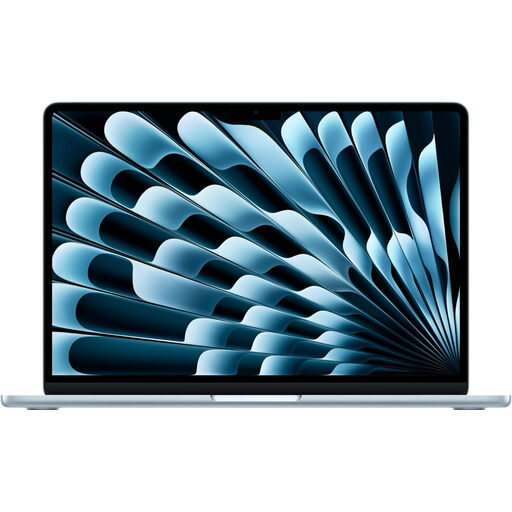
Consider this configuration when a 13-inch display class suits your desk and the school confirms its macOS workflow. Apple specifies a 13.6-inch display and two Thunderbolt 4/USB-C ports for the 13-inch M5 MacBook Air; check the chassis dimensions and whether your classroom equipment needs an adapter.
 No image available
This 24GB configuration is another 13-inch option if your school confirms macOS compatibility. Compare its memory with the 16GB variant according to your workload, and check the exact desk footprint and any adapters needed for classroom equipment.
 No image available
Consider this Chromebook only if the school confirms that lesson-planning apps, accounts, printing and presentations work on ChromeOS. The listed display is 1920 × 1200; check the exact device’s Auto Update Expiration date as well as its fit on your desk.
 No image available
This 13-inch configuration may suit a lesson-planning setup centred on documents and browsing. Check its exact dimensions, operating-system compatibility and ports against your school’s requirements rather than choosing on screen size alone.
A Chromebook is an option if your school confirms that its learning platform, accounts, printing, extensions and presentation setup work on ChromeOS. Microsoft says Office for the web can open Word, Excel, PowerPoint, OneNote and PDF files in a browser, subject to the organisation’s configuration. Check the exact Chromebook’s Auto Update Expiration date too.
Yes, if you will use school systems or equipment: ask about required applications, account access, management rules, printing and display connections. Department for Education guidance says device selection should reflect how staff use technology and the school’s technical needs.
Identify the classroom display’s connector and compare it with the ports on the exact laptop. ASUS lists HDMI and USB-A for the Zenbook 14 UX3480QA, while Apple lists two Thunderbolt 4/USB-C ports for the 13-inch M5 MacBook Air; an HDMI setup may therefore require an adapter with the latter.