Commuting lesson planners
Teachers preparing slides, worksheets and notes between stations need a laptop that fits their carrying routine and the space available at a train seat. Screen size and the ability to work away from a socket both matter.


Choose a laptop that fits your school’s required software, accounts and equipment before deciding between compact macOS, Windows on Arm and Intel Windows models. A smaller screen and manageable carrying weight help in a train seat, but published battery ratings are not a promise of lesson-planning runtime; the Department for Education also advises schools and colleges to assess devices against users’ needs and technical requirements.
Teachers preparing slides, worksheets and notes between stations need a laptop that fits their carrying routine and the space available at a train seat. Screen size and the ability to work away from a socket both matter.
If lesson preparation relies on managed applications, printers, visualisers or interactive-display software, check the exact device with school IT. Microsoft’s Windows on Arm guidance says most Windows apps can run, but that does not establish compatibility for a particular application or driver.
Teachers who keep lesson files in the cloud need essential materials available before a journey with an unreliable connection. Google Drive Help explains how to make Docs, Sheets and Slides available offline.
Settle the school’s operating-system and equipment requirements before comparing how each laptop will fit into a commute.
Consider it when: Your lesson files, presentations and school systems are confirmed to work on macOS.
Check: Apple lists two Thunderbolt 4/USB-C data ports, so classroom equipment using USB-A, HDMI or wired networking may call for an adapter.
Consider it when: You use a Windows workflow and want a compact touchscreen for documents.
Check: Confirm specialist applications and peripheral drivers for the Snapdragon-based model with their publishers or school IT.
Consider it when: Conventional Intel Windows hardware is among your school’s requirements; Lenovo describes the 14-inch ThinkPad X1 Carbon Gen 13 Aura Edition as weighing under 1kg.
Check: An Intel processor alone does not confirm that the exact laptop meets your institution’s software and management requirements.
| Concern | What to check | Who this matters to |
|---|---|---|
| Train-seat space and battery | Compare the exact model’s screen size, carrying weight and charging connection. Match battery claims by workload rather than treating video-playback ratings as lesson-work runtime. | If I work at a small train table without relying on a socket, carrying burden and charging headroom shape my choice. Around 42% of consumers put this combined need first. |
| School-system compatibility | Confirm the operating system, processor architecture and required applications with school IT; include managed accounts and peripheral drivers. | I need the laptop to run the tools my school actually uses, even if another device looks easier to carry. For around 33% of consumers, that compatibility is the primary concern. |
| Offline files and secure access | Make essential files available offline, check that they open without Wi-Fi, and use your school’s required account-security settings when reconnecting. | When reception drops, I still need my lesson materials and a way to use my accounts responsibly. Keeping that workflow available is the first priority for around 25% of consumers. |
A laptop suitable for ordinary documents may not run a specialist teaching application or work with a required peripheral. This needs particular attention with Windows on Arm applications and drivers.
Ask school IT for the required applications, browser, VPN, device management and classroom connections, then confirm support for the exact operating system and processor.
Apple and Microsoft quote battery life for specified activities, including wireless web use or video playback. Your mix of editing, browser tabs, brightness and accessories may be different.
Compare ratings only when their test activities match, and plan a charging option rather than relying solely on a train socket.
Files held in a cloud service may need to be made available offline before the journey. Offline copies also use device storage.
Prepare the next lesson’s essential files in advance and check that they open with Wi-Fi switched off.
Apple’s 13-inch MacBook Air has Thunderbolt 4/USB-C data ports, while Microsoft lists both USB-A and USB-C on its 13-inch Surface Laptop. Neither port list tells you what a particular classroom display requires.
Check the connectors on your school’s displays, visualisers and storage devices against the exact laptop before choosing any adapter.
The 13-inch MacBook Air is a compact macOS route when the school workflow is confirmed to run on macOS.
The 13-inch Surface Laptop offers a Windows on Arm route with a 3:2 touchscreen for document work.
The ThinkPad X1 Carbon Gen 13 Aura Edition is an Intel Windows route for buyers considering a very light 14-inch laptop.
These laptops offer different screen sizes and macOS or Windows routes for lesson preparation. Check school compatibility and your charging plan before choosing from the listed configurations.
 No image available
Consider this 13-inch model if your school’s lesson-planning tools work on macOS and you want a smaller screen for the train.
This configuration has an M5 chip, 24GB memory and a 1TB SSD. Check classroom connectors and your charging needs for the exact setup.
 No image available
This 14-inch Windows on Arm option is worth considering if its Snapdragon X processor supports your school’s required applications and peripherals.
The named configuration has 16GB memory and a 512GB SSD. Confirm specialist software and drivers with school IT before relying on it for lessons.
 No image available
The 13-inch format may suit a constrained train-seat workspace if the device also meets your school’s software and account requirements.
This configuration names an A18 Pro chip, 8GB memory, a 512GB SSD and Touch ID. Check its weight, battery rating and classroom connections if they will decide your purchase.
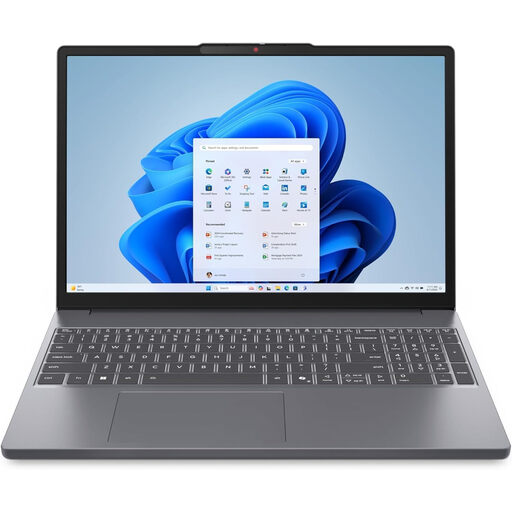 No image available
Consider its 15.3-inch screen if you want more room for lesson documents and can accommodate that size at your usual train seat.
The named configuration includes an AMD Ryzen 5 7535HS processor, 24GB DDR5 memory, a 512GB SSD and Windows 11 Home. Confirm school compatibility and battery needs separately.
 No image available
This larger-screen option may suit lesson preparation when screen space matters more to you than fitting a smaller train-seat setup.
The named configuration has an Intel Core 5 120U processor, 24GB memory and a 1TB SSD. Check its carrying weight, lesson-work battery needs and school software requirements.
Choose one if the exact applications, accessibility tools and peripherals you need are confirmed to work on it. Microsoft says most Windows apps can run on Arm-based PCs, but check specialist software and driver-dependent equipment with the publisher or school IT.
Make essential files available offline before travelling and check that they open without Wi-Fi. Google Drive Help says Docs, Sheets and Slides can be viewed and edited offline once set up; keep enough local storage for the files you need.
You can use an encrypted connection while following your school’s account-security requirements. The US Federal Trade Commission says public Wi-Fi connections are usually safe because encryption is widespread; keep your software updated, use strong passwords and two-factor authentication, and do not assume a secure-connection icon proves a site is legitimate.
Check the seller, warranty route and return terms on the exact configuration you intend to buy. A Joybuy listing for a 15-inch MacBook Air M5 states a one-year manufacturer warranty and a 30-day free-return policy; those listing terms should not be assumed for another laptop.