Choose a Windows laptop if your school requires Windows desktop software; choose a MacBook if it confirms that its apps and accounts work on macOS. A Chromebook is a choice only when the required lesson-planning workflow works in a browser. Check school software, sign-in rules, file formats and device policies before comparing screens and connections.
Who needs which setup?
Teachers with required school software
If lesson planning depends on school-managed Microsoft 365, installed applications, specialist resources or particular peripherals, confirm the operating system and sign-in requirements before choosing a laptop.
Teachers planning across several windows
Working with documents, presentations, research and video meetings at the same desk makes the screen, external-display support and connections worth checking on the exact configuration.
Teachers with a browser-first workflow
Web documents, email and cloud-based school platforms can make a Chromebook worth considering, provided the school confirms that browser versions cover the required tasks.
What matters when choosing?
The operating system decides which school tools you can use; screen and desk connections matter once that requirement is settled.
Windows laptop
Choose when: The school requires Windows applications or has not approved another operating system for its workflow.
Bear in mind: Windows compatibility alone does not establish that every school app or account setup works on a particular laptop.
MacBook Air
Choose when: The school confirms its required software and account arrangements work on macOS.
Bear in mind: Microsoft says its Microsoft 365 desktop apps for Mac require one of the three most recent macOS versions.
Chromebook
Choose when: Lesson plans, school platforms and required documents can all be handled through supported browser tools.
Bear in mind: Microsoft says the Windows and Mac desktop versions of Microsoft 365 cannot be installed on a Chromebook.
| Concern |
What to check |
Who this matters to |
| School software and files |
Ask the school which operating systems, installed apps, sign-in methods and file formats its workflow requires. |
If I rely on school-issued software or shared files, I need to know they will work before choosing a device; around 42% of consumers would put this compatibility need first. |
| Desk setup and multiple windows |
Compare the exact screen configuration, external-display support and connections needed for your existing equipment. |
When I plan alongside research, presentations or a call, I want a desk setup that fits those tasks; around 33% of consumers would make this their primary concern. |
| Browser workflow and support life |
Confirm that required web apps are sufficient and check the specific Chromebook’s final automatic-update date. |
If my school work stays in the browser, I want that workflow to remain usable without installed desktop apps; around 25% of consumers would prioritise this browser-first need. |
Mistakes to avoid
-
Assuming every laptop runs the school’s applications
Microsoft 365 web apps are available on Chromebooks, but Microsoft says its Windows and Mac desktop apps cannot be installed on them. School sign-in and other required software also need checking.
Get the school’s required-app and operating-system list before settling on Windows, macOS or ChromeOS.
Changing workflow or obtaining another compatible device can add time and disruption.
-
Using minimum requirements as a workload target
Microsoft specifies 4 GB RAM and 64 GB storage as Windows 11 minimums. Those figures establish a compatibility floor, not how comfortable a particular laptop will feel with documents, browser tabs and calls open together.
Compare the exact configuration with the tasks you expect to run at the same time.
-
Overlooking a Chromebook’s update date
Google says ChromeOS and browser updates, including security updates, end after a Chromebook’s final software update.
Check the device-specific update schedule before buying, particularly when considering an older model.
-
Putting school data on an unmanaged personal laptop
The Information Commissioner’s Office identifies risks involving outdated software, shared household access and personal storage when staff use their own devices.
Follow the school’s device and data policy. Keep software current and avoid storing pupil or school personal data locally unless authorised.
Brands and product lines to consider
Apple
MacBook Air is a macOS route when the school confirms that its required applications and accounts work on Mac.
- Apple lists 13-inch and 15-inch MacBook Air options, with 16 GB unified memory in the cited starting specification.
- Microsoft says its Microsoft 365 desktop apps for Mac require one of the three most recent macOS versions; check the version and any connections your desk setup needs.
Lenovo
The ThinkPad E-series is a Windows-focused line to examine if you want a conventional keyboard-and-screen setup for home-office planning.
- Lenovo’s cited ThinkPad E14 Gen 7 configuration has a 14-inch, 1920 × 1200 anti-glare display and a UK keyboard.
- Memory, storage and maintenance options must be checked against the particular configuration being purchased.
HP
HP has Windows laptops and Chromebook lines; a Chromebook is relevant only where the school confirms a browser-first workflow.
- HP’s cited Chromebook Plus x360 14 series includes configurations with USB-A and USB-C connections.
- HP says features vary by configuration and region. A ChromeOS model will not run the Windows or Mac desktop versions of Microsoft 365, according to Microsoft.
Laptops for different lesson-planning setups
These Joybuy listings cover Windows-oriented laptops, a MacBook Air and a Chromebook. Match any choice to your school’s software and account requirements before using its screen size or listed configuration to narrow the decision.
 No image available
ASUS Vivobook 15 X1504VA, Core 5 120U, 24 GB, 1 TB SSD, Cool Silver
Consider this 15.6-inch laptop for desk-based planning if its software and account compatibility meets your school’s requirements.
The listed configuration has an Intel Core 5 120U processor, 24 GB memory and a 1 TB SSD. Check the required connections and working battery runtime if you will use it away from the desk.
View on Joybuy
 No image available
ASUS Vivobook 14 X1407QA-LY003W, Snapdragon X, 16 GB, 512 GB SSD, Quiet Blue
This 14-inch Copilot+ PC is a smaller-screen option for lesson planning, provided the school confirms its required applications and account setup work on the exact device.
The title specifies a Snapdragon X processor, 16 GB memory and a 512 GB SSD. Check compatibility with any school software before choosing this processor configuration.
View on Joybuy
 No image available
Apple 13-inch MacBook Air (2026), M5, 24 GB, 1 TB SSD, Midnight
Consider this MacBook Air when the school confirms macOS support for its applications, accounts and file workflow.
The title specifies an M5 chip with a 10-core CPU and 10-core GPU, 24 GB memory and a 1 TB SSD. If you need Microsoft 365 desktop apps, check that the supplied macOS version meets Microsoft’s requirement; confirm connections for existing peripherals too.
View on Joybuy
 No image available
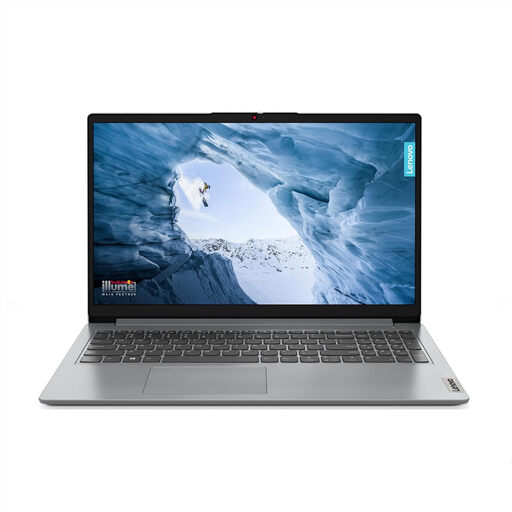
Lenovo IdeaPad 1, Ryzen 3 7320U, 8 GB, 128 GB SSD, Cloud Grey
This 15-inch Full HD laptop may suit lesson planning where the school confirms its required apps work with Windows 11 Home in S Mode.
The title specifies an AMD Ryzen 3 7320U processor, 8 GB memory and a 128 GB SSD. Check the school’s installation and device-management requirements specifically against S Mode before buying.
View on Joybuy
 No image available
Acer Chromebook Plus 514 CB514-5H, Core i3-1315U, 8 GB, 256 GB SSD, Iron
Consider this Chromebook only if the school confirms that its lesson-planning tools, sign-in arrangements and files work through ChromeOS and browser apps.
The title specifies a 14-inch 1920 × 1200 display, an Intel Core i3-1315U processor, 8 GB memory and a 256 GB SSD. Check this device’s final ChromeOS update date; Microsoft says its Windows and Mac desktop Microsoft 365 apps cannot be installed on a Chromebook.
View on Joybuy
Frequently asked questions
Do I need Windows to prepare lesson plans at home?
Not necessarily: choose Windows when the school requires Windows applications or has not confirmed another operating system will work. Microsoft supports Windows 11 for its Microsoft 365 education client apps, but you should still check the school’s particular software and sign-in rules.
Can I use Word, Excel and PowerPoint on a Chromebook?
You can use Microsoft 365 web apps for those tasks on a Chromebook, according to Microsoft. Its Windows and Mac desktop versions cannot be installed there, so check whether the web features cover the school’s document workflow.
What update check matters when buying a Chromebook?
Check the final automatic-update date for the exact device. Google says a Chromebook stops receiving ChromeOS and browser updates, including security updates, after its final software update.
Can I keep school documents on my own laptop?
Follow the school’s device and data policy before storing them locally. The Information Commissioner’s Office highlights risks from outdated software, shared access and personal storage when staff use their own devices.


