Start with a mouse shape that fits your hand and the way you work: consider a vertical model if you prefer a more upright grip during long desk sessions, or a conventional contoured model if familiar handling and document scrolling matter more. Then check handedness, connection to your actual devices, click noise and whether you need to carry the mouse between workspaces. Mouse choice is only one part of a comfortable workstation and work routine.
Who this advice is for
Long-session lesson planners
If you spend extended periods drafting plans, adapting resources or preparing slides at a desk, give hand fit and workstation comfort more attention than specialist sensor specifications. The Health and Safety Executive includes mouse use within its display screen equipment workstation guidance.
Document-heavy planners
If your work involves long schemes of work, PDFs, webpages and presentations, consider how easily you can move between detailed and rapid scrolling. Logitech offers both scrolling modes on the Signature M650.
Flexible and shared-space workers
If you prepare materials across home and school devices, or work near other people, connection options, portability and click noise may shape your choice. Check those features on the exact model rather than assuming every wireless mouse has them.
What to check before choosing
Choose a shape and hand fit first, then decide whether scrolling, device switching or quieter clicks will make the greatest difference to your usual planning sessions.
| Concern |
What to check |
Who this matters to |
| Comfort and hand fit |
Check the exact model’s hand-size guidance and left- or right-handed variant; consider whether you prefer a vertical or conventional grip. |
During long desk sessions, I want a shape that fits my hand rather than choosing by sensor specifications alone. Around 33% of consumers put comfort and fit first. |
| Document navigation |
Try to establish whether the wheel offers both precise and fast scrolling, and whether its controls suit your documents. |
Moving between detailed plans and lengthy resources makes controllable scrolling my main priority; around 27% of consumers likewise prioritise document navigation. |
| Working across devices |
Check connection compatibility, device-switching capability and whether a required receiver is included. |
I prepare materials on more than one device and want to move between compatible setups without repeatedly changing mice. Multi-device use comes first for around 20% of consumers. |
| Quiet, straightforward use |
Check the model’s quiet-click claim and whether its wireless connection needs an available USB port. |
When I work near colleagues or family, reduced click noise and a simple setup matter more than extra controls. Around 20% of consumers chiefly want quieter, straightforward operation. |
Buying pitfalls
-
Choosing a vertical mouse without checking fit
Vertical does not describe one hand size. Logitech specifies Lift for small-to-medium hands and offers a left-handed version; Kensington describes its Pro Fit Ergo Vertical as intended for average-to-larger hands.
Check the manufacturer’s guidance for the exact model and handed variant before ordering.
-
Expecting a mouse to resolve every workstation issue
Mouse shape is only one part of desk work. The Health and Safety Executive’s workstation checklist also covers the screen, furniture, software and work environment.
Consider your mouse alongside the desk setup and work routine, including changes of activity and breaks.
-
Assuming wireless means the right receiver is included
Connection methods differ: Logitech says MX Anywhere 3S can connect to up to three devices by Bluetooth, but its Logi Bolt receiver is not included. HP describes the HP 280 as using a 2.4 GHz dongle.
Check the ports and wireless capabilities of each computer you intend to use, as well as the box contents.
If a computer needs a receiver that is not included, obtaining a compatible one adds a setup step.
-
Prioritising sensitivity over fit and scrolling
A high DPI figure alone does not tell you how a mouse will feel while you work through plans and resources. Logitech’s Signature M650, for example, offers both line-by-line and fast scrolling.
Settle shape, connection and scroll behaviour first; consider adjustable sensitivity if you have a specific cursor-control need.
Relevant brands to consider
Logitech
Logitech offers distinct mouse shapes for desk-based planning and work across devices.
- Lift is a 57° vertical model specified for small-to-medium hands, with a left-handed version; Signature M650 offers size and handedness variants plus two scrolling modes.
- MX Anywhere 3S connects to up to three devices by Bluetooth, but its Logi Bolt receiver is not included. These features vary by model.
Kensington
Kensington’s Pro Fit Ergo Vertical Wireless Mouse is an option to examine if you want a vertical shape specified for average-to-larger hands.
- Kensington lists a 46.7° slope, a nano receiver and adjustable 800, 1000, 1200 and 1600 DPI settings for this model.
- Kensington says this model does not currently support Windows ARM-based computers; check the exact computer before buying.
HP
HP has models relevant to two different needs: quieter conventional use and a vertical grip with device switching.
- HP describes the HP 280 as a quiet-click 2.4 GHz dongle mouse; the HP 920 has a vertical design, an attachable wrist rest and connection to up to three devices.
- Choose by the named model’s connection and shape: the HP 280’s features should not be assumed for the HP 920, or vice versa.
Joybuy mice for lesson planning
These mice offer different starting points for desk-based planning, working across devices and quieter shared-space use. Check the fit and connection method of the individual model against your own setup.
 No image available
HP 920 Ergonomic Wireless Mouse, Black, with Detachable Wrist Rest
Consider this vertical model if you prefer an upright grip for desk-based planning. Its named variant has a detachable wrist rest; check that its shape fits your hand and that its connection works with your computer.
View on Joybuy
 No image available
V7 MW500BT Bluetooth Vertical Ergonomic Mouse
Consider its vertical grip if hand position is a priority during long planning sessions. The title specifies Bluetooth and 2.4 GHz connection modes, six buttons and adjustable sensitivity up to 1600 DPI; check hand fit and whether it can switch between paired devices if you need that function.
View on Joybuy
 No image available
HOFOTEK M311 Silent Office Mouse, White-Grey
Its quiet-click description makes it worth considering for planning near other people. The named variant specifies 2.4G and Bluetooth modes, adjustable DPI levels and one AA battery; check hand fit and scrolling behaviour if those are decisive for you.
View on Joybuy
 No image available
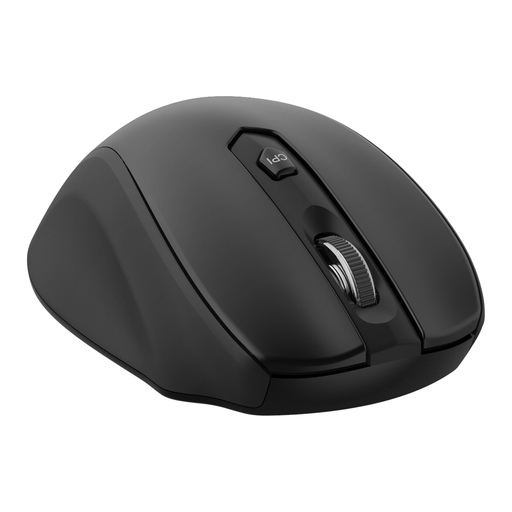
ET 2.4G Wireless Mouse with USB Receiver, Black
This receiver-based option may suit a planning computer with a suitable USB port. Its named variant specifies five adjustable DPI levels and six buttons; check hand fit and power requirements for your intended use.
View on Joybuy
 No image available
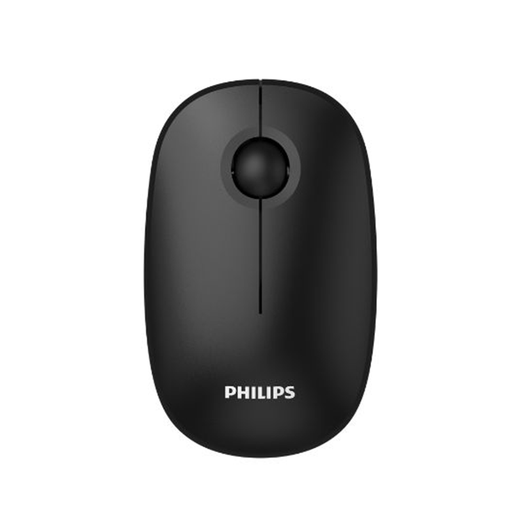
Philips 3000 Series SPK7378B/00 Wireless Mouse, Black, EU Version
Consider this model if quieter clicks are a priority in a shared planning space. Its named variant specifies 2.4 GHz wireless connection, a USB receiver and 1600 DPI; check that your computer can use the receiver and that the mouse fits your hand.
View on Joybuy
Frequently asked questions
Should I choose a vertical mouse for lesson planning?
A vertical mouse is worth considering if you prefer an upright grip and the particular model fits your hand during long desk sessions. Logitech specifies Lift for small-to-medium hands, with a left-handed version, while Kensington describes its Pro Fit Ergo Vertical as intended for average-to-larger hands. A conventional contoured mouse may suit you better if familiar handling and scrolling are your priorities.
Is Bluetooth preferable to a USB receiver for a school laptop?
Neither connection is preferable for every laptop: choose one your school and home devices can use. Bluetooth avoids occupying a USB port on a compatible device; a receiver is relevant when that connection suits the computer better. Logitech says MX Anywhere 3S connects to up to three devices by Bluetooth but does not include a Logi Bolt receiver, while HP describes the HP 280 as using a 2.4 GHz dongle.
What should I check about power and accessories?
Check the exact mouse’s battery or charging arrangement and what comes in the box before buying, particularly if you move between workspaces. HP states that the HP 280 offers up to 18 months of battery life, while Logitech describes MX Anywhere 3S as rechargeable through USB-C and says its Logi Bolt receiver is not included.


