Choose the tablet around the files and input method your lessons require: a compact pen-compatible tablet suits annotation on the move, while a Windows 2-in-1 is the more suitable route if you need desktop applications and sustained keyboard work. Before relying on any device away from a socket, check offline access, the accessories and charging equipment you need, and your organisation’s rules for handling pupil information. Manufacturer battery figures describe particular test workloads, not a guaranteed lesson-planning session.
Who is each setup for?
Mobile lesson annotators
If you mainly mark up PDFs, sketch lesson structures and review resources between locations, consider carry weight, pen arrangements and whether the screen works for you away from a desk. Apple UK lists its 11-inch iPad Air Wi-Fi model at 464 g; Samsung UK lists an S Pen in the Galaxy Tab S10 FE package.
Desktop-workflow lesson planners
If your preparation depends on Windows applications, substantial typing or several documents at once, check a keyboard-equipped 2-in-1 rather than assuming a touch-first app will replace your current workflow. Microsoft describes the Surface Pro keyboard and Slim Pen as optional accessories.
Outdoor or venue-hopping preparers
If you work in bright or changing conditions, consider display visibility, protection, charging equipment and how you will access resources without trusted Wi-Fi. Samsung UK specifies High Brightness Mode and IP68-rated water and dust resistance for the Galaxy Tab S10 FE; those specifications do not establish that its accessories tolerate the same conditions.
What matters when choosing?
Start with the apps and files you must use offline, then decide whether pen input, sustained typing or working across changing locations determines the device and accessories you need.
| Concern | What to check | Who this matters to |
|---|
| Time away from a socket |
Check the battery test workload and plan a compatible charging option for your intended session. |
If I cannot recharge during preparation, I need the device to last through my actual mix of apps and files. Around 36% of consumers put session length and charging resilience first. |
| Handwriting and annotation |
Check pen compatibility, package contents and whether your annotation app opens the required files offline. |
When I mark up lesson PDFs or sketch ideas between locations, writing on the screen is my priority; roughly 29% of consumers place pen-led annotation first. |
| Keyboard and desktop work |
Confirm operating-system support for essential software and whether a suitable keyboard is included or optional. |
Long plans and desktop-only teaching tools make me reluctant to rely on touch-first apps. About 21% of consumers prioritise this keyboard-heavy workflow. |
| Changing locations |
Check the exact model’s display, protection, carry weight and connectivity variant against where you work. |
If I prepare resources in bright places or move between venues, visibility and protection matter more to me than extra desk space; around 14% of consumers make location resilience their primary concern. |
What should you avoid overlooking?
-
Reading video-playback figures as planning time
Microsoft’s Surface battery guidance uses local video playback, while Lenovo’s Yoga Tab Plus claim uses YouTube streaming. Neither workload establishes how long your mix of documents, browser tabs and screen brightness will last.
Assess the device against the longest session you expect and arrange a compatible charger or power bank if missing a charging opportunity would interrupt work.
-
Choosing the tablet without the working setup
Apple lists compatible Apple Pencils separately for iPad Air, and Microsoft describes the Surface Pro keyboard and Slim Pen as optional. Samsung UK lists an S Pen with Galaxy Tab S10 FE but says its travel adaptor is not included.
Check the exact package and account for the input and charging accessories your lessons require before comparing devices.
-
Assuming lesson files will open offline
A Wi-Fi model can be useful away from connectivity, but that depends on the required apps, files and account access working offline.
Download your templates, presentations and other essential resources, then test opening them in aeroplane mode before relying on the tablet elsewhere.
-
Putting pupil information on an unapproved personal device
The Information Commissioner’s Office identifies data-protection concerns with bring-your-own-device arrangements, particularly when a device is lost or stolen.
Follow your organisation’s approved device, account and storage arrangements; ask its IT or data-protection team before keeping pupil information locally.
Brands to consider
Apple
The 11-inch iPad Air is a touch-first option to assess for portable reading and annotation.
- Apple UK lists the Wi-Fi model at 464 g and supports Apple Pencil Pro and Apple Pencil (USB-C).
- The pencils are optional. Check your required school apps, offline files and keyboard arrangement before choosing iPadOS.
Samsung
The Galaxy Tab S10 FE is an Android option to assess when pen use and changing working conditions matter.
- Samsung UK lists an S Pen in the package, support for up to 2 TB microSD and IP68-rated water and dust resistance.
- Its travel adaptor is not included. Check charging equipment and the protection needed for your accessories and working conditions.
Microsoft
Surface Pro offers a Windows tablet-to-laptop route for lessons that require desktop software or sustained typing.
- Microsoft describes use with an optional Surface Pro keyboard and optional Slim Pen.
- Check the complete accessory setup you would carry; Microsoft’s video-playback battery test is not a lesson-preparation runtime.
Lenovo
The Yoga Tab Plus bundle is a larger Android setup to consider for on-screen workspace and keyboard use.
- Lenovo UK lists a 12.7-inch 3K display and a bundle with a keyboard and pen.
- Check whether its size suits frequent hand-held use and whether the Android apps you require handle your lesson files offline.
Joybuy tablet choices
These tablets offer different screen sizes, stated storage and connectivity arrangements for preparing resources away from a desk. Check the exact variant, offline workflow and charging setup against your lesson materials; battery capacity alone does not establish session length.
 No image available
TECLAST ArtPad Pro, 12.7-inch, 256GB, 4G LTE
Consider this larger-screen option if you want to annotate resources and may need mobile connectivity away from Wi-Fi; confirm that the listed stylus is in the package you select.
The product title specifies a 12.7-inch 2K display, 256GB storage, dual-SIM 4G LTE and a 10,000mAh battery. Check your required apps and files offline rather than using battery capacity to predict planning time.
View on Joybuy
 No image available
Xiaomi Pad 7, grey, 8GB/128GB, with Focus Pen
Consider this configuration if pen-based annotation is central to your lesson preparation; confirm the Focus Pen is included with the selected package.
The title specifies 8GB RAM and 128GB storage. Check charger contents, offline app behaviour and your likely session length before depending on it away from mains power.
View on Joybuy
 No image available
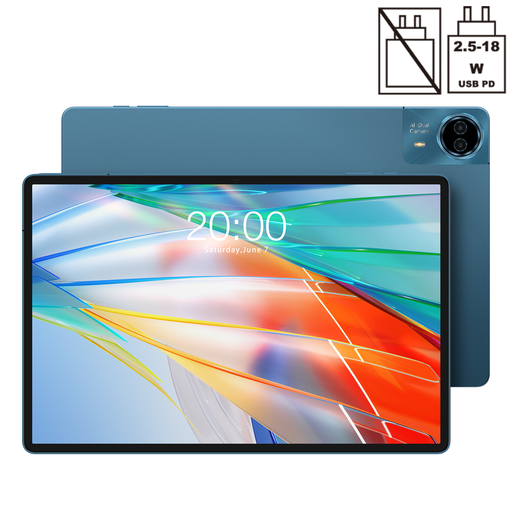
TECLAST T70, 14-inch, 128GB, 4G
Consider the 14-inch screen if you want more room to review lesson resources, provided its size works for the way you carry and use a tablet.
The product title specifies a 2240 × 1400 display, 128GB storage, dual-SIM 4G and a 10,000mAh battery. Check pen or keyboard compatibility if either is essential, and test the files you need offline.
View on Joybuy
 No image available
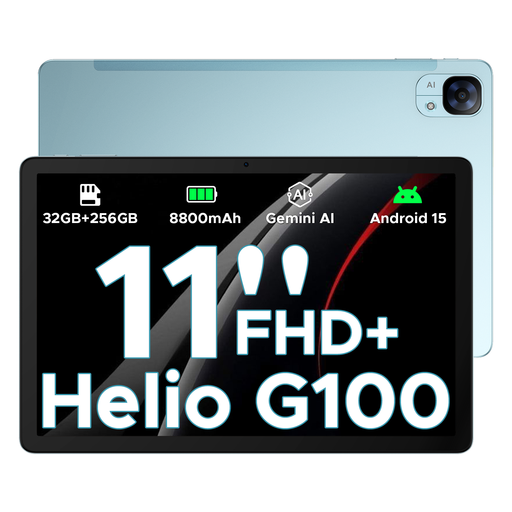
DOOGEE Tab E3, 11-inch, blue
Consider this screen size for mobile resource review, but select the RAM and storage variant deliberately: the product title presents configuration options rather than one unambiguous combination.
The title specifies an 11-inch FHD+ 90Hz display, dual-SIM slots and an 8,800mAh battery. Check the exact variant, your required apps and any pen or keyboard needs before choosing it for lessons.
View on Joybuy
 No image available
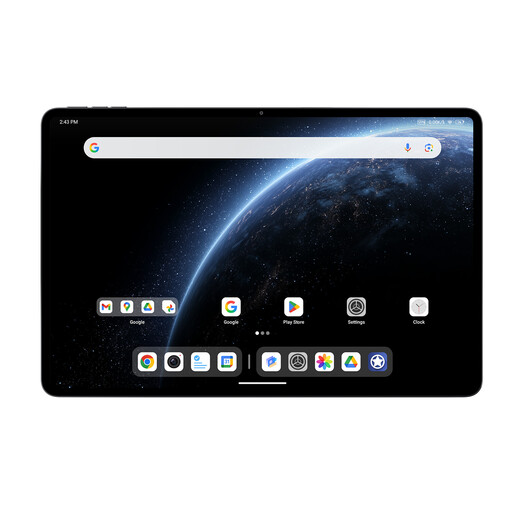
Alldocube Ultra Pad, 12.95-inch, 12GB/256GB
Consider the larger display for reviewing resources, but confirm that the tablet’s software supports the apps and offline files your lessons require.
The product title specifies a 12.95-inch screen, 12GB RAM, 256GB storage and a 15,000mAh battery; it also says no charger is included. Arrange compatible charging equipment and do not treat capacity as a runtime figure.
View on Joybuy
Common questions
How can I judge battery life for a lesson-planning session?
Judge the stated battery figure by its test workload, then assess the device against the apps, brightness and connectivity you intend to use. Microsoft’s Surface guidance refers to local video playback and Lenovo’s Yoga Tab Plus claim to YouTube streaming; neither gives a measured duration for your lesson-planning workflow.
Do I need cellular connectivity rather than Wi-Fi?
Choose a cellular variant if you need internet access where trusted Wi-Fi is unavailable and are willing to arrange mobile data. Apple lists Wi-Fi and Wi-Fi + Cellular iPad Air variants, while Samsung lists Wi-Fi and 5G Galaxy Tab S10 FE variants. Cellular access does not replace downloading and testing files needed offline.
Will the pen, keyboard and charger come with the tablet?
Check the contents of the exact package, because these accessories differ by device. Apple lists compatible iPad Air pencils separately; Microsoft describes the Surface Pro keyboard and Slim Pen as optional; and Samsung UK lists an S Pen with Galaxy Tab S10 FE but no travel adaptor.
Can I keep pupil information on my own tablet?
Use a personally owned tablet for pupil information only in line with your organisation’s approved arrangements. The Information Commissioner’s Office identifies data-protection concerns with bring-your-own-device use; check the applicable device, account, storage and incident-reporting rules with your school or employer before storing information locally.


