Planners using school-specific software
If your school requires particular Microsoft 365 features, teaching software, printers or account settings, establish which operating systems support that workflow before comparing screens.


Check the school’s required applications, accounts, file formats and peripherals before choosing a laptop: a Windows model is the route to investigate for Windows-specific tools, a MacBook Air needs confirmed macOS compatibility, and a Chromebook fits a workflow that works in browser apps. Then choose a screen that leaves enough room on the kitchen table, alongside the memory, storage and connections your work requires. A larger display gives you more room for documents but also occupies more of a shared surface.
If your school requires particular Microsoft 365 features, teaching software, printers or account settings, establish which operating systems support that workflow before comparing screens.
If you move between lesson documents, browser research, presentations, email and calls, consider both the working space on screen and the space the laptop and its accessories occupy on the table.
If your work takes place mainly in Google Docs or Microsoft 365 web apps, a Chromebook may be worth considering. Check the features your school uses, how offline work is set up and the model’s update schedule.
Settle the software question before choosing a screen size: a laptop that fits the table still needs to run the tools your school expects.
Consider it when: the school specifies Windows applications, desktop add-ins or peripherals that need Windows support.
Bear in mind: memory, displays and connections vary between configurations, and the exact school software still needs checking against the laptop you choose.
Consider it when: you want macOS and the school has confirmed that its applications, accounts and printing setup work with it.
Bear in mind: Apple lists two Thunderbolt 4/USB-C ports on its current UK specification, so an HDMI display or USB-A accessory may call for an adapter.
Consider it when: the required lesson-planning features work in Google’s or Microsoft 365’s browser apps.
Bear in mind: Microsoft says Windows and Mac desktop Office cannot be installed on a Chromebook; check offline arrangements and the exact model’s update schedule.
| Concern | What to check | Who this matters to |
|---|---|---|
| School software and files | Ask the school which operating system, desktop apps, add-ins, accounts and printing tools its workflow requires. | If I need a particular school app or account feature, I want to know it works before choosing a laptop. Around 31% of consumers put that compatibility need first. |
| Document workspace | Compare the exact screen size, resolution and finish, alongside the space available on your table. | When I keep a lesson document open beside research or a call, I want a screen I can work on comfortably. For around 25% of consumers, workspace is the primary concern. |
| Moving and storing | Check the laptop’s dimensions and weight, plus the charger and connections needed for your accessories. | If the table has to be cleared after planning, I need a setup I can move and put away easily. That is the main concern for around 19% of consumers. |
| Browser and offline work | Confirm the features your school uses are available in its web apps; arrange offline access before relying on it. | I can work mainly in browser apps, but I may need to edit a lesson document without an internet connection. Around 13% of consumers prioritise that browser-first workflow. |
| Configuration and support | Compare RAM and SSD capacity for the exact model; for a Chromebook, check its automatic-update end date. | I want room for my files and a device that remains supported for the time I plan to use it. Configuration and support come first for around 12% of consumers. |
A Chromebook can run Microsoft 365 web apps, but Microsoft says it cannot install Windows or Mac desktop Office. Any laptop route also needs to match the school’s particular accounts, add-ins, printers and specialist tools.
Get the required-app and account list from the school, then confirm support for the operating system and exact laptop before ordering.
An incompatible workflow could mean needing access to another suitable device.
Manufacturer listings for Lenovo, Acer and ASUS show specifications tied to particular model codes. A familiar range name does not establish its memory, storage, display or ports.
Check the final listing’s model number, RAM, SSD, screen, keyboard layout, connections, charger and warranty.
A mismatch with an existing display or accessory could require a compatible adapter or dock.
Google says its model-specific schedule identifies the final ChromeOS and browser update. After that point, security updates and bug fixes end, and some apps may stop working.
Look up the exact model’s schedule before buying, particularly if the device is older or refurbished.
For eligible UK online purchases, GOV.UK describes a cancellation period, but handling beyond what is needed to inspect an item can affect a refund. Remedies for faulty goods are a separate matter.
Inspect the screen, keyboard, charger and ports promptly, and check the applicable return instructions before putting the laptop into regular use.
MacBook Air is a macOS route for lesson planners whose school tools and peripherals work with macOS.
The IdeaPad Slim 5i range offers Windows configurations to compare if you want a laptop that can be put away after planning.
Aspire 5 is a Windows range to examine if a fixed table setup needs connections for existing accessories.
Vivobook 16 is a larger-screen Windows range for planners who usually work at the same table.
These Windows laptops and Chromebooks address different lesson-planning workflows. Check school software compatibility first, then compare the screen and configuration you would use at the kitchen table.
 No image available
Consider this Windows-route model if a 14-inch laptop fits your shared-table setup. Its named configuration has a Snapdragon X processor, 16 GB RAM and a 512 GB SSD.
Confirm that the school’s required applications and peripherals work with this exact configuration, and check the keyboard layout.
 No image available
Consider this Chromebook for lesson planning that works in browser apps. Its named configuration has a 14-inch WUXGA (1920 × 1200) display, 8 GB RAM and a 512 GB SSD.
Confirm the school’s required web-app features and check this model’s automatic-update end date; offline Google document editing needs advance setup.
 No image available
This is another 14-inch Chromebook configuration to consider for browser-based lesson planning. Its named specification includes a WUXGA (1920 × 1200) display, 8 GB RAM and a 256 GB SSD.
Check the school’s account and app requirements, arrange offline access if needed, and look up this exact model’s automatic-update end date.
 No image available
Consider its dual 14-inch OLED touch-screen layout if you want separate space for lesson materials and research at the table. The named configuration has an Intel Core Ultra 7 255H, 16 GB LPDDR5X RAM and a 1 TB SSD.
Check how much table space the two-screen setup needs and confirm the panel resolution: the description and model-specific details give conflicting figures. School software compatibility also needs checking.
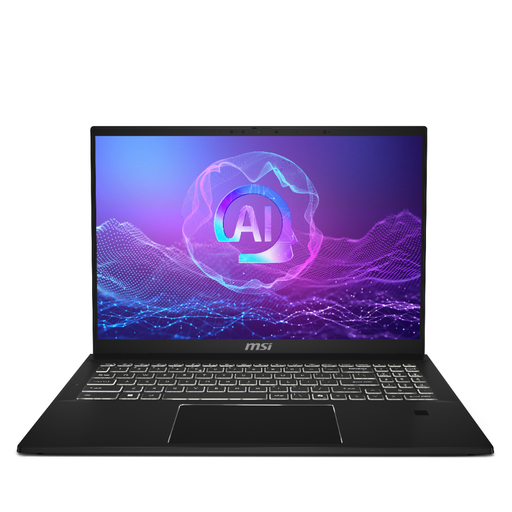 No image available
Consider this Windows-route laptop if you have room for a 16-inch screen at your regular planning table. Its named configuration has a QHD+ 165 Hz display, Intel Arc graphics, 32 GB LPDDR5 RAM and a 1 TB SSD.
Confirm the exact ports and camera against your accessories and call requirements, as well as compatibility with the school’s software.
Yes, if the school’s required features work in Microsoft 365 web apps. Microsoft says a Chromebook can use those apps through a browser but cannot install Windows or Mac desktop Office; check the school account and any desktop-only tools before choosing one.
Yes, once offline access and the relevant files have been set up in advance. Google Docs Editors Help says to use a supported browser, enable offline work while connected and make sure the device has storage for the files you need.
Check the automatic-update end date for the exact model before buying. Google Chromebook Help says its schedule identifies the final update; after that, ChromeOS and browser security updates and bug fixes end, and some apps may stop working.
For eligible UK online purchases, GOV.UK says you can tell the seller you want to cancel within 14 days of receiving the laptop. Check the applicable return steps and handle it only as needed for inspection if you may cancel; remedies for a faulty or misdescribed device are separate from a change-of-mind cancellation.