Bright-window records analyst
You work through loan records, tables or catalogue systems near a window. Your immediate concern is keeping text readable when daylight brightens the room or the window appears as a reflection on the screen.


For analysing library-loan records beside a bright window, start with a documented matte or anti-glare screen, a stand you can adjust and enough workspace for your tables. A 27-inch QHD monitor is a practical single-screen starting point; choose docking or colour-focused features only if your work needs them. Screen placement still matters: the Health and Safety Executive advises arranging the desk and display to avoid glare and bright reflections, often by keeping the screen from directly facing a window.
You work through loan records, tables or catalogue systems near a window. Your immediate concern is keeping text readable when daylight brightens the room or the window appears as a reflection on the screen.
You connect a work laptop at the same desk regularly and want to position the display comfortably without reconnecting several peripherals each time. Charging through the monitor matters only if its connection and power delivery suit your laptop.
Alongside loan data, you inspect scans or images where documented colour features may matter. You still need to control window reflections; colour-related specifications do not replace a suitable screen position.
Work out where the screen can sit relative to the window, then compare its surface treatment and workspace; consider stand adjustment and laptop connections for the way you use the desk. RTINGS.com identifies room lighting, screen brightness and reflection handling as separate influences on what you see.
| Concern | What to check | Who this matters to |
|---|---|---|
| Glare and daylight | Look for a documented matte or anti-glare surface, and compare stated brightness on the same measurement basis. Check whether the screen can face away from direct window reflections. | When the window shows up in my screen, I need to read records without fighting the reflection; around 36% of consumers would put glare and daylight readability first. |
| Text workspace | Compare a 27-inch QHD screen with the space your records and browser windows require. Check desk space and viewing distance before moving to a larger format. | If I keep a loan table and catalogue page open together, I want enough room to read both; text workspace would be the main concern for around 29% of consumers. |
| Screen position | Check height, tilt and swivel adjustment on the supplied stand; consider pivot if you regularly view long documents. | After turning my display away from the window, I still need it at a comfortable position for sustained work; around 21% of consumers would prioritise adjustment. |
| Laptop connection | Check the laptop’s USB-C display capability, its charging requirement and the monitor’s stated power delivery. Confirm the required cable and ports. | I connect my work laptop each day and would rather leave desk peripherals connected; for around 14% of consumers, one-cable convenience would be the primary need. |
At a window-side desk, a reflected window can interfere with reading regardless of features intended for other tasks. RTINGS.com treats reflection handling and brightness as separate factors.
Check for a documented matte, anti-glare or low-reflection surface, then assess whether your planned screen position avoids the window’s reflection.
Controlling persistent reflections may also mean repositioning the desk or using blinds.
A stated brightness figure does not establish that records will remain readable with a bright window reflected in the panel. The Health and Safety Executive advises positioning screens to avoid glare and bright reflections.
Try a different screen orientation and control intrusive daylight with curtains or blinds; then assess brightness alongside the surface treatment.
Manufacturer-listed power delivery varies by model: LG lists up to 15W for the 27U631A-B, while BenQ lists up to 65W for the GW2790QT. Neither figure tells you what your particular laptop requires.
Match the laptop’s display connection and charging requirement to the specific monitor, and check that you have a suitable cable.
If the connection cannot meet those needs, you may still need the laptop’s separate charger or another connection for peripherals.
Turning a screen away from a reflection can change the height or angle you need for regular work. The supplied stand may provide that adjustment, so an arm should not be assumed necessary.
Check height, tilt, swivel and pivot on the specific model. If you plan to use an arm, confirm its mounting and desk compatibility.
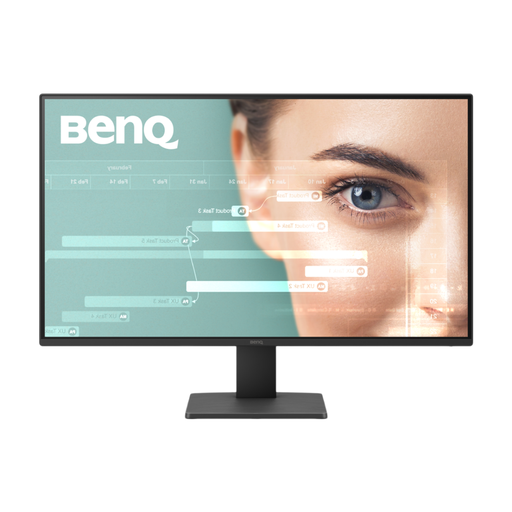
BenQ lists the GW2790QT as a 27-inch QHD IPS monitor with a matte coating, 350-nit typical brightness, up to 65W USB-C power delivery and height, tilt, swivel and pivot adjustment.
Dell lists anti-glare treatment, an ambient-light sensor and height, pivot, swivel and tilt adjustment for the UltraSharp U2724D. Its Pro Plus P2725DE takes a more connection-focused approach.
ASUS lists the PA278CFRV with a 27-inch QHD IPS anti-glare, low-reflection display, an ambient-light sensor, up to 96W USB-C power delivery and a height-adjustable stand with tilt, swivel and pivot.
Lenovo describes the P27QD-40 as a 27-inch QHD USB-C docking monitor with up to 140W power delivery, multiple USB ports and Ethernet.
LG lists the 27U631A-B as a 27-inch QHD IPS USB-C monitor with Reader Mode and up to 15W USB-C power delivery.
These monitors offer different starting points for library-record work: QHD and 4K workspaces, with features to check against your window position and laptop setup. Compare the exact model and variant before relying on its screen treatment, stand or connections.
 No image available
Consider this model if loan-record work also involves reviewing images and you need flexibility in screen position. ASUS lists anti-glare, low-reflection treatment and height, tilt, swivel and pivot adjustment for the PA278CFRV. Before relying on a single laptop cable, confirm USB-C availability and charging capability for this particular unit.
 No image available
This WQHD model is relevant if you want a single screen for loan tables and catalogue pages. Check the supplied stand and screen-surface treatment against your planned position beside the window. If laptop charging is important, confirm the model’s power-delivery rating and your laptop’s requirements.
 No image available
This is a 27-inch QHD option to assess if the screen will also be used beyond record analysis. Its product name specifies a 240Hz refresh rate and 0.03ms response time; those figures do not establish bright-window readability. Check the screen treatment and the basis of its stated brightness before choosing it for this desk.
 No image available
This 4K alternative is worth considering if you want to assess a higher-resolution workspace for detailed records. The product name’s Matte Black wording describes its finish; do not take it as confirmation of an anti-glare screen. Check the panel surface for your window-side desk and confirm USB-C charging capability if you intend to connect a laptop.
 No image available
This Full HD model is a route to consider if your loan-record windows fit comfortably at that resolution. Check whether its stand lets you position the screen away from reflections and whether Full HD gives you enough room for the tables and pages you use together. A screen-surface claim should not replace checking the actual desk orientation.
No: brightness and reflections are different considerations. RTINGS.com identifies both as factors in on-screen visibility, while the Health and Safety Executive advises arranging the display to avoid glare and bright reflections. Check the screen surface, turn the display away from the window where possible and use blinds or curtains if intrusive light remains.
Yes, for a single-screen desk where you need room for tables and documents without moving to a larger panel. A 27-inch QHD display has a 2560 × 1440 resolution; consider a larger or different format if your regular windows, desk space and viewing distance call for it.
Only if you want the monitor to charge the laptop as part of your desk connection. Confirm that the laptop supports the necessary display connection and compare its charging requirement with the exact monitor’s stated power delivery; a USB-C socket alone does not establish that the arrangement will work.
No. For workers using display screen equipment daily as a normal part of their work for continuous periods of an hour or more, the UK Health and Safety Executive states that employers must carry out a workstation assessment. That assessment covers the workstation, working conditions, task and individual needs, not just the monitor model.
No: for this window-side task, assess reflections, screen placement, readable workspace and adjustment before treating such a label as a deciding factor. The Health and Safety Executive’s workstation guidance includes avoiding glare and bright reflections in the working environment.