Readers inspecting difficult handwriting
If you work with faint ink, dense cursive or notes in the margins, you need to enlarge scans and adjust their on-screen presentation without losing track of the page.


An approximately 11-inch tablet is a sensible starting point for reading historical letters in a library if you need space to enlarge scans without carrying a larger screen. Consider a 13-inch model when viewing full pages or keeping notes beside a scan matters more than carrying weight. Before planning to photograph original documents or use a stand, check the rules of the reading room you will visit.
If you work with faint ink, dense cursive or notes in the margins, you need to enlarge scans and adjust their on-screen presentation without losing track of the page.
If you compare a letter with your notes during a visit, consider how you will mark up permitted digital copies, write by hand or type a transcription. Check the accessories and apps needed for that workflow.
If you travel to a reading room, tablet weight, desk space and the institution’s device rules may matter as much as screen size. The National Archives has specific conditions for photographing documents with personal devices.
For reading historical letters in a UK library, decide whether inspecting handwriting, making notes, carrying the tablet or keeping files locally is your main need. Then check the features and reading-room conditions that affect that use.
| Concern | What to check | Who this matters to |
|---|---|---|
| Reading and enlargement | Compare screen size and resolution, then try the zoom and display controls with a representative scan. Check the conditions attached to brightness claims. | Faint strokes and crowded margins make close inspection my priority; around 42% of consumers would put legibility first. |
| Transcription and notes | Confirm compatible pen or keyboard models and whether your PDF and note-taking apps support the way you work. | I need to mark up a permitted copy or type notes while consulting a letter. Roughly 25% of consumers would make the note-taking workflow their primary concern. |
| Carrying and reading-room use | Check weight and the rules of your destination, particularly for photography, cases and stands. | A full research day means carrying my tablet and finding room for it at a desk; about 17% of consumers would prioritise portability and reading-room fit. |
| Local files and accessories | Check the storage configuration, any supported card expansion and which accessories the intended setup requires. | I want permitted scans and notes available on the tablet without overlooking equipment I need to bring; around 16% of consumers would put local storage and setup needs first. |
Apple lists its 13-inch Wi-Fi iPad Air at 616 g, compared with 464 g for the 11-inch version. More viewing area also means more weight to carry.
Consider the 13-inch size if you regularly compare full-page scans or keep notes beside them; otherwise, try enlarging a representative page on an 11-inch screen.
An annotation or transcription setup may require compatible accessories beyond the tablet itself.
Check the exact pen, keyboard, case and charging equipment you intend to use with the selected model.
The National Archives permits handheld still-image photography of some documents but restricts devices with integral or external stands or extensions. Another institution may set different conditions.
Read the current rules for the specific room and collection before bringing a stand or planning to photograph an original letter.
Accessibility features can change how digital material is presented, but they do not establish that faded or unusual handwriting will be recognised accurately.
Plan to enlarge and inspect the original scan, and test any recognition or transcription app with representative letters before relying on it.
The 11-inch iPad and iPad Air offer options for reading scans and using compatible Apple Pencil or keyboard accessories. The iPad Air range also offers a 13-inch size.
The Galaxy Tab S10 FE is an Android option to consider if handwritten notes and expandable storage matter to your research workflow.
The Lenovo Tab Plus offers an 11.5-inch Android screen for viewing scans and working with digital notes.
These options cover E-Ink reading, portable tablets and a larger screen with an included stylus. Choose against the scans and note-taking method you actually use, rather than screen size alone.
 No image available
Consider this E-Ink model if you prefer that display type for reading and want to check how your own letter scans appear on it.
The product name specifies a 10.65-inch screen and a 4.2 mm body. Its advertised voice transcription should not be taken as a promise to recognise historical handwriting.
 No image available
Consider this 11-inch iPad Air for reading scans in a size that is easier to carry than a 13-inch model.
This is the Wi-Fi, 128GB Starlight variant. If you plan to annotate or type transcriptions, confirm compatible Apple Pencil and keyboard accessories for this model.
 No image available
Consider this variant if keeping reference files locally is important alongside reading scans.
Its product name identifies 8GB memory and 256GB storage. If you intend to annotate by hand, check stylus compatibility and your preferred app workflow before choosing it.
 No image available
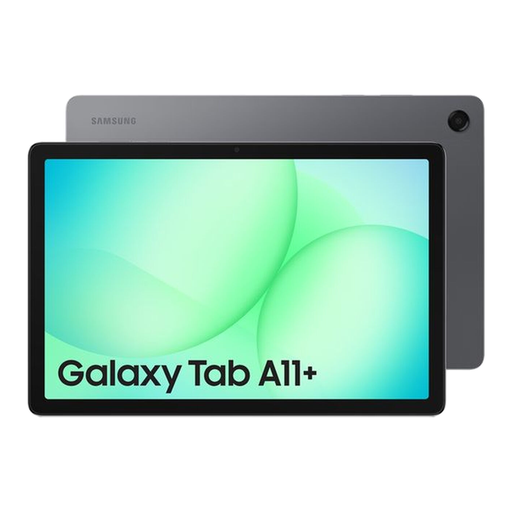
Consider this 11-inch option if you want room for locally stored scans and need to check how its display handles your documents.
The product name specifies 256GB storage and TF card expansion up to 2TB. Confirm display characteristics and stylus compatibility if close inspection or handwritten notes are priorities.
 No image available
Consider this larger-screen tablet if you work mainly at a desk and want to write notes with the included stylus.
The product name specifies a 12.7-inch 2K display and 256GB storage. Check its weight and how representative scans look on screen if you will carry it regularly or inspect fine detail.
Not always: it gives you more space to view a page, but adds carrying weight. Apple lists its 13-inch Wi-Fi iPad Air at 616 g and its 11-inch version at 464 g; choose the larger size when desk-based viewing matters more to you than portability.
Tablet use depends on the institution’s rules. The National Archives permits tablets under its reading-room conditions, while the British Library describes Wi-Fi and power outlets in its Reading Rooms; check the rules for your destination and the documents you intend to consult.
The National Archives permits handheld still-image photography of some documents, but its rules do not permit devices with an integral or external stand or extension for that purpose. Check which documents you may photograph before your visit.
Not necessarily: the British Library says its Reading Rooms have free Wi-Fi. If you plan to work elsewhere or need particular files throughout your visit, check connectivity at that location and arrange access to permitted materials in advance.
Do not rely on them to recognise difficult handwriting automatically. Apple describes features including VoiceOver and Accessibility Reader, but a letter scan may not contain readable digital text; test the document and app workflow you intend to use.