Handwritten session planners
If you annotate PDFs, sketch the running order or write notes at a library table, check which pen works with the exact tablet and whether it comes in the box.


Choose around the work you will do most: a smaller pen-capable tablet is worth considering for handwritten annotations and moving between library spaces, while a larger display and a suitable keyboard matter more for drafting long plans at a table. Check accessory inclusion and compatibility, then confirm the chosen branch’s Wi-Fi and printing arrangements before relying on them for the session.
If you annotate PDFs, sketch the running order or write notes at a library table, check which pen works with the exact tablet and whether it comes in the box.
If you prepare agendas, slides, handouts and longer notes, consider the space you need to view documents and whether you will have a suitable physical keyboard for extended typing.
If your preparation depends on internet access or printing, check the arrangements at the branch you plan to use. Essex Library Service, for example, asks users for a valid email address to access its Wi-Fi and advises checking printing by location.
Start with your main planning task—handwriting, longer document work or moving between locations—then check the complete setup and the facilities at your chosen library.
| Concern | What to check | Who this matters to |
|---|---|---|
| Handwritten planning | Check the compatible pen model and whether the selected configuration includes it. | If I mark up handouts and sketch the session sequence, dependable pen input matters more than a larger screen. Around 36% of consumers put handwritten planning first. |
| Documents and typing | Check whether the display gives you enough working space and whether a suitable keyboard is included or available separately. | For long agendas, slides and handouts, I would rather have room to read and edit at a table than prioritise handheld use; roughly 29% of consumers make document work their primary concern. |
| Portability and connection | Consider carrying comfort and confirm the branch’s Wi-Fi sign-in rules; check cellular options only if you need an independent connection. | Moving between rooms while keeping essential files accessible shapes my choice. Around 21% of consumers chiefly need portability and dependable access. |
| Basic planning setup | Compare the tablet together with any pen, keyboard, charger or data plan your intended workflow requires. | If my work is mainly reading, email and simple documents, I want to avoid choosing accessories I will not use; about 14% of consumers prioritise a straightforward planning setup. |
A tablet suitable for annotation or extended typing may still need a separately selected accessory. Apple lists Apple Pencil and Magic Keyboard as separate choices for iPad Air, while Samsung’s UK Galaxy Tab S10 FE purchase page lists an S Pen in the box.
Check the contents and compatibility of the exact configuration, including a charger if you need one; Samsung says a travel adapter is not included with the FE configuration shown on its UK page.
Local sign-in conditions and printing arrangements can affect a session that relies on online files or handouts. Essex Library Service, for instance, says printing should be checked by location.
Confirm facilities and acceptable-use conditions with your chosen branch, and download essential materials before the session if you may need them offline.
A larger display gives documents more viewing space, but the choice also has to suit whether you will plan at a desk or hold and carry the tablet around the library.
Decide where most of the work will happen before choosing between a compact pen-led device and a larger planning screen.
Runtime can vary with brightness, connectivity, app use and battery condition, so a stated battery figure alone cannot establish how a tablet will perform during your session.
If battery life is decisive, compare independent tests conducted under stated conditions and plan how you would charge the device.
These product lines illustrate different planning setups; check the particular model and configuration rather than assuming that a feature applies across a brand’s range.
iPad Air offers 11-inch and 13-inch choices for planners considering pen input alongside an optional keyboard.
The 10.9-inch Galaxy Tab S10 FE is a pen-focused Android option for annotations and planning notes.
Tab Plus Gen 2 offers a 12.1-inch Android screen for planners who expect to spend more time viewing documents at a table.
The 13-inch Surface Pro is a Windows 2-in-1 route when preparing the session requires Windows software or a laptop-style workflow.
These tablets cover handwritten notes, document viewing and smaller or larger screens for library-based planning. Check each listing’s accessories and connectivity against the work you intend to do.
 No image available
Consider this E-Ink model if your planning centres on reading and handwritten notes rather than extended keyboard work.
The product name specifies a 10.65-inch E-Ink screen and a protective case. Confirm the pen, any keyboard arrangement and the file-editing functions you need for your session materials.
 No image available
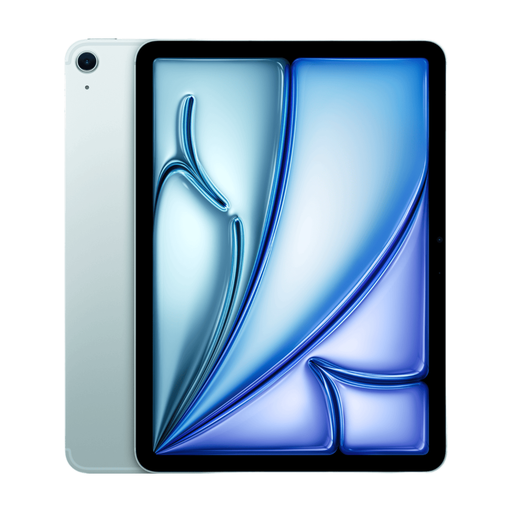
This 11-inch configuration suits planners considering a smaller iPad for documents and pen-based annotation.
Apple specifies Apple Pencil Pro and Apple Pencil (USB-C) support for the current iPad Air, but sells those pens separately. This SKU is Wi-Fi-only, so check the branch connection and download essential files in advance.
 No image available
Consider this Wi-Fi tablet for planning documents if its screen and accessory options suit your workflow.
The product name specifies 8GB RAM and 128GB storage. Before choosing it for handwritten work or long typing sessions, confirm the compatible pen and keyboard arrangements for this model.
 No image available
The larger screen is worth considering if you will review planning documents at a library table and also want pen input.
The product name specifies a 12.7-inch 2K display, 256GB storage, an included stylus, Dual SIM 4G LTE and Wi-Fi. Check the exact pen details, carrying weight and keyboard options before relying on it for handwritten or extended typed work.
 No image available
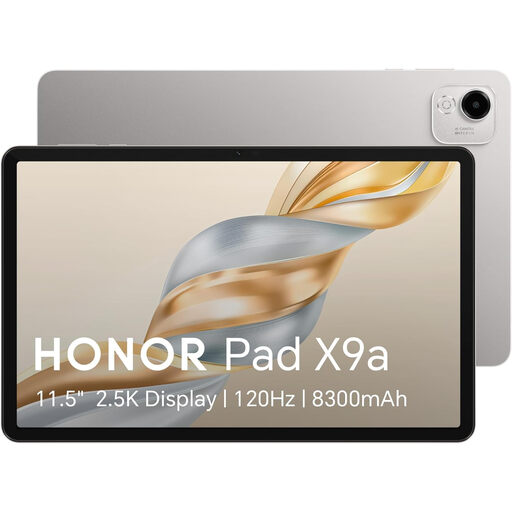
This model offers a mid-sized screen for reading and organising session materials.
Its product name specifies an 11.45-inch display, 128GB storage and Wi-Fi. If your plan involves substantial typing or handwriting, check the exact keyboard and active-pen compatibility before buying.
It can be if the branch’s connection meets your needs and you download essential materials beforehand. If you need a connection independent of library Wi-Fi, check a cellular configuration and the mobile-data plan it requires; Apple offers Wi-Fi + Cellular iPad Air configurations for connecting when Wi-Fi is unavailable.
No; check the branch you intend to use. GOV.UK describes internet access as a local library service, while Essex Library Service says its Wi-Fi requires a valid email address and advises checking printing availability by location.
That depends on the exact configuration. Apple lists Pencil and Magic Keyboard as separate iPad Air selections, Samsung’s UK Galaxy Tab S10 FE purchase page lists an S Pen in the box for the configuration shown, and Lenovo offers a named Tab Plus Gen 2 Pen Bundle. Check both the box contents and model compatibility before purchasing.