Start with the window, not the pixel count: choose a monitor surface and adjustable position that help you manage reflections, and arrange the screen so it does not directly face bright light. If you regularly compare papers, references and notes side by side, consider a higher-resolution or taller display; if you mainly read one document at a time, check whether a QHD screen gives you enough room at a comfortable text size.
Who this setup suits
Window-side academic readers
If you read papers or write notes beside a bright window, screen position and reflected light deserve attention alongside the monitor itself. The Health and Safety Executive advises arranging a screen to avoid glare and bright reflections.
Multi-document literature reviewers
If a paper, reference manager and notes need to stay visible together, compare screen size, resolution and shape. BenQ’s RD280U specifications, for instance, describe a taller 3:2 display, while the cited Dell and ASUS models offer conventional 27-inch options.
USB-C laptop desk users
If your laptop supports video and charging over USB-C, a suitable monitor may simplify the desk connection. Check its power-delivery rating against your laptop’s requirement: the ratings stated by BenQ and ASUS differ between models.
What matters when choosing
Work out whether reflections, document space or the laptop connection is your primary constraint, then check the exact monitor against that need. Even a low-reflection screen still needs a workable position beside the window.
| Concern |
What to check |
Who this matters to |
| Window reflections |
Look for a stated matte or anti-reflective surface, and check whether you can turn the screen away from the window or control intrusive light with blinds or curtains. |
If window reflections interrupt reading, I need a screen position I can use throughout the day, not just a coating. Around 42% of consumers put reflection control first. |
| Document workspace |
Compare native resolution and aspect ratio, then try the text scaling you would use for papers and notes. |
When papers, citations and notes compete for space, I want them legible without constantly switching windows. Around 33% of consumers prioritise document workspace. |
| Desk and laptop setup |
Check stand adjustment and, if you use USB-C, the laptop’s video support against the monitor’s connection and charging specifications. |
For long sessions at a laptop desk, I want to place the screen comfortably and keep the connection practical. Around 25% of consumers put desk and laptop integration first. |
Buying pitfalls
-
Assuming anti-glare treatment will fix the desk position
A surface treatment does not remove direct reflections. The Health and Safety Executive recommends arranging the screen so it does not directly face windows or bright lights.
Check the intended desk position in strong daylight before choosing a monitor, and consider whether blinds or curtains can control intrusive light.
Rearranging the desk or adding window coverings may be part of making the setup usable.
-
Assuming every USB-C monitor will charge your laptop
USB-C video and charging depend on the laptop and the exact monitor. ASUS states 65W power delivery for the PA279CV and 96W for the PA279CRV; BenQ states 90W for the RD280U.
Compare the laptop’s USB-C video capability and charging requirement with the monitor’s stated ports and power-delivery rating.
If the monitor cannot supply what the laptop needs, you may still need to use the laptop’s charger.
-
Treating eye-comfort branding as a substitute for workstation adjustment
Long reading sessions involve lighting, screen position and time spent at the desk as well as the display. A monitor feature alone does not settle those conditions.
Prioritise manageable reflections, readable text size and a suitable screen position; take regular breaks during prolonged screen work.
-
Choosing colour features ahead of reading needs
Colour-management features may matter if you also do colour-critical creative work, but they do not replace checking text size, reflection control or connections for a literature review.
Choose for the reading and writing tasks you do most often, then assess advanced colour features if your other work requires them.
Relevant brands to consider
BenQ
BenQ describes the RD280U as a 28.2-inch, 3:2 monitor with 3840 × 2560 resolution, a Nano Matte coating, height adjustment and 90W USB-C power delivery.
- The taller panel is worth considering if long PDFs and reference lists are central to your work.
- Check whether the 3:2 shape suits your other applications and whether 90W meets your laptop’s charging requirement. The coating does not replace careful screen placement.
Dell
Dell’s UltraSharp U2724D is a 27-inch QHD model with a stated anti-glare surface and adjustable stand. Dell describes the U2725QE as a 27-inch 4K Thunderbolt hub monitor with an anti-reflective surface and ambient-light sensor.
- These two models let you compare QHD document viewing with a higher-resolution hub setup within the same line.
- Neither surface specification means the screen can be placed directly opposite a bright window without checking reflections.
ASUS
ASUS lists the 27-inch 4K ProArt PA279CV and PA279CRV with adjustable stands and USB-C power delivery, rated at 65W and 96W respectively.
- Consider these models if literature-review work shares a desk with colour-managed creative tasks.
- Check the exact model’s laptop connection and charging fit; colour features alone are not a reason to choose a monitor for ordinary PDF reading.
Monitors on Joybuy
These QHD and 4K monitors offer different starting points for reading and arranging research documents. For a bright-window desk, assess the panel finish and the position you can give each screen before deciding whether its connections or other features suit your setup.
 No image available
ASUS ProArt PA278CV IPS WQHD
Consider this model if you usually work with one main document and want to assess a QHD option. Its name specifies an IPS WQHD display; check the panel finish, stand adjustments and USB-C charging rating against your desk and laptop needs.
View on Joybuy
 No image available
ASUS ProArt Display PA32UCG-K 32-inch 4K
Consider this larger display if you want space to arrange several research windows and can accommodate it on your desk. The title specifies a 32-inch 4K IPS Mini LED monitor with Thunderbolt 3; confirm its brightness specification and whether its connection provides the charging your laptop needs.
View on Joybuy
 No image available
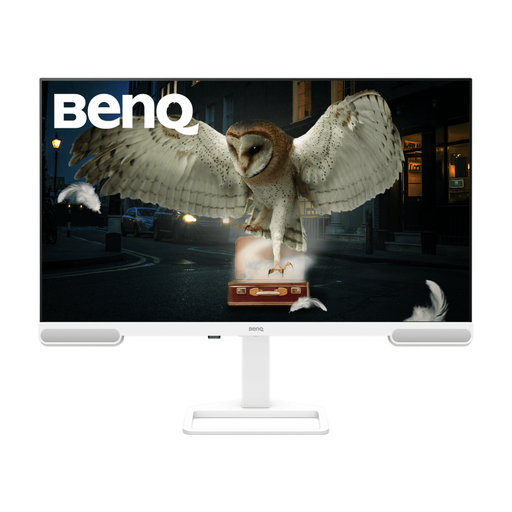
BenQ EW3290U 31.2-inch 4K
This is a larger-format option to consider when arranging papers and notes on screen. Its title specifies a 31.2-inch, 3840 × 2160 display; confirm the stand adjustment you need for positioning it beside the window and check any laptop connection requirements.
View on Joybuy
 No image available
BenQ MA320UP Nano Glossy 32-inch 4K USB-C
Consider this model if a large 4K screen and USB-C connection suit your laptop workspace. Its name specifies a Nano Glossy finish and height-adjustable stand; inspect how that finish behaves at your intended window-side position and confirm laptop charging compatibility.
View on Joybuy
 No image available
Dahua 32-inch 4K 165Hz Curved OLED
This gaming-oriented model is worth assessing for document work only if its curved screen and finish suit your desk. The title specifies 3840 × 2160 resolution, a USB hub and 65W Type-C; confirm the panel’s reflection behaviour and your laptop’s video and charging compatibility before choosing it for a bright window.
View on Joybuy
Common questions
Will an anti-glare monitor solve reflections from a bright window?
Not on its own. A low-reflection surface may help with reflected distractions, but the Health and Safety Executive advises positioning the screen so it does not directly face windows or bright lights; blinds or curtains can also help control intrusive light.
Should I choose 4K or QHD for a literature review?
Consider 4K if you routinely arrange several papers, notes and reference windows together, but check that the text remains comfortable at your preferred scaling. QHD may meet your needs if you concentrate on one primary document; for either resolution, assess the screen surface and position beside the window.
Can one USB-C cable display my work and charge my laptop?
Yes, if the laptop supports compatible USB-C video and charging and the monitor supplies suitable power. ASUS states 65W for the PA279CV and 96W for the PA279CRV, while BenQ states 90W for the RD280U; compare the exact model with your laptop’s requirements.


