For family photos and documents, choose storage capacity after measuring the folders you want to protect and allowing for future additions. A portable HDD is a capacity-led option, while an SSD is worth considering if you regularly carry the drive or transfer large folders; the UK National Cyber Security Centre recommends making regular backups and checking that you can restore files. Whichever you choose, keep a repeatable backup routine and store a removable copy separately between uses.
Who is choosing local backup storage?
Family-file protectors
You want photos and documents to remain recoverable if a computer fails or files are damaged. A repeatable backup routine and a restore check matter as much as the drive itself. The UK National Cyber Security Centre and MoneySavingExpert Forum discussions reflect these concerns.
Households with growing photo libraries
Your collection is expanding, so measure the files you want to copy and consider room for additions rather than choosing on headline speed alone. Manufacturer capacity options can help you compare specific variants.
Households moving files between computers
If you carry a drive or transfer large folders frequently, portability, the supplied cable and compatible computer ports become more relevant. Check the exact drive and connection before deciding.
What should you consider before buying?
Start with the backup routine and the files it must protect, then check capacity and computer compatibility; prioritise portability if you expect to carry the drive often.
Portable HDD
Choose when: your growing collection needs local capacity and the drive will usually stay safely stored at home.
Trade-off: this is a capacity-led route, so check the exact variant and connection rather than assuming it suits every computer or backup method.
Portable SSD
Choose when: you regularly carry the drive or copy large folders and its capacity and USB connection fit your needs.
Trade-off: a manufacturer-rated maximum speed does not guarantee the same speed on your computer, and speed does not provide another backup copy.
Separately kept local copies
Choose when: you want another local copy kept apart from the computer and can maintain and check each copy.
Trade-off: you need another device, a storage location and a routine for keeping the copies current.
Local storage with cloud backup
Choose when: you have suitable internet access and want a copy stored away from home as well as a local one.
Trade-off: check the cloud service’s storage allowance, charges and recovery options; cloud storage is not automatically protected from destructive changes.
| Concern |
What to check when buying |
Who this matters to |
| Restorable, up-to-date copy |
Choose what gets copied, set a repeat schedule, test restoring a sample file and plan where to keep a removable drive between backups. |
If I want recent family files to be recoverable, I need a routine I can keep up and a copy I can restore. Around 36% of consumers put recovery and a current backup first. |
| Capacity for a growing collection |
Measure the folders to be copied, allow for additions and check whether the backup software retains earlier versions; compare with the exact drive variant’s capacity. |
When my photo library keeps growing, I want enough room for the files I plan to protect. Around 29% of consumers prioritise capacity for their collection. |
| Computer and backup compatibility |
Check the computer’s ports, the drive’s connector and cable, and the requirements of the intended Windows or Mac backup method before copying files. |
If I need the drive to work with my computer and chosen backup method, I want to confirm the connection and setup in advance. Around 21% of consumers prioritise compatibility. |
| Portability and repeated transfers |
Compare the exact models’ size, cable and USB requirements; consider whether frequent carrying or copying makes an SSD a better fit for your routine. |
When I regularly carry files between computers or transfer large folders, I care about portability and a suitable connection. Around 14% of consumers prioritise portability and repeated transfers. |
Common buying pitfalls
-
Treating one manual copy as an ongoing backup
A one-off copy will not include later photos or documents, and recovery depends on being able to restore the files.
Set a repeat routine and test restoration with a sample file. Files created since the last copy may otherwise be missing.
-
Leaving the only backup drive connected all the time
The UK National Cyber Security Centre warns that connected backup storage can also be affected during ransomware incidents.
Disconnect a removable backup between uses and plan when to reconnect it for the next copy. If you need another layer, consider a separately kept local or cloud copy.
An additional independent copy may require another device or service.
-
Choosing on advertised SSD speed alone
Samsung’s rated maximum for the T7 applies to a specified USB interface and is not a measured result for every computer.
Check your computer’s port and the supplied cable, then decide whether frequent transfers matter enough to prioritise speed.
-
Assuming a drive suits every computer’s backup method
A straightforward Windows file copy and a Mac Time Machine backup use different workflows.
Choose the backup method first and check its disk requirements before copying files you cannot replace. Setup or formatting may take time, so take care not to erase files already on the drive.
Relevant brands for reference
Western Digital
WD Elements Portable is a capacity-led portable HDD line; the UK range includes the 2 TB WDBU6Y0020BBK-WESN variant.
- Western Digital specifies USB 3.2 Gen 1/USB 3.0 connectivity for that variant.
- The interface specification does not establish backup reliability or the transfer speed a particular computer will achieve.
Toshiba
Canvio Basics is a portable HDD line relevant to a straightforward computer-based local copy.
- Toshiba describes USB 3.2 Gen 1 and plug-and-play use with Windows.
- Check the capacity variant and the setup required for your Mac backup method; Windows-ready does not establish Time Machine readiness.
Samsung
The Portable SSD T7 line is relevant if portability and frequent transfers matter; Samsung UK identifies a blue 1 TB MU-PC1T0H/WW variant.
- Samsung rates that variant at up to 1,050 MB/s read and 1,000 MB/s write through USB 3.2 Gen 2.
- These are manufacturer-rated maximums, not measured results for a particular computer.
Crucial
The X9 portable SSD line provides another compact-storage route; Crucial UK identifies the 1 TB CT1000X9SSD9 variant.
- Crucial lists 1 TB, 2 TB and 4 TB choices for the line.
- Check the chosen variant, connection and backup setup; the listed range alone does not establish a speed or durability advantage over another brand.
Seagate
Expansion Portable is a portable HDD line with a documented 2 TB option for comparing capacity-led local storage.
- Seagate’s support materials cover multiple capacities.
- Check the exact model number, included cable and warranty terms when comparing a specific drive.
Joybuy product options for local backup
These options include portable SSDs for local copies and file transfers, plus a portable HDD for a capacity-led approach. Compare each model’s stated capacity and connection with your computer and backup routine.
 No image available
Samsung Portable SSD T7 2 TB, Blue
A portable local-storage option if you want to carry files or move them between computers.
2 TB; USB Type-C 3.2 Gen 2 (3.1 Gen 2).
Joybuy
 No image available
Samsung MU-PG4T0B 4 TB USB Type-C USB 3.2 Gen 2x2, Black
A portable SSD option for a larger local file collection.
4 TB; USB 3.2 Gen 2x2.
Joybuy
No image available
Samsung Portable SSD T7 1 TB, Blue
A portable local-storage option if you want to move personal files between computers.
1 TB; USB Type-C 3.2 Gen 2 (3.1 Gen 2).
Joybuy
 No image available
Samsung MU-PE1T0S 1 TB USB Type-C 3.2 Gen 2 (3.1 Gen 2), Black
A portable local-storage option for personal files.
1 TB; USB Type-C 3.2 Gen 2 (3.1 Gen 2).
The stated IP65 rating does not mean the drive can be submerged.
Joybuy
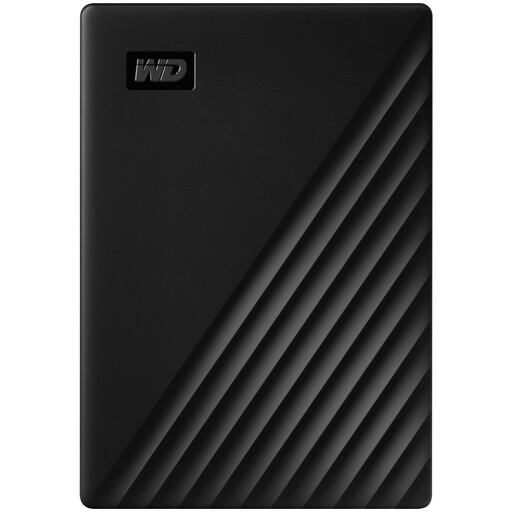 No image available
Western Digital My Passport 4 TB Portable Hard Drive, Black
A portable HDD option for keeping a local copy of personal files.
4 TB.
Check the backup method and any setup needed for your computer before copying files.
Joybuy
Frequently asked questions
Is copying my photo folder once enough?
No, not if you add photos or documents later. Repeat the backup and check that you can restore files; UK National Cyber Security Centre guidance recommends regular backups of important files and checking restoration.
How can I set up an ongoing backup on Windows or a Mac?
On Windows, you can look into File History for automatically saved copies of selected personal files. Apple documents Time Machine with external storage for Mac; Apple says a disk with at least twice the Mac’s storage capacity is ideal for Time Machine, not a universal minimum for every household backup.
Should I leave my external backup drive plugged in?
If it is a removable backup intended to stay separate from the computer, do not leave it permanently connected. The UK National Cyber Security Centre recommends disconnecting backup devices when they are not being used; plan a routine so new files are still copied.
What should I check before combining local and cloud backup?
Check the cloud service’s storage allowance, charges and recovery options, as well as the capacity and backup routine for your local drive. A cloud copy is not automatically protected from destructive changes, so understand how you would recover files from each copy.


