What matters when buying?
Settle your software platform and any additional graphics workload first; then compare the exact configuration, monitor connections and space needed for the adjustable desk.
Compact macOS desktop
Consider it when: Your publication workflow already uses macOS and a compact computer would suit the desk. Apple lists support for up to five external displays with Mac Studio M5 Max or eight with M5 Ultra, depending on the display combination.
Check before switching: Confirm that your applications, plug-ins, fonts, printers and storage accessories work with macOS, and select the memory and storage configuration you need.
Configured Windows tower
Consider it when: Your layout tools run on Windows and you want to choose a tower configuration to suit your memory, graphics and display requirements.
Check before buying: A workstation name does not establish its specification. Lenovo lists a ThinkStation P3 Tower Gen 2 configuration with 8 GB RAM, below Adobe’s 16 GB recommendation for current Windows InDesign.
Higher-spec workstation tower
Consider it when: Magazine layout shares the computer with demanding rendering or other multi-threaded production work. Dell describes its Precision 7875 as a tower built for multi-threaded applications.
Trade-off: Page layout alone does not establish a need for a high-core configuration. Match the processor, memory, graphics and ports to the additional workload rather than choosing by workstation family.
| Concern |
What to check |
Who this matters to |
| Print-ready layout |
Check your layout software’s memory requirements and available SSD storage. Adobe recommends 16 GB RAM and an SSD for current Windows InDesign. |
If my magazine is going to print, I want enough room to work on the document and time to catch font or linked-asset problems before hand-off. Around 42% of consumers put reliable print preparation first. |
| High-resolution viewing |
Check the graphics requirements for your software and the outputs for every intended display. Adobe recommends 2 GB VRAM for optimum InDesign GPU performance on supported systems. |
When I move between detailed pages and other open applications, responsive viewing matters more to me than unused graphics capacity. Roughly 33% of consumers make high-resolution layout work their primary concern. |
| Standing-desk fit |
Measure the usable desk space and plan screen mounting, input-device positions and cable reach. The Health and Safety Executive advises a screen top at eye level and a keyboard just below elbow height. |
I need the screen and keyboard to remain workable when the desk changes height, not just a computer that fits on it. About 25% of consumers prioritise the standing-desk setup. |
Joybuy desktop choices
These Windows desktop towers offer different starting configurations for a magazine-layout workspace. Compare their stated memory and storage with your software needs, then check graphics, monitor connections and the equipment needed at your standing desk.
 No image available
CyberPowerPC JOYB1013 desktop, Ryzen 7 9800X3D, RTX 5080 16 GB, white
Consider this Windows tower if your layout workflow also calls for the graphics configuration stated in its title. It lists 32 GB DDR5 memory, a 2 TB NVMe SSD and Windows 11 Home.
Check the video outputs against your intended monitors, and plan how the display and input devices will fit the standing desk.
View on Joybuy
 No image available
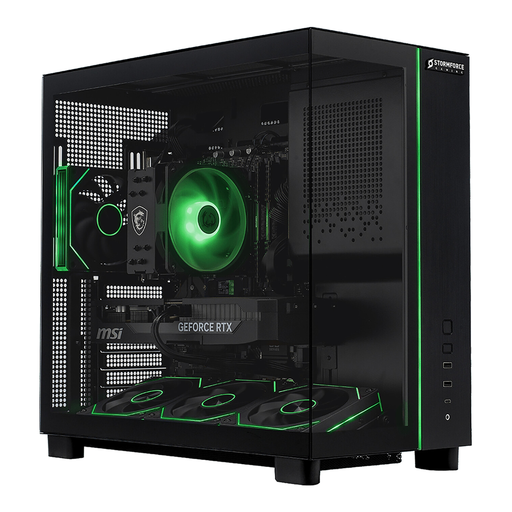
Stormforce Defiance Ryzen 7 desktop, 32 GB RAM, 2 TB SSD, RTX 5070Ti listed
Its stated memory and storage make this a Windows desktop to compare for a layout workflow. The title lists 32 GB RAM, a 2 TB SSD and Windows 11.
Confirm the graphics card before relying on it: the title names RTX 5070Ti, while the descriptions name RTX 5070. Also verify all outputs needed for your monitors and what peripherals are included.
View on Joybuy
 No image available
HP M02-0005na OmniDesk, Ryzen 5 8500, 8 GB RAM, 1 TB SSD
Consider this Windows desktop only after checking whether its memory suits your intended layout software. Its title lists 8 GB RAM, a 1 TB SSD and Windows 11 Home; 8 GB meets Adobe’s minimum for current Windows InDesign but is below its 16 GB recommendation.
Check the available memory configurations or upgrade options and confirm that the graphics and display connections suit your planned monitor setup.
View on Joybuy
Frequently asked questions
What specification should I check for InDesign magazine layout?
Start with the requirements for the InDesign version and operating system you will use. For current Windows InDesign, Adobe lists 8 GB RAM as the minimum, recommends 16 GB and an SSD, and recommends a 1920 × 1080 display; compare those figures with the desktop’s exact configuration.
Do I need a high-end graphics card for magazine layout?
Not automatically: Adobe says GPU acceleration improves zooming, scrolling and panning on supported InDesign systems, rather than establishing a need for a high-end card for every layout task. For the supported feature, Adobe specifies a monitor above 2K resolution and at least 1 GB VRAM, with 2 GB recommended; check your software version, display and any additional graphics workload.
How should I arrange a desktop at a standing desk?
Arrange the screen and input devices so they can be positioned for you at the heights you use. The Health and Safety Executive advises a screen top at eye level, a viewing distance of about an arm’s length and a keyboard just below elbow height; check the desk, monitor mount and cable reach before choosing where the computer will sit.
What should I check before sending a magazine layout to print?
Run the document checks in your layout workflow before sharing or printing. Adobe recommends using InDesign Preflight to identify issues that could affect output, including missing fonts, missing or modified linked images, and overset text.


