For magazine work centred on typography, spreads and editorial review, start with a 27-inch 4K monitor that your computer can drive comfortably. If you approve colour for a defined print condition, consider a wide-gamut monitor with a repeatable calibration workflow instead; gamut coverage alone cannot establish a reliable match to the printed page.
Who needs which features?
Print-production layout designers
If you prepare files for a commercial printer and approve colour, you need to plan the display around a defined print condition and a repeatable colour-managed workflow. The monitor is one part of that workflow, alongside software and measurement equipment.
Editorial and freelance page-layout users
If your day is spent arranging spreads, checking type and working with InDesign panels, prioritise a readable workspace and a stand you can position comfortably. Specialist proofing features matter less when someone else makes the final print-colour decision.
Laptop-based creative teams
If a laptop moves between desks, check whether the monitor, laptop and cable support the video, data and charging connections you intend to use. A USB-C socket alone does not settle those compatibility questions.
What should you check?
Decide who signs off print colour before comparing monitor specifications. That determines whether you need a managed soft-proofing setup or primarily enough space to build and review pages.
Colour-managed creative monitor
Choose when: You regularly approve images or colour against an agreed print condition.
Trade-off: A suitable display still needs calibration, the relevant print profile, colour-managed software and appropriate viewing conditions.
4K productivity monitor
Choose when: Your main decisions concern page construction, type and editorial review, while print-colour approval happens elsewhere.
Trade-off: Its colour modes may not cover the print condition you would need to soft-proof.
| Concern | What to check | Who this matters to |
|---|
| Print-colour confidence |
Ask the printer for the intended output condition; check the monitor’s gamut and calibration workflow against it. |
If I approve colour before a magazine goes to press, I need a controlled screen-to-print workflow, not just a wide-gamut claim. Around 36% of consumers put print-colour confidence first. |
| Spread-layout workspace |
Check native-resolution output and whether text and controls remain comfortable at your chosen scaling. |
When building spreads, I want to see pages and working panels without losing readable type. Layout workspace is the primary need for around 29% of consumers. |
| Laptop and desk setup |
Confirm USB-C video support, the charging wattage your laptop requires and the stand adjustments on the exact model. |
If my laptop is also my desk computer, I want its display and peripherals to connect without a tangle of adapters. Around 21% of consumers make desk integration their first concern. |
| Layout without specialist proofing |
Prioritise usable resolution, computer-compatible inputs and stand movement if final print proofs are managed elsewhere. |
For copy-fitting and page review, I need a dependable layout screen without building a colour-proofing station. That is the primary need for around 14% of consumers. |
Buying pitfalls
-
Treating Adobe RGB coverage as a press-match guarantee
IDEAlliance describes soft proofing as a system involving the display, software, measurement equipment and a host computer. The display must also cover the intended reference print condition; a gamut figure alone cannot tell you how a magazine will print.
Agree the output condition and proofing process with your printer before choosing the monitor and calibration setup.
Maintaining that setup takes measurement equipment and time spent calibrating and managing profiles.
-
Choosing resolution without checking the computer
Adobe recommends a 1920 × 1080 display for InDesign. A 4K screen offers more pixels for a page and its controls, but the computer must support its native output, and interface scaling must remain comfortable for you.
Check the computer’s display output and try the operating-system scaling you expect to use. For a USB-C connection, confirm video support and any required laptop charging separately.
-
Assuming calibration equipment comes in the box
Calibration arrangements differ between models. ViewSonic, for example, identifies the Colourbration Kit for its VP2785-4K as optional.
Check the exact package contents and whether your workflow calls for an integrated sensor, a compatible existing device or a separate calibrator.
Brands to consider for this work
BenQ
BenQ’s AQCOLOR/PhotoVue SW line is relevant when print-oriented colour management is part of the job. BenQ UK specifies 27-inch 4K resolution, 99% Adobe RGB coverage and hardware calibration for the SW272U.
- The SW272U specification also lists a 16-bit 3D LUT and a shading hood.
- Those features do not establish a match to your printer’s output; the print profile and calibration workflow still matter.
EIZO
EIZO’s ColorEdge CG2700X is a 27-inch 4K colour-management model with USB-C connectivity and a built-in calibration sensor, according to EIZO.
- EIZO says its sensor can be scheduled for automatic calibration.
- That level of calibration control is less relevant when your work is limited to templates, copy and page layout rather than print-colour approval.
ViewSonic
ViewSonic positions its ColorPro VP2785-4K for wide-gamut creative work and lists 100% Adobe RGB and 95% DCI-P3 coverage for that model.
- Its published specification includes an optional hardware-calibration route.
- ViewSonic identifies the Colourbration Kit as optional; check both the exact regional specification and the equipment you would need.
Dell
Dell’s UltraSharp U2723QE provides a reference for layout-led 4K work: Dell UK lists 3840 × 2160 resolution and 100% sRGB/Rec.709 coverage for this model.
- Its published specifications also include USB-C connectivity and stand adjustment for desk use.
- An sRGB/Rec.709 specification does not establish suitability for a particular print-proofing condition. Check current availability before treating the U2723QE as a purchase option.
Joybuy monitors for magazine layout
These monitors offer different ways to build a magazine-layout workspace, from 27-inch 4K screens and a WQHD option to a larger creative display. If you approve print colour, assess the exact model and your printer’s proofing requirements separately from its layout features.
 No image available
iiyama ProLite XUB2792UHSU-B6 27-inch 4K UHD monitor
A 27-inch 4K option for arranging pages alongside layout controls. Its title specifies a 16:9 display; check the stand movement you need for portrait-page review and confirm USB-C video and charging compatibility before planning a single-cable laptop setup.
If you approve print colour, establish whether its colour and calibration capabilities meet your printer’s output condition.
View on Joybuy
 No image available
BenQ MA270UP Nano Glossy 27-inch 4K USB-C monitor
A 27-inch 4K option for a layout desk built around a laptop. The product name identifies USB-C and a height-adjustable stand; confirm that its video connection and charging capability meet your particular computer’s requirements.
Do not use the P3 wording in its title as a substitute for checking the gamut and calibration workflow required by your printer.
View on Joybuy
 No image available
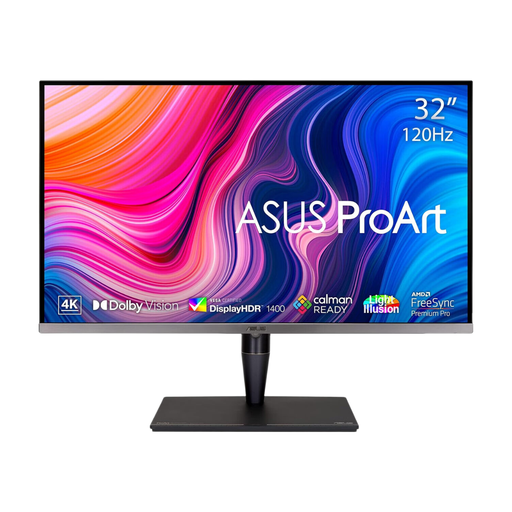
ASUS ProArt Display PA32UCG-K 32-inch 4K HDR Mini LED monitor
A larger-screen option if you want a 32-inch 4K page view alongside your tools and have room for the display on your desk. The product title advertises hardware calibration and Thunderbolt 3; confirm the exact calibration method, regional specification and included equipment before using it for print approval.
Check viewing distance and interface scaling rather than assuming a 32-inch screen will suit the same desk arrangement as a 27-inch model.
View on Joybuy
 No image available
ASUS ProArt PA278CV IPS WQHD monitor
A WQHD alternative for page construction and typography work if its workspace feels sufficient for your spreads and panels. Check its resolution at your usual scaling and confirm the USB-C charging wattage your laptop needs.
For print-colour approval, establish whether the exact model’s colour modes and calibration arrangements support your intended output condition.
View on Joybuy
 No image available
LG 27UP650K 27-inch 4K IPS monitor
A 27-inch 4K choice for reviewing detailed page layouts. Its product name identifies HDMI and DisplayPort, so check which connection your computer can use; it does not give you a basis to plan on USB-C laptop docking.
The DCI-P3 claim in the title is not a print-match guarantee. Confirm the calibration workflow and coverage of your printer’s intended condition if you will approve colour.
View on Joybuy
Frequently asked questions
Do I need a 4K monitor to lay out a magazine in InDesign?
No. Adobe lists 1024 × 768 as the minimum display resolution for InDesign and recommends 1920 × 1080. A 4K monitor is a choice for more page-and-panel workspace, provided your computer supports it and the interface remains comfortable at your chosen scaling.
Do magazine layouts require an Adobe RGB monitor?
Not when your main job is page layout and final print-colour approval happens elsewhere. If you must soft-proof against a specified print condition, IDEAlliance says the display’s gamut needs to encompass that condition as part of a wider system that includes software and measurement equipment.
Will calibration make the printed magazine match my screen?
Calibration alone cannot guarantee a match. You also need to account for the intended printer or output profile, colour-managed document and proofing settings, and viewing conditions; agree the proofing process with your printer before relying on screen colour for approval.
What should I do with my old monitor?
Ask the retailer about its electrical-waste take-back arrangements when you replace it. GOV.UK describes take-back duties for waste equipment of the same type as the item purchased; check the retailer’s process if you need collection rather than taking the old monitor to a store.


