Choose a conventional QHD monitor if you update your weekly meal plan on a laptop or desktop and want an adjustable screen for detailed editing. Consider a smart monitor if several people need to view the plan without leaving a computer attached, but check how your particular planning service will appear on it; either type needs a position away from kitchen water, heat and trailing leads.
Who each setup suits
Laptop-led weekly planners
If you build the plan in a spreadsheet, browser or calendar on a computer, a second screen gives you somewhere to keep the weekly grid visible while you work. Prioritise the connections your computer uses and a position that lets you read and edit comfortably.
Households sharing a weekly menu
If several people need to glance at the menu or a mirrored phone or tablet screen, consider how the display will receive the plan. Smart features and screen sharing can reduce reliance on a permanently connected computer, provided the exact model supports your intended method.
Small-space, multi-use households
If one screen will alternate between meal planning, entertainment and occasional computer work, weigh its display resolution, connections and smart functions against the way you will use it most often. Built-in speakers or apps do not replace checking whether your planning service works on that screen.
What to check before buying
Decide whether you will edit the plan at a computer or mainly display it for the household. That choice determines which connections and smart functions are useful; the intended location then needs its own safety check.
Conventional computer monitor
Choose when: You already make the plan on a laptop or desktop and want a screen you can position for editing.
Bear in mind: The computer or another compatible source device must run the plan; the monitor displays it.
Smart monitor
Choose when: The screen will be a shared reference point and its supported apps or screen-sharing method can show your plan without a computer left attached.
Bear in mind: Network features can require internet access and an account, while available apps and sharing methods vary by model.
| Concern |
What to check |
Who this matters to |
| Reading and editing space |
Compare native resolution as well as screen size, and check whether the stand adjusts for your viewing position. Dell UK lists its 27-inch S2725DS at 2560 × 1440; LG UK lists the 32-inch 32U501SB-B at 1920 × 1080. |
If I edit a weekly grid alongside recipes and a shopping list, I want room for the detail rather than just a physically larger picture. Around 33% of consumers put readable editing space first. |
| Connecting the planning device |
Check the device's video output against the monitor's inputs. If you want USB-C, confirm video support and the cable requirements for the exact laptop and monitor. |
When my laptop holds the current plan, I need a connection that makes updating the screen straightforward. For around 27% of consumers, that connection is the primary concern. |
| Sharing the plan |
Confirm that the exact model can show your planning service through an available app, compatible screen sharing or an external device; check any internet and account requirements. |
If everyone refers to the same menu, I want them to see the current version without opening my laptop. Shared access is the main need for around 20% of consumers. |
| Kitchen placement |
Choose a position clear of water and heat, route leads safely, leave ventilation unobstructed and check the monitor's mounting instructions. |
Where food is prepared, I need to know that the screen and its cables can be positioned away from splashes and hot appliances. Around 20% of consumers make practical placement their first concern. |
Mistakes to avoid
-
Assuming every planning app runs on a smart monitor
Smart features do not establish support for a particular meal-planning service. Samsung Business UK says the full smart-feature set on its M50D requires internet access and a Samsung Account; LG UK says network-based services on its 32U721SB-W require an LG Account.
Check the exact model and decide whether you will use a supported app, screen sharing or a connected computer to display the plan.
-
Choosing by screen size alone
A larger screen does not necessarily provide more pixels for a detailed plan. LG UK lists its 32-inch 32U501SB-B as Full HD, while Dell UK lists the smaller 27-inch S2725DS as QHD.
Compare native resolution with your viewing distance and task: a simple shared menu and close-up editing of several windows place different demands on the screen.
-
Treating a kitchen counter like an ordinary desk
Electrical Safety First identifies water, hot surfaces and trailing cables as kitchen hazards. An ordinary monitor should not be assumed suitable for a splash-prone or heat-exposed spot.
Plan the display and cable position before buying, keep ventilation clear and follow the exact product's installation instructions.
Relevant brands to consider
Dell
Dell's conventional monitors are relevant when a laptop or desktop will run the weekly plan.
- Dell UK lists the S2725DS with a 27-inch QHD display, speakers and an adjustable stand; the S2725DC adds USB-C connectivity.
- These monitors still need a compatible source device to create and manage the plan.
Samsung
Samsung's Smart Monitor line is relevant to a screen shared between household viewing and connected-device use.
- Samsung Business UK lists smart functions and external HDMI connections for the M50D; Samsung UK lists the 32-inch M70F as a 4K smart monitor.
- Samsung says the M50D needs internet access and a Samsung Account for its full smart-feature set. Check app availability and the intended display method on the exact model.
LG
LG's smart-monitor models offer different resolutions and connection options for shared viewing or laptop-led planning.
- LG UK lists the 32U501SB-B as a 32-inch Full HD model with AirPlay 2 and Screen Share, and the 32U721SB-W as a 32-inch 4K model with USB-C.
- LG says network-based smart services on the 32U721SB-W require an LG Account; external USB-C or HDMI connections remain available without one.
Monitors for different planning setups
These Joybuy choices cover computer-led editing and shared-screen viewing. For a computer monitor, check the connection to the device that holds your plan; for a smart display, check that your preferred planning service or sharing method works on the exact model.
 No image available
ASUS ProArt PA278CV IPS WQHD
Consider this for editing a meal plan on a connected laptop rather than displaying it independently.
The product name specifies an IPS WQHD display. If you intend to connect over USB-C, confirm that your laptop supports video through that port.
View on Joybuy
 No image available
BenQ MA320UP 32-inch 4K USB-C monitor
This is a computer-led option if you want to edit a plan and related documents on a large screen.
The product name specifies a Nano Glossy IPS display and a height-adjustable stand. Its Mac-focused description makes checking your intended computer and USB-C video connection particularly important.
View on Joybuy
 No image available
ASUS ProArt PA328QV IPS WQHD
Use this as a display for a plan created on a connected computer, not as a standalone planning device.
The product name specifies an IPS WQHD display. Check that the computer and intended monitor connection suit your setup.
View on Joybuy
 No image available
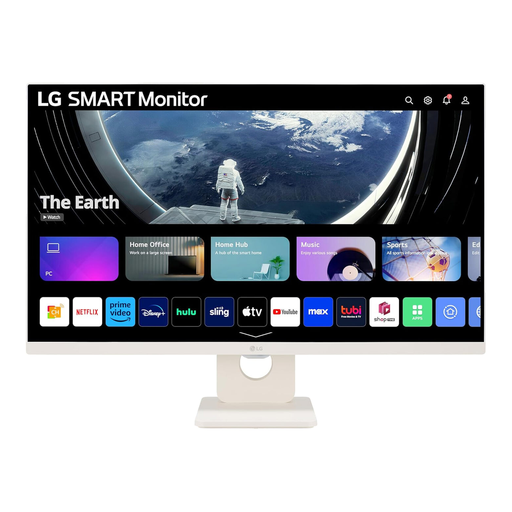
LG Smart Monitor 27U511SA-W 27-inch Full HD
Consider this for a shared weekly menu if its apps or a compatible sharing method can show the plan you use.
The product name specifies an IPS display, webOS, Wi-Fi, Bluetooth, built-in speakers and a remote control. Confirm that your particular planning service and household devices work with the intended viewing method.
View on Joybuy
 No image available
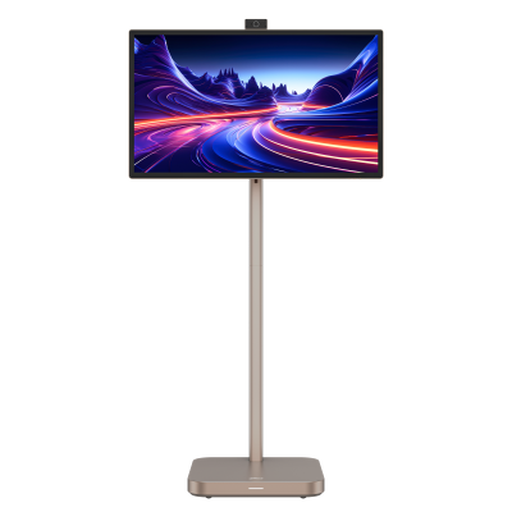
Dahua Explorer 31.5-inch 4K portable smart monitor
This portable smart-screen option may suit shared viewing if your meal-planning service works through its intended app or sharing method.
The product name specifies Android 11, an IPS panel, 8GB+128GB storage and a built-in battery with up to 4 hours of battery life. Check service compatibility and do not assume the stated maximum battery life will match your use.
View on Joybuy
Questions about using a meal-planning monitor
Can I use an ordinary computer monitor for weekly meal planning?
Yes, provided a compatible computer or other source device runs and displays your plan. A conventional monitor is the screen, not a standalone planning service; for example, Dell UK lists HDMI and DisplayPort inputs on its S2725DS for connecting an external device.
Will a smart monitor work without an account?
An external device may still work, but access to network-based smart features depends on the model. Samsung Business UK says unsigned-in M50D use is limited to external devices such as HDMI, while LG UK says the 32U721SB-W retains external USB-C and HDMI connections without an LG Account.
Can I put a meal-planning monitor near a kitchen sink or cooker?
Do not assume an ordinary monitor is suitable for a position exposed to splashes or heat. Electrical Safety First warns about water, hot surfaces and trailing cables in kitchens; choose a position that avoids those hazards and check the exact monitor's installation and mounting instructions.


