What matters when choosing
Confirm the course software and expected model size before choosing the computer; then check whether the proposed monitor position will work beside the window.
| Concern |
What to check |
Who this matters to |
| Everyday CAD requirements |
Compare the exact CPU, installed RAM and graphics card with the course software’s current recommended requirements. Autodesk recommends at least 32 GB RAM for Inventor 2026. |
When I am modelling parts and completing coursework, I want the desktop chosen for the software I will actually use, not just its minimum requirements; around 40% of consumers put this everyday CAD baseline first. |
| Large-model headroom |
Ask whether large assemblies or simulation are expected. For complex models and assemblies typically above 1,000 parts, Autodesk recommends at least 64 GB RAM for Inventor 2026. |
If my course involves complex assemblies, I need to plan for that workload before settling on a configuration; around 30% of consumers make large-model headroom their primary concern. |
| Bright-window display use |
Check the screen position and stand adjustment, and whether blinds or curtains can control intrusive light. Autodesk recommends 3840 × 2160 resolution for Inventor 2026, but resolution does not prevent glare. |
I need to see drawings clearly without a window reflecting in the screen; for around 30% of consumers, bright-window display usability is the first priority. |
Joybuy desktop choices
These tower desktops are choices to assess for a study setup with a separate display. Check each configuration against your course’s CAD software; if certified graphics or large-assembly capacity is essential, verify those requirements separately before choosing.
 No image available
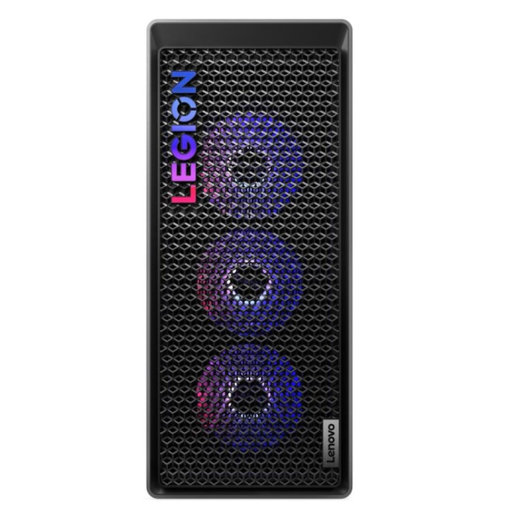
Lenovo Legion T7 34IAS10, Core Ultra 7 265K, 32 GB RAM, RTX 5070 Ti
Consider this tower for coursework if its full configuration meets your CAD application’s requirements. The listed variant has an Intel Core Ultra 7 265K, 32 GB RAM, a 1 TB SSD, an RTX 5070 Ti and Windows 11 Home. Confirm the graphics requirements for your CAD release and plan the display position separately.
View on Joybuy
 No image available
Stormforce Cyclone, Core i7, 32 GB RAM, RTX 5080
Consider this desktop for study work after checking its compatibility with the course’s CAD release. This variant lists an Intel Core i7, 32 GB RAM, a 2 TB SSD, an RTX 5080 and Windows 11. Check the exact graphics specification your software requires, as well as your separate monitor setup.
View on Joybuy
 No image available
Stormforce Defiance, Ryzen 7 5700X, 32 GB RAM, RTX 5070
Consider this variant for CAD coursework if its processor and graphics meet your application’s current requirements. It lists an AMD Ryzen 7 5700X, 32 GB RAM, a 2 TB SSD, an RTX 5070 and Windows 11. Check the graphics specification against the course software and assess the screen position separately.
View on Joybuy
 No image available
CyberPowerPC JOYB1010, Core Ultra 7 265KF, 32 GB DDR5, RTX 5070 12 GB
Consider this tower for a setup with a separately selected monitor, subject to your CAD software’s requirements. The variant lists an Intel Core Ultra 7 265KF, 32 GB DDR5 RAM, a 1 TB NVMe SSD, an RTX 5070 with 12 GB graphics memory and Windows 11 Home. A monitor is not included; check graphics compatibility and plan for window glare before setting up the desk.
View on Joybuy
Frequently asked questions
Do I need a workstation for mechanical CAD study?
Not automatically: choose between a configurable desktop and a workstation using your course software, expected model sizes and support requirements. If SOLIDWORKS certification matters, check the exact system and graphics configuration in the SOLIDWORKS hardware-certification database rather than relying on a workstation label.
Is 16 GB RAM enough for CAD coursework?
It meets Autodesk Inventor 2026’s stated minimum for assemblies below 500 parts, but Autodesk recommends at least 32 GB RAM generally. For its complex-model and large-assembly scenarios, typically above 1,000 parts, Autodesk recommends at least 64 GB; check the requirements for the application your course uses.
Will a higher-resolution monitor remove window glare?
No: resolution and reflections are separate considerations. The UK Health and Safety Executive advises positioning the desk and screen to avoid glare, often by not facing the screen directly towards a window and by adjusting blinds or curtains where needed.
What should I check before setting up the desktop?
Confirm the CAD release required by your course and the applicable graphics-driver guidance, then arrange the monitor so that window light does not produce distracting reflections. For Inventor 2026, Autodesk also lists preferred display-scaling settings of 100%, 125%, 150% or 200%.


