What matters when choosing?
Choose the way you will run your course software before deciding between a compact PC and a tower. A university lab or virtual desktop is another route only if your department confirms access to the applications you need.
Compact Windows desktop
Consider it when: Coursework is mainly modelling, drawings or smaller assemblies, and the configured PC meets the named software requirements.
Trade-off: The smaller footprint helps at a shared desk, but graphics options and future expansion depend on the exact model.
Configurable tower
Consider it when: Larger assemblies, local simulation or rendering are expected, or you plan to add memory or storage.
Trade-off: Allow more room for the chassis and check the fitted components; a workstation label does not establish compatibility with your application.
Local PC with university remote access
Consider it when: Your department confirms that its lab or virtual desktop provides the required software and your own PC will handle lighter local tasks.
Trade-off: Demanding work then depends on access to the university service and a suitable internet connection.
| Concern |
What to check |
Who this matters to |
| Course software |
Ask for the required application names and versions, operating system and local or remote access arrangements. |
If I must install the course applications on my own PC, I need to know they will run before paying for hardware upgrades; around 38% of consumers put local software compatibility first. |
| Demanding projects |
Compare the configured RAM and graphics hardware with the application’s recommended requirements for your expected project size. |
For larger assemblies or local CAE, I need capacity beyond a small-project minimum; roughly 25% of consumers make demanding local work their primary concern. |
| Shared-desk setup |
Measure the PC location and check display outputs, USB connections and room for the screen and input devices. |
When other people use the desk, I need a setup that fits without making the screen or controls awkward to position; about 37% of consumers prioritise shared-desk usability. |
Joybuy desktop choices
These Windows desktop towers are relevant to students considering locally installed CAD software and dedicated graphics. They are not compact shared-desk options or a substitute for checking the exact course application, peripheral needs and space available.
 No image available
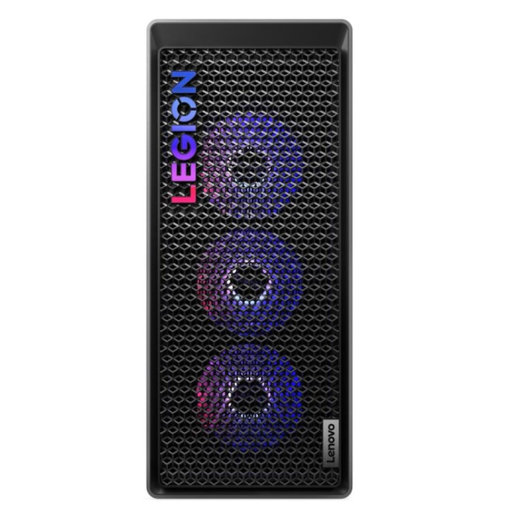
Lenovo Legion T7 34IAS10 — Core Ultra 7 265K, RTX 5070 Ti
Consider this Windows tower for local coursework if its graphics hardware meets your named CAD application’s requirements; plan where the chassis will stand at the shared desk.
- Windows 11 Home; 32 GB RAM; 1 TB SSD.
- Intel Core Ultra 7 265K and RTX 5070 Ti.
View on Joybuy
 No image available
CyberPowerPC JOYB1010 — Core Ultra 7 265KF, RTX 5070 12 GB
For locally installed CAD coursework, check the course’s graphics guidance and make room for the monitor and input devices in the shared-desk plan.
- Windows 11 Home; 32 GB DDR5 RAM; 1 TB NVMe SSD.
- Intel Core Ultra 7 265KF and NVIDIA GeForce RTX 5070 with 12 GB graphics memory.
View on Joybuy
 No image available
CyberPowerPC JOYB1013 — Ryzen 7 9800X3D, RTX 5080 16 GB
If your course projects need local storage and a desktop GPU, compare this configuration with the applications you will actually use; its gaming components do not establish CAD certification.
- Windows 11 Home; 32 GB DDR5 RAM; 2 TB NVMe SSD.
- AMD Ryzen 7 9800X3D and NVIDIA GeForce RTX 5080 with 16 GB graphics memory.
View on Joybuy
 No image available
Stormforce Cyclone — Core i7, 32 GB RAM, RTX 5080
This tower is an option to assess for local Windows CAD work, provided its graphics configuration meets the course requirements. Plan a suitable location for a substantial chassis.
- Windows 11; 32 GB RAM; 2 TB SSD.
- Intel Core i7 and RTX 5080.
View on Joybuy
 No image available
Stormforce Defiance — Ryzen 7 5700X, 32 GB RAM, RTX 5070
For a shared desk, confirm the chassis size, display connections and USB ports as well as compatibility with your course software before choosing this configuration.
- Windows 11; 32 GB RAM; 2 TB SSD.
- AMD Ryzen 7 5700X and RTX 5070.
View on Joybuy
Frequently asked questions
Should I choose Windows for mechanical CAD study?
Choose Windows if your course requires engineering applications to run locally that are available only for Windows. The University of Bath notes that several key engineering applications are Windows-only; confirm your department’s application list before buying, especially if you are considering another operating system or relying on remote access.
Is 16 GB of RAM enough for mechanical CAD?
It can meet a smaller-project minimum, but it is not a general target for every course project. Autodesk lists 16 GB as the Inventor 2027 minimum for assemblies below 500 parts and recommends 32 GB or more; check the requirements for your application and expected assembly sizes.
Do I need a professional graphics card?
Not automatically: the answer depends on the CAD application, your coursework and any certified-hardware requirement set by your department. Autodesk says graphics hardware absent from its Inventor certification list may still work, so check the exact GPU and driver against the applicable guidance rather than treating either a gaming or workstation label as proof.
Can university labs or virtual desktops let me use a less demanding PC at home?
They can if your department provides the required software through those services and you do not need to run demanding projects locally. The University of Nottingham describes engineering computer rooms and an Engineering Virtual Desktop; confirm your own access, software availability and connection needs before making that your purchase plan.


