What to consider before buying
Start by checking whether the problem is broadband, room coverage, shared use, provider compatibility or the installation path; each points to different equipment and checks.
Mesh Wi-Fi
Consider it when: several rooms or floors need coverage, especially if you move between them during calls or lessons.
Trade-off: you need suitable locations and power for multiple units, and their connection to each other matters.
Standalone router
Consider it when: the existing router is ageing or unreliable and a centrally placed unit could serve the rooms you use.
Trade-off: a newer router does not remove walls or other obstacles, and replacement may affect provider-specific services.
Wi-Fi extender
Consider it when: one area is weak and an intermediate position can still receive a strong signal, or a wired access-point setup is practical.
Trade-off: an extender placed where the signal is already weak may not solve the problem; mesh features require compatible equipment.
| Concern |
What to check when buying |
Who this matters to |
| Coverage where calls and lessons happen |
Compare Wi-Fi in the rooms you use with performance near the router; check obstacles and whether the system supports Ethernet backhaul. |
If I work or study in several rooms, I need coverage where calls and lessons actually happen. Around 31% of consumers put multi-room coverage first. |
| Reliable use by several people |
Establish a wired broadband baseline, then check performance under normal shared use and confirm that devices and ports support the connection you plan to use. |
When several people stream, play games or make calls at once, I want to know whether the bottleneck is broadband, Wi-Fi or a device. Around 25% of consumers prioritise reliable simultaneous use. |
| Keeping provider services working |
Identify your provider, hub and connection type; check any digital-phone requirements and whether the new equipment can operate in the intended mode. |
If I rely on a provider hub or digital-phone service, I need to know what can stay connected before changing the setup. Around 19% of consumers put continuity of provider services first. |
| Fixing one weak area |
Check that the extender location still receives a strong signal; confirm mesh compatibility separately from ordinary Wi-Fi compatibility. |
If one room is the problem, I want a targeted fix rather than more equipment than the situation calls for. Around 13% of consumers prioritise a simple, local fix. |
| Using Ethernet between rooms |
Check the cable route and the speed of each port in the connection path; confirm which installation mode the equipment supports. |
If Ethernet is already available or I am planning a cable route, I need the equipment and ports to suit that installation. Around 12% of consumers prioritise planning a wired connection. |
Joybuy product options
These options cover mesh systems, a Wi-Fi extender and a mesh-capable router for households addressing coverage across rooms or one weaker area. Check provider compatibility and the intended installation mode before changing your existing hub.
 No image available
NETGEAR Orbi 370 RBE373 WiFi 7 Mesh System, 3-Pack, Dual-Band BE3600, 2.5Gbps Ethernet, White
A three-unit mesh option for distributing Wi-Fi across rooms; the product description says a high-speed internet connection and an existing modem or gateway are required.
The description specifies one router and two satellites, with 2.5Gbps WAN and LAN ports on the router and a 2.5Gbps LAN port on each satellite.
Joybuy
 No image available
TP-Link RE220BE BE3600 Wi-Fi 7 Range Extender
Consider it for a targeted weak area or a wired access-point setup, depending on the available signal and connection route.
The product description lists extender and access-point modes, EasyMesh support and a 1Gbps Ethernet port. EasyMesh operation requires a compatible router; for wireless extension, the extender needs to be within the router’s signal range.
Joybuy
 No image available
TP-Link Deco BE22 (3-Pack) BE3600 Whole Home Mesh Wi-Fi 7 System
A three-unit mesh system for distributing Wi-Fi across several rooms; the listed installation supports combined wired and wireless backhaul.
The product description lists two 1Gbps Ethernet ports per unit.
Joybuy
 No image available
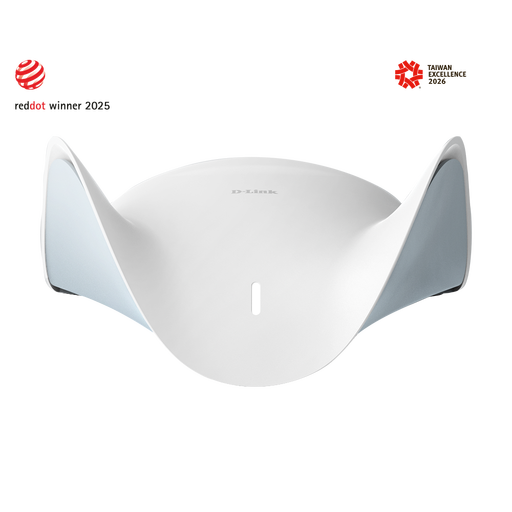
D-Link BE9500 Wi-Fi 7 Smart Mesh Router M95
A router option for a setup that may later be expanded into a whole-home mesh; the described expansion requires additional AQUILA PRO AI routers or extenders.
The product description lists tri-band Wi-Fi 7, a 2.5-Gigabit WAN port and three 2.5-Gigabit LAN ports.
Joybuy
Wi-Fi buying questions
How can I tell whether the problem is broadband or Wi-Fi?
Compare a wired test at the router with wireless performance in the affected room. Pause other usage for a baseline, then check performance at different times and under your usual household conditions. A slow wired baseline is a reason to investigate the broadband service before buying coverage equipment; Ofcom explains that Wi-Fi cannot outperform that service.
Can I connect a new router to any Virgin Media Hub?
Virgin Media documents modem mode for Hub 3, 4 and 5, but says it is not currently available for Hub 5x. On supported hubs, modem mode disables certain provider Wi-Fi and app functions; Virgin Media says its 21CV VoIP telephony continues to work. If you keep the hub as your router, check that the added equipment supports a documented access-point setup.
What should BT Digital Voice users check before changing their hub?
Confirm the supported phone arrangement with BT before removing the hub. BT’s Smart Hub 3 documentation identifies its phone port as the Digital Voice connection and separately identifies the WAN connection to the Openreach modem, so a Wi-Fi change does not by itself replace either function.
Where should I place a Wi-Fi extender?
Place it between the router and weak area where it can still receive a strong signal. TP-Link notes that walls may mean moving it closer to the router; if a reliable wireless link is not possible, check whether the exact model supports an Ethernet-connected access-point setup.
Does a successful Deco app speed test prove that an upstairs laptop is fast?
No. TP-Link explains that the main Deco internet-speed test measures the main unit’s connection, not the speed received by every connected device. Test the laptop in the room where you use it and check which mesh unit it is connected to.


