For lessons recorded alone at a quiet desk, a cardioid USB condenser microphone with headphone monitoring offers a direct computer setup. If household sound or room reflections are a concern, consider a USB dynamic microphone you can speak into from a consistent, close position; it will not make room noise disappear. A microphone with both USB and XLR leaves an interface-based option for later, but check which controls and processing features remain available over XLR.
Who these microphones suit
One-take lesson recorders
If you want to connect to a laptop and listen to your voice through wired headphones as you teach, look for direct USB recording and headphone monitoring. RØDE and Audio-Technica list these features on the NT-USB+ and AT2020USB-X respectively.
Teachers working in a noisy or reflective room
If household sound or room reflections reach your recording position, plan how to keep the microphone close to your voice. Shure’s recording guidance recommends close placement or isolation where unwanted pickup is a problem; a directional pattern alone is not a substitute for a quieter position.
Creators planning to expand their setup
If you want to record over USB now and use an audio interface later, a model with both USB and XLR connections is relevant. Shure specifies both for the MV7+, but says computer recording over XLR requires an interface and does not apply its USB processing effects.
What matters when choosing
Start with the room and how steadily you can speak near the microphone. Then decide whether direct USB recording, listening to lesson playback while you speak, or a later XLR setup matters most.
| Concern |
What to check |
Who this matters to |
| Room sound |
Check the pickup pattern and whether your stand or boom arm allows a stable, close speaking position. |
If room reflections or household sounds compete with my voice, I need a position I can maintain throughout the lesson. Around 36% of consumers put managing room sound first. |
| Simple setup |
Confirm the USB connection, cable and compatibility with the computer or other device you will record on. |
When I record alone, I want to connect to my computer without adding an audio interface. Roughly 29% of consumers make a straightforward setup their primary concern. |
| Monitoring |
Look for direct headphone monitoring; check for a mic/computer mix control if you need to hear lesson playback alongside your voice. |
If I play pronunciation examples while teaching, I need to hear both the material and what I am saying. Around 21% of consumers place monitoring their delivery first. |
| Later XLR use |
Confirm that the exact model has both USB and XLR outputs, and check its interface requirements and USB-only functions. |
I may add an audio interface later rather than replace my microphone, even if that makes the setup more involved. About 14% of consumers prioritise keeping an XLR option. |
Common buying mistakes
-
Expecting a cardioid pattern to fix the room
A directional microphone still picks up some sound from its surroundings. Shure’s recording guidance recommends adjusting distance or isolation when acoustics and unwanted pickup cause problems.
Choose a recording position before buying, and check whether the supplied stand or a compatible arm will let you speak close to the microphone consistently.
A different recording position or room treatment may still be needed.
-
Assuming XLR plugs straight into a laptop
Shure says the MV7+ needs an analogue-to-digital audio interface to record to a computer over XLR.
If direct connection is your priority, use a suitable USB model or its USB mode. Choose an XLR setup only after checking the interface and cabling it requires.
-
Confusing a headphone socket with a mix control
Listening to your microphone and adjusting the balance between microphone and computer audio are different functions. Audio-Technica specifies both direct monitoring and a mic/computer mix control for the AT2020USB-X.
If your lessons include clips or pronunciation playback, check the exact model’s monitoring controls rather than relying on the presence of a headphone socket.
-
Overlooking software requirements
Companion controls may depend on your operating system. Elgato lists Windows 11 or newer and macOS 14.2 or newer for the Wave:3 MK.2; Shure also specifies requirements for its MV7+ software features.
Check your computer’s operating-system version and which functions are available through the connection you intend to use.
Brands to consider
These examples show how particular microphone lines address lesson-recording needs; features and limitations apply to the named models, not every product from each brand.
Shure
The MV7+ is a speech-focused option for recording over USB now while retaining an XLR connection for a later setup.
- Shure specifies USB-C and XLR outputs, headphone monitoring and voice-processing features for the MV7+.
- For computer recording over XLR, Shure requires an interface; its USB processing effects do not apply through that connection.
RØDE
The NT-USB+ is a USB cardioid condenser option for a desk-based voice-recording setup.
- RØDE lists a desktop stand, detachable pop filter and zero-latency headphone monitoring.
- For the stated iOS connection route, RØDE says an Apple-certified Lightning cable is required separately.
Audio-Technica
The AT2020USB-X combines direct USB recording with controls relevant to lessons that include computer playback.
- Audio-Technica specifies cardioid pickup, direct headphone monitoring and a mic/computer mix control.
- Its optional AT8455 shock mount is sold separately; check mounting needs if desk vibration is a concern.
Elgato
The Wave:3 MK.2 is a desktop USB cardioid condenser option for a compatible computer-based workflow.
- Elgato specifies USB-C connectivity and a 3.5 mm headphone connection.
- Elgato lists Windows 11 or newer and macOS 14.2 or newer as system requirements for this model.
Joybuy microphone choices
These USB/XLR dynamic microphones are choices to consider if you can record spoken lessons from a consistent position close to the microphone. Compare their included mounting options with your desk and check what you would need for any later XLR setup.
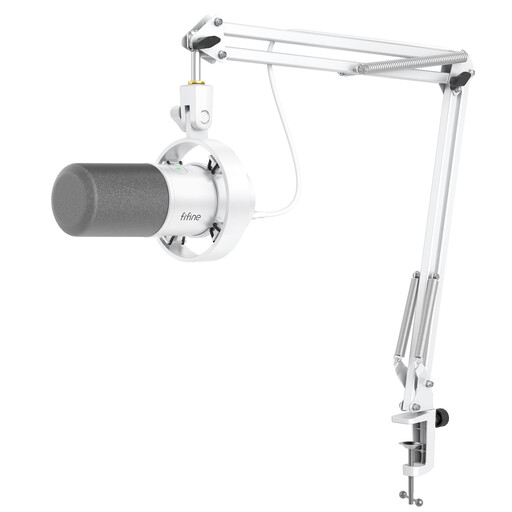 Image unavailable
FIFINE K688CTW White USB/XLR microphone kit with boom arm
Consider this kit if you want to position a microphone close to your voice while recording at a desk.
The product name identifies a dynamic microphone with USB and XLR connections, a boom arm and a headphone jack. Check that the arm’s clamp fits your desk and which controls you can use over XLR.
View on Joybuy
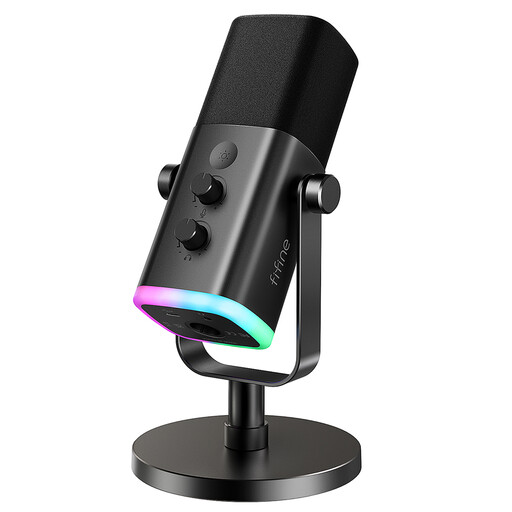 Image unavailable
FIFINE AM8 USB/XLR dynamic microphone with desktop stand
Consider this model if a desktop stand suits the position from which you will record your lessons.
The product name identifies USB and XLR connections, a headphone jack, mute button and RGB light. Check whether the stand reaches your intended speaking position and what cabling an XLR setup would require.
View on Joybuy
Frequently asked questions
Do I need an audio interface to record a language lesson?
No, not when you use a USB microphone with a compatible recording device. If you connect the Shure MV7+ to a computer over XLR instead, Shure says you need an analogue-to-digital audio interface.
Will a cardioid microphone remove background noise?
No. A cardioid pickup pattern focuses on sound from the intended direction but does not eliminate room reflections or household noise. Adjust your recording position and microphone distance; Shure’s recording guidance recommends close placement or isolation when unwanted pickup is a problem.
Why does headphone monitoring matter for lessons?
It lets you listen to your microphone signal while you speak. If you also play lesson material from your computer, check for a separate mic/computer mix control; Audio-Technica specifies one for the AT2020USB-X.
Can I record over USB now and switch to XLR later?
Yes, if the exact microphone has both connections. The Shure MV7+ offers USB-C and XLR, but Shure says computer recording over XLR needs an interface and does not use its USB processing effects.


