Audio-first solo learners
If you attend lessons alone at a PC, a headset provides speech input and private listening without requiring a new camera. Zoom accepts a headset microphone as an audio input.


For a group Zoom lesson on a PC, choose a wired USB headset if you want private listening and speech input in one device; choose a standalone USB microphone if you already have suitable headphones or speakers. Bluetooth is worth considering when movement matters, but Zoom warns that others may hear lower-quality microphone audio. Consider a webcam microphone when you also need video, or a speakerphone for hands-free or small shared use rather than private listening.
If you attend lessons alone at a PC, a headset provides speech input and private listening without requiring a new camera. Zoom accepts a headset microphone as an audio input.
If moving away from your desk or switching between compatible devices matters, a Bluetooth headset may appeal. Check its PC connection and microphone behaviour in Zoom before relying on it for lessons.
If you need to be seen as well as heard, a webcam with an integrated microphone combines those functions. On Windows, check that the conferencing app can access both the camera and microphone.
For a PC-based group Zoom lesson, start with how you want to listen and speak, then check the connection your PC needs. A camera is a separate decision if voice input is your main concern.
| Concern | What to check | Who this matters to |
|---|---|---|
| Private lesson audio | Check the headset’s USB connector and whether Zoom detects it as both speaker and microphone. Check Zoom’s supported USB device list if synchronised controls matter. | If I attend alone, I want to hear the lesson privately and speak through the same device. Around 36% of consumers put dependable personal audio first. |
| Cable-free movement | Check the PC’s Bluetooth capability, whether a USB receiver is supplied and whether Zoom shows the headset as both speaker and microphone. | Moving away from my desk matters more to me than having a wired connection, but I still need others to hear me. Around 22% of consumers prioritise cable-free use. |
| Separate voice input | Check the USB connection and whether you already have listening equipment. For one seated speaker, consider a front-focused pickup pattern where available. | I am content with my headphones or speakers and want to change only the microphone, not the camera. Around 21% of consumers make a separate voice input their priority. |
| Video and audio together | Check the webcam connector, PC compatibility and camera and microphone permissions. Assess its microphone separately from its video features. | I need a camera upgrade for lessons as well as a way to speak, so combining them is useful. Around 14% of consumers put that combined need first. |
| Hands-free or shared use | Check the speakerphone’s PC connection and stated microphone pickup range against where participants will sit. | Wearing a headset does not suit my desk setup, or someone nearby needs to join in. Around 7% of consumers prioritise hands-free or limited shared use. |
Zoom warns that other participants may hear lower-quality audio from a Bluetooth headset microphone. Meeting-button support also depends on the exact device and connection.
If speech input is your priority, compare a wired USB headset or a model supplied with a USB receiver. Test the chosen microphone in Zoom before the lesson.
Zoom accepts microphones independently of webcams, so a camera is not required merely to be heard.
Choose the audio setup first: a headset for private two-way use, a standalone microphone if you have listening equipment, or a speakerphone when hands-free or small shared use matters.
Logitech describes the Yeti Nano’s omni mode as capturing sound from all around the microphone, while its cardioid mode focuses on sound in front. An all-around mode may capture more surrounding sound than a solo learner wants.
For one person seated at a desk, consider a front-focused mode where the microphone offers one; choose an all-around mode deliberately for nearby shared speech.
A connected microphone may still need Windows microphone access enabled or the correct input selected in Zoom.
Connect the device beforehand, allow the permissions it needs, select it in Zoom and listen back to a microphone test.
Its relevant ranges include headsets, USB microphones and webcams for PC calls.
Relevant for USB headsets and personal speakerphones when Zoom meeting controls matter.
Its ADAPT range includes wired and wireless headsets for calls.
Its Sync speakerphones are relevant when a personal or small shared hands-free setup suits the lesson.
These options cover a standalone desk microphone, two wired headsets with different connection checks, and a wired speakerphone for hands-free use. Choose according to the listening arrangement and PC connections you need for lessons.
 No image available
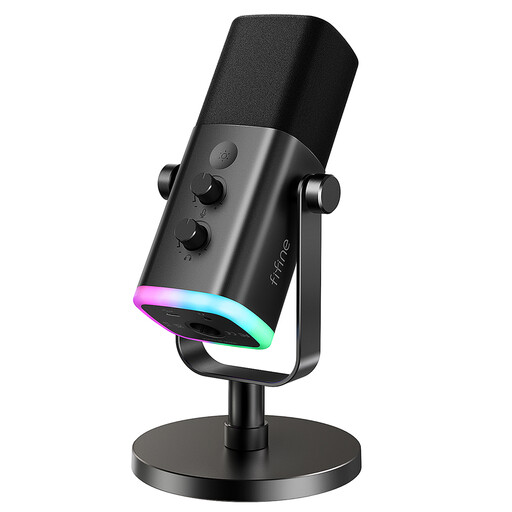
Consider this standalone microphone if you already have headphones or speakers and do not need a new camera. Its named features include USB/XLR connections, a mute button and a headphone jack; check the PC connection and select the microphone in Zoom before your lesson.
 No image available
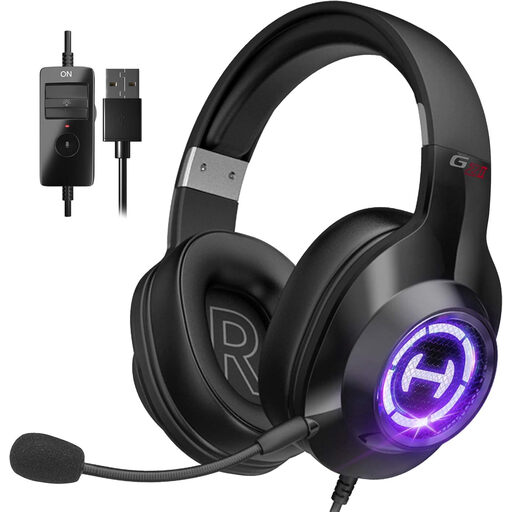
This headset combines personal listening and a microphone for a seated PC lesson. The product name specifies a wired USB connection and 50 mm drivers; check the available USB port and select the headset for both input and output in Zoom. Its gaming audio features do not establish microphone clarity for your room.
 No image available
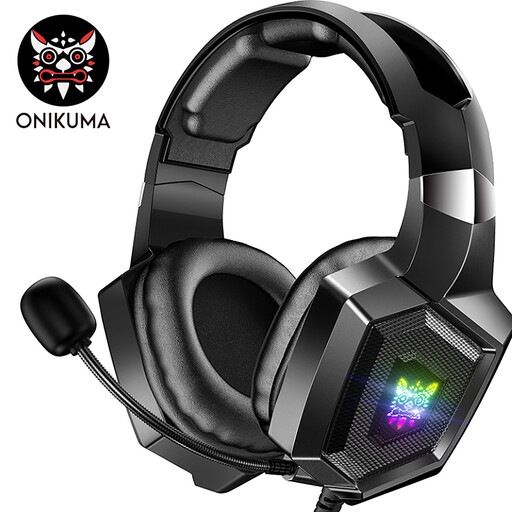
This wired headset is another way to keep listening and speech input in one device. Its name specifies a flexible microphone and RGB light; before buying, check whether your PC needs separate headphone and microphone jacks or an adapter. Do not assume its USB connection carries audio.
 No image available
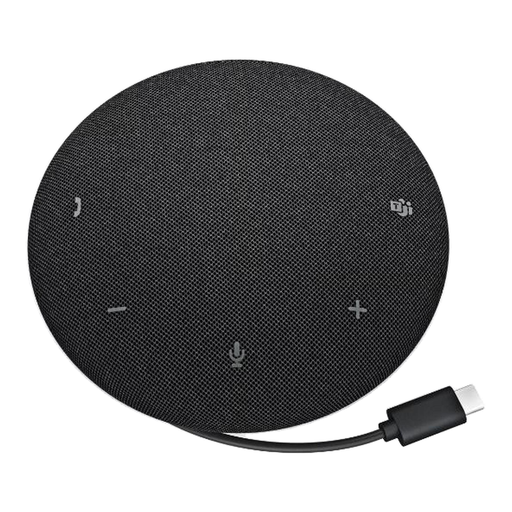
Consider this wired speakerphone if hands-free participation or limited shared listening matters more than privacy. Check that your PC has the required USB-C connection, that its stated pickup range suits where people will sit, and that Zoom selects it as the audio device.
No. Zoom accepts built-in, USB and Bluetooth microphones separately from a webcam. Consider a webcam if you also need to change your video setup.
It can suit lessons when cable-free use matters, but Zoom warns that other participants may experience lower microphone quality. If synchronised call controls matter, check the exact headset and Zoom’s platform requirements; Zoom says native Bluetooth call controls are not currently supported in Zoom Workplace for macOS.
Use Zoom’s speaker and microphone tests before joining, or open its audio settings and listen back to a microphone recording. If the wrong device responds, select the intended input and test again.
Check Windows microphone access for apps and desktop apps, then select the intended input in Windows sound settings and Zoom. A connected USB microphone or headset still needs the appropriate access and input selection.
Check its connector and PC compatibility, then ensure Windows permits camera and microphone access for the conferencing app. If a physical privacy shutter matters to you, check whether the particular webcam has one.