For one learner seated close to a desk, a USB microphone is a practical choice; for someone sitting farther from the PC or occasionally sharing a call, consider a speakerphone whose stated pickup range suits the seating position. If TV or external-speaker audio continues to cause echo, a headset keeps playback out of the room. Whichever route you choose, check that the microphone connects to the PC running the lesson and test it with the intended speakers and seating arrangement.
Who each setup suits
Desk-based solo learners
If you sit near the PC and can keep a microphone in front of you, a desktop USB model lets you speak without wearing a headset. Logitech G describes its Yeti Nano cardioid mode as capturing sound in front of the microphone; placement still matters.
Hands-free large-screen users
If you sit back from the screen or sometimes share a lesson, compare speakerphones by their stated pickup range and connection to the PC. HP Support specifies a range of up to 2 m for the Poly Sync 20, a model-specific figure rather than a promise for every room.
Callers dealing with echo or household noise
If room-speaker playback makes hands-free calls unreliable, a headset keeps its microphone near your mouth and its speakers off the TV or soundbar. Zoom Support identifies loud speakers and audio from multiple nearby devices as possible echo sources.
What matters when choosing
Start with where you will sit and how you will hear the lesson: a nearby desktop microphone, a speakerphone for hands-free seating, and a headset for persistent room-audio problems solve different needs. Consider a wireless microphone only if movement matters and its PC connection is suitable; a webcam microphone is worth considering when the camera will be close enough to the speaker.
| Concern | What to check | Who this matters to |
|---|
| Echo from room speakers |
Test the intended TV or soundbar volume and avoid joining meeting audio on multiple nearby devices. |
If I want to hear the lesson through the TV, I need my voice to reach the call without its sound coming back as echo. Around 36% of consumers put echo control first. |
| Seating distance and pickup |
Compare chair-to-device distance with the model’s stated range; choose a pickup pattern for one speaker or voices around the device. |
Sitting back from the screen makes being heard from the chair more important than how the microphone looks on the desk; for around 29% of consumers, placement and range are the primary concern. |
| PC connection |
Confirm the required USB connection or Bluetooth pairing, then select and test the microphone as the PC’s input. |
I need the lesson app on my PC to use the microphone, not merely to show its picture on the TV. A dependable connection comes first for around 21% of consumers. |
| Comfort without a headset |
Decide whether an unworn microphone suits the user, then test it with the actual speakers and room layout. |
For a long lesson, I would rather keep my ears free, provided the caller can still hear me clearly; around 14% of consumers prioritise that hands-free comfort. |
Setup mistakes to avoid
-
Adding a microphone beside a loud TV or soundbar
A new microphone alone may not fix echo. Zoom Support identifies loud TV or soundbar playback, nearby audio devices and failed echo cancellation among possible causes.
Test the full setup at the intended seat and lesson volume. If echo persists after adjusting room playback, consider a headset.
-
Assuming the TV connection supplies the PC’s microphone input
The lesson app needs access to a microphone through the PC. A device connected to the display is not necessarily available as the PC’s recording input.
Check the required connector, receiver or Bluetooth connection before buying. After setup, select the device under Windows Sound input and test it.
-
Treating a pickup range as a room-wide guarantee
Pickup claims apply to particular models and do not settle how a microphone will work at every seat. HP Support states up to 2 m for Poly Sync 20, while Logitech G describes different sound-source arrangements for Yeti Nano’s cardioid and omni modes.
Compare the stated range or pattern with where people will actually sit, then test at that position.
-
Choosing Bluetooth without planning the setup
A paired device still needs to be selected as the recording input on the PC. Connection method also varies by model.
If Bluetooth is needed, pair the exact device with the intended PC and test it in the lesson app before the first class.
Charging and reconnecting the device may also need attention between lessons.
Relevant brands to consider
Poly
The Sync speakerphone range is relevant when a PC lesson needs a combined microphone and speaker rather than a headset.
- HP Support lists full-duplex audio, noise and echo reduction, and microphone pickup up to 2 m for the Sync 20.
- Those specifications are specific to the Sync 20; compare its connection and stated range with the exact PC and seat.
AnkerWork
The PowerConf S3 is a speakerphone option for hands-free calls using a computer connection.
- AnkerWork lists Bluetooth and USB-C connection options and describes a six-microphone, 360-degree pickup arrangement for this model.
- Its voice-processing and pickup descriptions are manufacturer claims, not a guarantee that it will suit a particular seating distance or room.
Logitech G
The Yeti Nano represents the desktop USB-microphone route for someone who can sit near the microphone.
- Logitech G describes cardioid pickup for sound in front of the microphone and omni pickup for sound around it.
- A desktop microphone does not, by itself, resolve echo from loud TV or soundbar playback.
Joybuy product choices
These choices cover hands-free speakerphones and a close-positioned desktop microphone for PC lessons. Match the connection and microphone position to your setup, and test room-speaker audio before relying on any hands-free arrangement.
 No image available
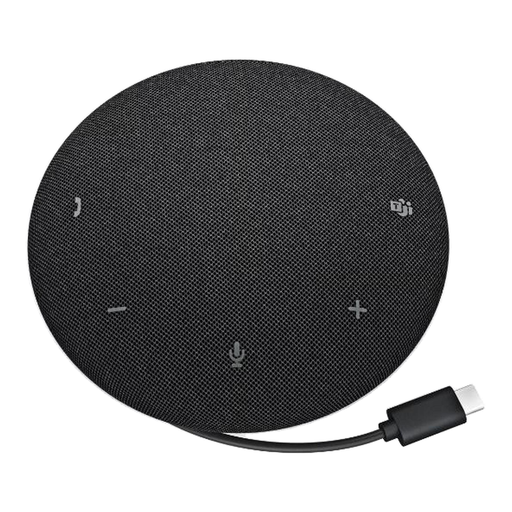
DELL Pro Wired Speakerphone SP325
Consider this wired speakerphone for hands-free lessons if its connection suits your PC. Check the intended seating distance and test for echo with your TV or external speakers.
View on Joybuy
 No image available
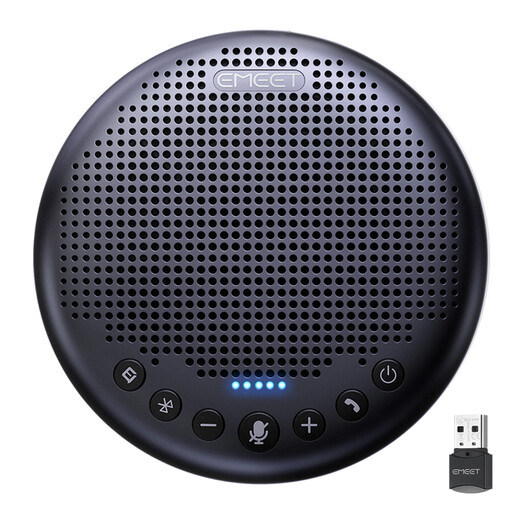
EMEET LunaPlus 8-Mic Bluetooth Conference Speaker
Consider this speakerphone when hands-free or shared calls matter, provided its connection and usable pickup distance suit the PC and seats. The product title specifies eight microphones, 360° pickup and a 5 W speaker; test it unobstructed in the intended room rather than treating those figures as a call-quality guarantee.
View on Joybuy
 No image available
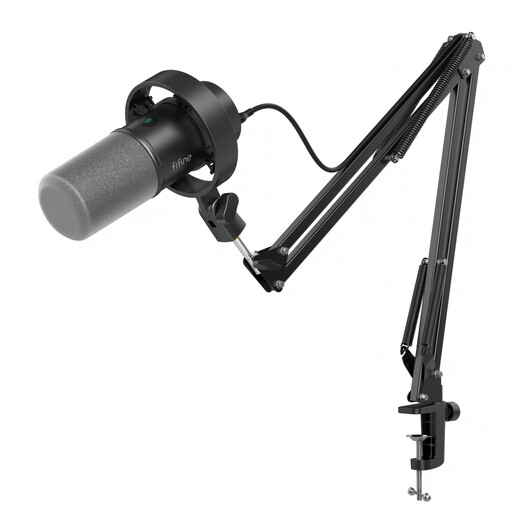
FIFINE K688CT USB/XLR Microphone Kit with Boom Arm
Consider this kit for one learner who can keep a desk microphone close while speaking. Its title specifies USB/XLR connections, a boom arm, mute button, headphone jack and gain knob; a separate microphone still needs an echo check when lesson sound plays through room speakers.
View on Joybuy
Questions about large-screen lessons
Do I need a headset if lessons play through a TV or soundbar?
Not necessarily: a hands-free microphone or speakerphone may suit the seating arrangement if the room audio works without echo. If echo continues after reducing speaker volume and checking for multiple nearby devices joined to meeting audio, a headset is the more dependable route; Zoom Support identifies those speaker and device arrangements as possible echo sources.
Will a microphone plugged into my TV work in a PC lesson app?
Do not assume it will: the microphone must be available to the PC running the app, not just connected to the screen. Connect or pair it with the PC as the product requires, then select and test it under Windows Sound input, as described by Microsoft Support.
How should I test a microphone before an online lesson?
Select the intended device as the PC’s microphone input and run a microphone test before the lesson. Then try the lesson app with the same seat, display and speaker volume you plan to use, so you can check whether others hear your voice and whether room playback causes echo.


