Who is this for?

First-time Linux desktop learners

If you plan to install Ubuntu, follow tutorials and practise terminal commands, an AMD64/x86-64 machine matches Canonical’s conventional 64-bit PC desktop image. Check Linux support for the exact mini PC before choosing it.

Learners planning virtual machines and coding projects

If your work will include virtual machines, containers, editors or local services, pay particular attention to memory, SSD capacity and upgrade access. Lenovo’s Linux buying guidance distinguishes these heavier workloads from general desktop use.

Standing-desk users arranging a multi-screen workstation

A compact PC can leave more room on the desk, provided it has connections for your displays and peripherals. The Health and Safety Executive’s workstation guidance also calls for attention to screen height, glare and input-device position.

What matters when choosing?

Check the installation route first, then match memory and storage to your planned projects and count the connections your desk setup needs.

Concern What to check Who this matters to
Linux compatibility Check the exact configuration against your intended distribution and installation image; look for model-specific support or a matching Ubuntu certification. I want to spend my first lessons learning Linux rather than resolving installation or hardware problems. Around 36% of consumers would put compatibility first.
Memory and storage headroom Compare supplied RAM and SSD capacity with your projects, and confirm whether either can be upgraded. Lenovo’s Linux guidance points to 16GB or more RAM for development, virtualisation and heavier multitasking. If I expect to keep virtual machines or development tools running, I need room for those workloads to grow; around 29% of consumers would prioritise that headroom.
Displays and desk connections Count the display and peripheral ports you will use, then check whether cables and controls remain accessible in the planned PC position. My standing desk has to accommodate the screens and devices I use without awkward connections. This would be the primary concern for around 21% of consumers.
Avoiding unnecessary capacity Match the processor, RAM and SSD configuration to introductory lessons before selecting capacity intended for larger projects. I am starting with terminal practice and light coding, so I do not need to choose for workloads I have no plans to run; around 14% of consumers would make that their main consideration.

Buying pitfalls

  • Using an installer minimum as a workstation target

    Canonical states that its cited Ubuntu image needs at least 1024MiB of RAM to install. An installation minimum does not tell you how much memory your lessons, applications or virtual machines will need.

    Choose memory and storage for the work you intend to run, particularly if you plan to add virtual machines or development tools.

  • Expecting a small PC to fix the whole desk setup

    Moving the computer off the work surface does not set the right screen height or resolve glare and keyboard positioning. The Health and Safety Executive advises adjusting the workstation as a whole.

    Plan the monitor and input-device positions before deciding where the mini PC will sit, and make sure its ports and power control remain accessible.

  • Applying a Linux claim to every variant

    Components and configurations can differ within a product family. A brand’s general compatibility statement is not the same as support or Ubuntu certification for the configuration you choose.

    Check the precise model and your intended distribution, including the wireless, audio, sleep and display functions you expect to use.

  • Overlooking the rest of the workstation

    A mini PC may not come with the monitor, keyboard or mouse needed for desktop lessons; Lenovo’s ThinkCentre Neo 50q Gen 4 listing, for example, identifies the monitor and keyboard as separate items.

    Check what is included and whether the display inputs, cables and peripheral connections suit your desk.

    A monitor stand or arm, mounting hardware and suitable cables may also be needed for your chosen arrangement.

Brands to consider

GEEKOM

Its mini-PC range includes compact configurations relevant to both introductory Linux lessons and larger projects.

  • GEEKOM states Linux compatibility and lists dual-display connections and six USB ports for the Mini Air12 Lite.
  • Check the selected model and variant rather than applying a product-family Linux claim to every configuration.

ASUS NUC

Compact NUC systems are worth considering when access for future changes matters to your projects.

  • ASUS describes tool-less access for the NUC 14 Pro chassis.
  • That chassis feature does not establish Ubuntu support for every NUC 14 Pro configuration; check the exact components and model.

Lenovo ThinkCentre

The Tiny desktop line offers a compact, conventional desktop format for learners considering a business-oriented system.

  • Lenovo describes tool-free drive swapping for the ThinkCentre Neo 50q Gen 4.
  • Check Linux support for the particular configuration and confirm which workstation accessories are included.

Dell

Dell’s commercial desktop range includes Micro options and selected configurations offered with Ubuntu Linux.

  • Dell’s UK desktop catalogue allows Ubuntu Linux configurations to be identified.
  • Confirm the operating-system choice and hardware configuration on the particular Micro desktop you are considering.

Joybuy products for Linux-based learning

This AI-oriented desktop is relevant if you specifically want to learn in its NVIDIA DGX OS environment. Check your intended distribution and installation image before treating it as a conventional Ubuntu desktop learning PC.
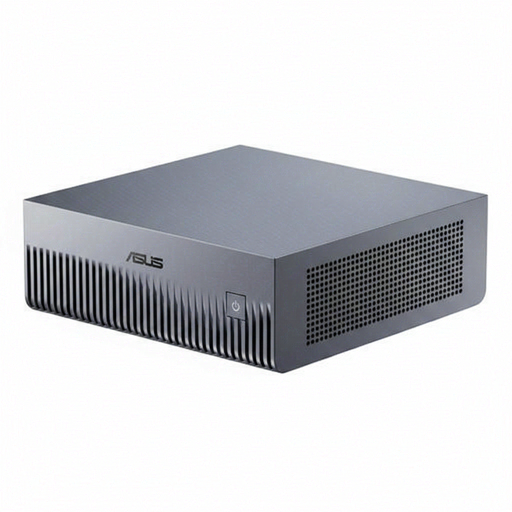
ASUS Ascent GX10 1TB desktop with NVIDIA GB10 Grace Blackwell

ASUS Ascent GX10 1TB, NVIDIA GB10 Grace Blackwell, 128GB unified memory

Consider this system if your learning specifically involves its NVIDIA DGX OS Linux environment and AI-focused workflows.

The listed configuration has 128GB unified memory and a 1TB NVMe SSD. Before choosing it for general Linux lessons, confirm that your intended distribution and installation image work with this exact system, and check its expansion options if your projects may change.

View on Joybuy

Frequently asked questions

Should I choose ARM or AMD64/x86-64 for learning Linux?

Choose AMD64/x86-64 if you want to use Canonical’s conventional 64-bit PC Ubuntu desktop image. An ARM mini PC may offer a different Linux route, but you need to check the installation image, software and peripheral support for its exact model.

Is 8GB of RAM enough to start learning Linux?

8GB can suit introductory desktop use and light coding, but assess it against the applications you will run together. Lenovo’s Linux buying guidance points to 16GB or more for development, virtualisation and heavier multitasking; that is workload guidance, not a guarantee for every project.

Does a Linux compatibility claim mean every feature will work?

No: check the exact configuration and your planned distribution, including Wi-Fi, Bluetooth, audio, sleep and monitor output. If you are relying on Ubuntu certification, compare the particular configuration with Canonical’s certified-desktop listings rather than assuming certification applies to a whole product family.

How should I arrange the monitor at a standing desk?

Adjust the display and input devices as part of the whole workstation, not according to where the mini PC fits. The Health and Safety Executive advises placing your eyes at approximately the height of the screen’s top edge, keeping forearms approximately horizontal and arranging the screen to avoid glare.